Billing & plans
Huntbase billing is managed inside Settings. You have a personal billing page for your own account, and every organization you administer has its own billing page. Payments, invoices and payment methods are handled by Stripe; Huntbase never stores card details.
Billing pages are currently rolling out and may not be visible for your account or organization yet. Until then, your account keeps the plan it's on now; see the plans below.
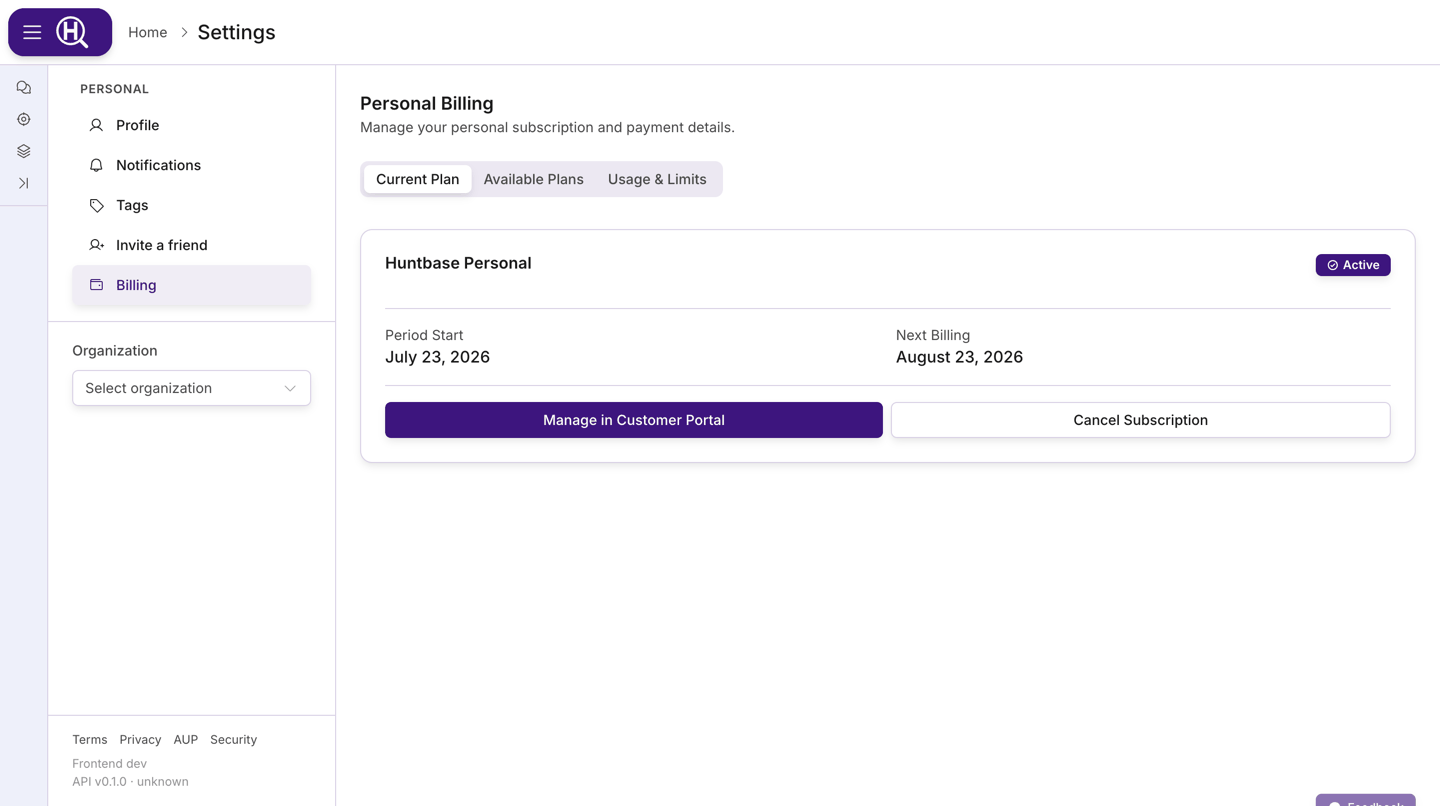
Where billing lives
| Scope | Path | Who can see it |
|---|---|---|
| Personal | Settings › Personal › Billing | You |
| Organization | Settings › [Organization] › Billing | Organization owners and admins |
Pick the organization in Settings for at the top of the Settings sidebar. Each organization has its own subscription, and switching organizations there switches the billing page you are looking at. Your personal subscription, if you have one, is separate from any organization's.
The billing page
The page opens with any status alerts, then three tabs:
| Tab | What it shows |
|---|---|
| Current Plan | Your active subscription: plan name, status badge, renewal or cancellation date, and the actions Manage in Customer Portal and Cancel Subscription. Disabled until you have a subscription. |
| Available Plans | The plans you can choose from, one card per plan, with a Select Plan button (or Current Plan on the one you're on). |
| Usage & Limits | Your resource usage for the current period and the features your plan entitles you to. |
Alerts you may see above the tabs:
- Payment Required — a payment failed or is outstanding. Use Manage in Customer Portal to fix the payment method.
- Trial Period Active — you are on a trial; the alert shows the end date and reminds you to add a payment method.
Plans
Plans are defined by Huntbase and shown on the Available Plans tab. Plans belong to organizations: your personal workspace has no plan features, so a paid feature there says it needs an organisation and offers Create organisation.
| Plan | What it's for |
|---|---|
| Sandbox | Explore Huntbase on sample and test data. New sign-ups start here. |
| Essentials | Hunt on your own production data with automation. |
| Professional | Endpoint response, operator mode, audit log and your own data lake. |
| Enterprise | Custom connectors, detection rollout and higher allowances. |
| Service provider | Everything in Enterprise, across the organisations you manage. |
Each plan includes everything in the plan before it. Some features to look for:
| Feature | Included from |
|---|---|
| Compliance | Essentials |
| Scout for Claude | Essentials |
| Playbook watchers and other automation | Essentials |
| Personal API keys | Essentials |
| Knowledge | Professional |
| Teams, custom roles and the access log | Professional |
| Service API keys | Professional |
| Inbound webhooks | Professional |
| Live response | Professional |
| Actions and runs and other response actions | Professional |
| Scout on endpoints | Professional |
Every feature stays visible on every plan. Where your plan doesn't include one, the app names the plan that does: organisation admins get Request upgrade and See plans, and other members are asked to talk to an admin. Optional content packs can each depend on a plan.
Prices and allowances are shown live on the billing page. This documentation doesn't repeat them because they can change; the page is the source of truth.
Choosing or changing a plan
- Open the Available Plans tab.
- Click Select Plan on the plan you want.
- What happens next depends on the plan:
- A plan that doesn't need payment details — it is applied immediately.
- Paid plan, no current paid subscription — you are sent to a Stripe Checkout page. Enter your payment details there; when you finish you return to Huntbase and your plan updates.
- Paid plan while already on a paid subscription — the subscription is switched in place; no new checkout is needed.
Payment methods and invoices
Click Manage in Customer Portal on the Current Plan tab. This opens Stripe's hosted customer portal, where you can:
- add, replace or remove payment methods
- download past invoices and receipts
- update billing details such as the invoice email address
Changes you make in the portal are reflected in Huntbase on your next visit to the billing page.
Subscription status
The status badge on the Current Plan tab tells you where the subscription stands:
| Badge | Meaning |
|---|---|
| Active | The subscription is current. |
| Trial | You are in a trial period; see the trial alert for the end date. |
| Past Due | A payment failed. Update the payment method in the customer portal. |
| Canceled | The subscription has been cancelled. |
| Cancels at period end | You have cancelled, but keep access until the current billing period ends. |
Cancelling a subscription
- On the Current Plan tab, click Cancel Subscription.
- Choose when to cancel:
- At the end of the billing period — you keep the plan until the period ends.
- Immediately — the subscription ends now.
- Optionally tell us why and leave feedback, then confirm.
You can select a plan again at any time from Available Plans.
Usage
The Usage & Limits tab (also available as a separate Usage page, opened from Billing, where enabled) shows two sections:
- Resource Usage — how much of each metered resource you have used in the current period, against your plan's limit.
- Feature Entitlements — which features your plan includes.
Use it to check headroom before, for example, adding more connections or team members.
Subscription required
If your account has no active plan at all, Huntbase shows a Subscription required screen with the available plans instead of the app. Choose a plan to continue. Plans that don't need payment details apply instantly.
Next steps
- Organization management — members, roles and organization settings
- Settings overview — how the Settings area is organised
- Connections — connect the data sources your plan allows