Notifications
Huntbase notifies you when work finishes, when something needs your attention, and when activity happens in your organizations. Notifications arrive live while you are signed in, and you control which channels and categories you receive from Settings › Personal › Notifications.
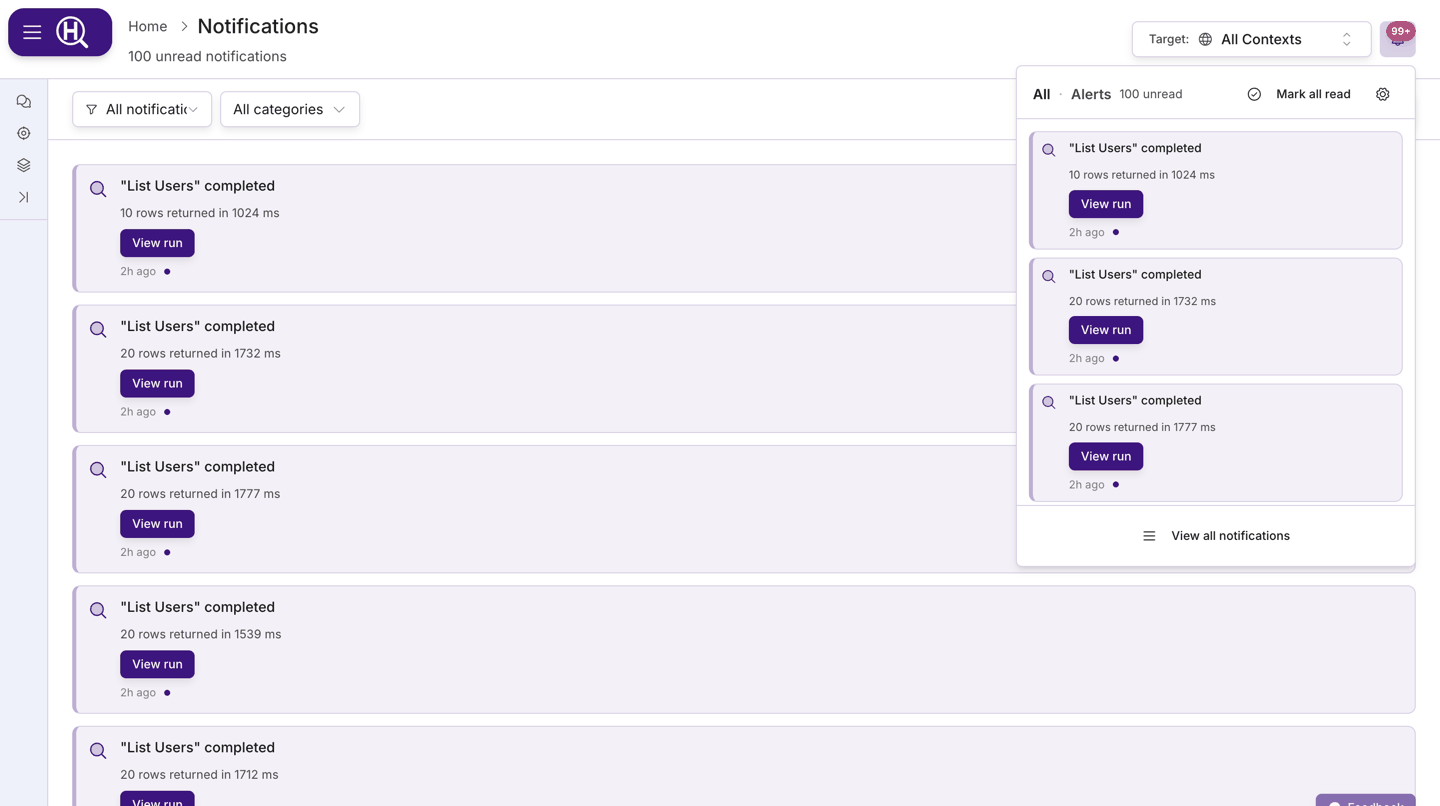
The bell and dropdown
The bell in the page header shows a badge with your unread count. Click it to open the dropdown:
- All lists your most recent notifications; Alerts narrows to hunt alerts. When you are working inside a hunt, an extra This hunt tab shows only events for that hunt.
- Inbox lists your latest Inbox messages, with Open inbox → to see them all. Inbox messages don't count towards the bell's badge.
- Click a notification to open what it refers to (a hunt, a query, an export, an invitation) — it is marked read at the same time. Hover a row for Mark as read and Archive.
- Mark all read clears the unread badge for the current view.
- The gear icon opens your notification preferences; View all notifications opens the full page.
New notifications also appear briefly as a toast in the corner of the screen as they arrive.
Live updates
Notifications stream to the app while you are signed in — you do not need to refresh. If your connection drops, Huntbase reconnects and fetches anything you missed in the meantime, so the badge count and list stay accurate.
Working through a long hunt? Keep the bell dropdown on This hunt to see only that hunt's checkpoints, findings, and completion without the rest of your feed.
The Notifications page
Open the full list from View all notifications in the dropdown.
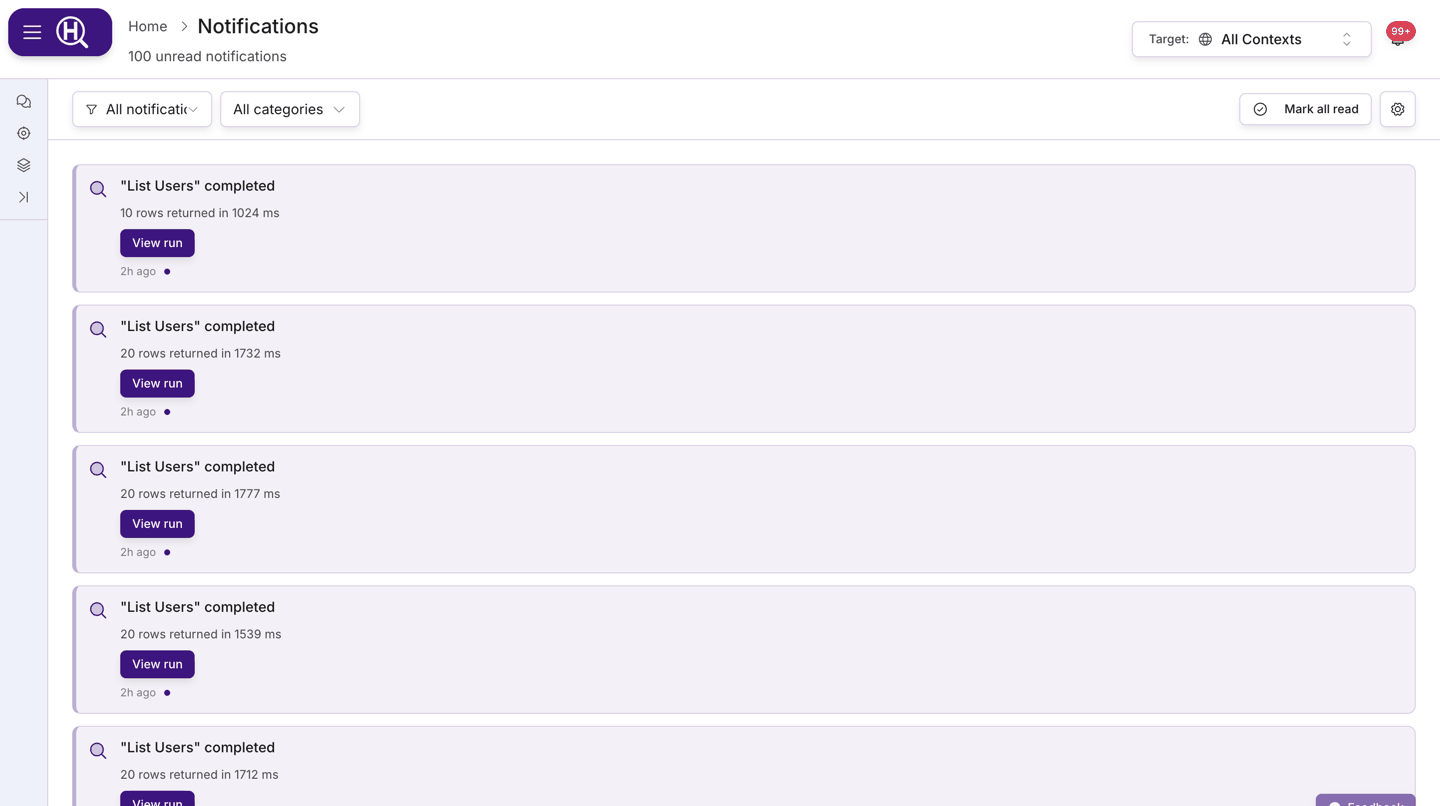
| Control | Options |
|---|---|
| Filter | All notifications, Unread only |
| Category | All categories, Account, Security, Tasks, Agents |
| Mark all read | Shown when you have unread notifications |
| Gear icon | Opens Settings › Personal › Notifications |
Each row offers the same Mark as read and Archive actions as the dropdown, plus a primary action where one exists (for example opening a completed hunt or an export). Archived notifications leave the list.
What triggers a notification
The exact set grows over time, but notifications currently cover:
| Category | Examples |
|---|---|
| Account & Organization | Organization invitations, invitations accepted, members joining or leaving, mentions, task assignments |
| Security | Sign-in from a new device, password changed, two-factor authentication disabled |
| Tasks & Queries | Query completed / failed / cancelled, task completed / failed |
| Agents | Agent progress, completed, failed, or waiting for your input |
| Hunt Alerts | Hunt generating / ready / failed, and watcher events — a watcher started a hunt, raised a finding, applied a tag, or added to the daily digest, and a detection rule quarantined for firing too often |
| Exports | Export ready or failed — the notification links to the pickup page |
Connection tests, exports, and watcher findings are the ones most people notice first: they let you start something, move on, and come back when it is done.
Notification preferences
Open Settings › Personal › Notifications (or the gear icon from the bell). The page has two parts.
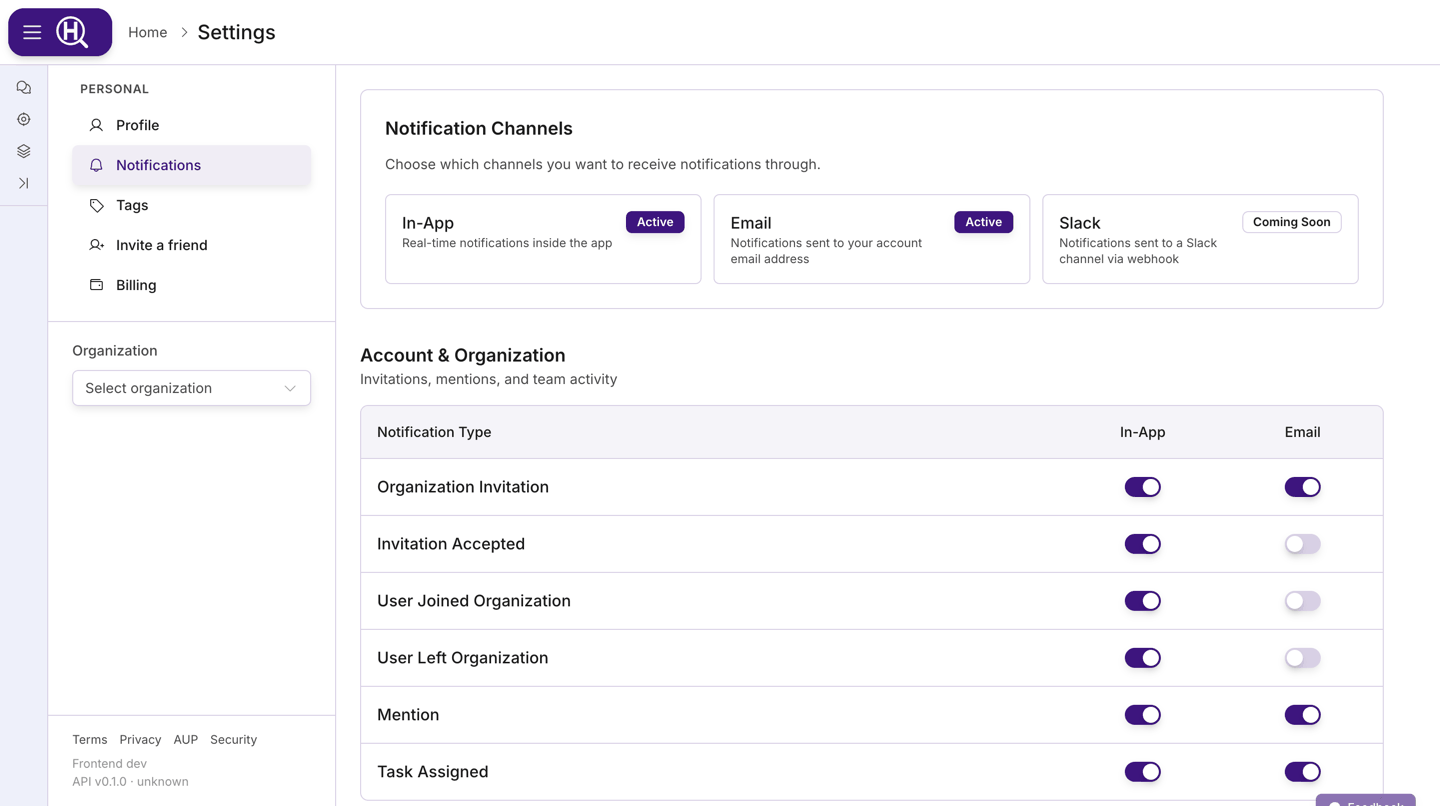
Notification Channels
Each available channel is shown as a card with its status:
| Badge | Meaning |
|---|---|
| Active | The channel is set up and can deliver to you. |
| Not Set Up | The channel needs to be connected first — click Connect [channel] on the card. |
| Coming Soon | The channel is planned but not yet available. |
Channels currently include in-app notifications and email, with additional channels shown as they become available for your account.
Preferences by category
Below the channels, one table per category — Account & Organization, Security, Tasks & Queries, Agents, Hunt Alerts, Inbox — lists each notification type as a row and each channel as a column. Toggle a cell to receive (or stop receiving) that type on that channel.
- A cell marked Required cannot be turned off; Huntbase always delivers that type on that channel (for example security events in-app).
- A cell marked Not Set Up is disabled until you connect the channel above.
- N/A means the type is not offered on that channel.
Changes are held until you click Save Changes in the footer that appears (Cancel discards them).
Next steps
- Watchers — standing rules that raise findings and start hunts
- Personal settings — profile and sign-in security
- Hunts — what "hunt ready" notifications point to
- Activity Feed — everything that happened, in one place
- Inbox — messages from Scout and Huntbase, with actions you can take from them