Teams
A team is a named group of people in one organization, such as Incident response or Help desk. Share an Action, script, connection or endpoint tag with the team once, and everyone on it gets that access. People who join the team later get it too; people who leave lose it.
Teams are optional. Without them, access comes from each person's role and from what is shared with them directly.
This feature is currently rolling out and may not be enabled for your organization. See Access control overview.
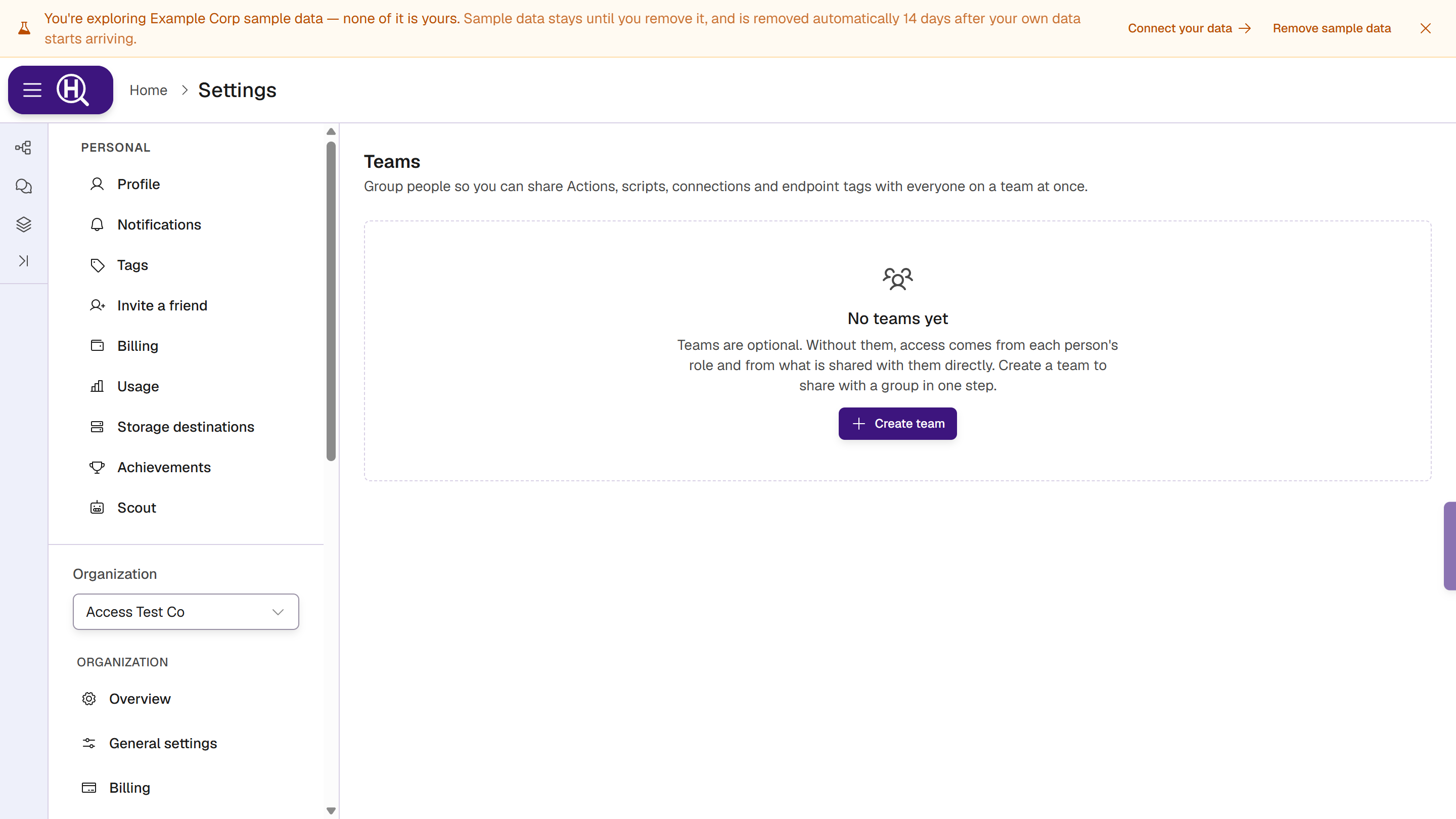
Open Teams
Go to Settings › [Organization] › Teams, under People & access. Everyone in the organization can see the list. Each team shows how many members it has, who manages it and its description. Click a team to open it.
Who can do what
| To | Who |
|---|---|
| See teams and their members | Everyone in the organization |
| Create, rename or delete a team | Organization admins and owners |
| Add or remove members, make someone a manager | Organization admins and owners, and the team's managers |
| See what is shared with a team | The team's members, and organization admins and owners |
A team manager can add people only while the team holds nothing sensitive. Once the team has Manage on something, any special ability (Approve, Publish, Respond), or any team access across the org, adding or promoting members needs someone who manages members (an org admin when that access is sensitive), because adding someone would hand them that power. Managers can always remove members.
Members who aren't admins see Org admins can create teams. on an empty Teams page, and Only org admins and this team's managers can change its members. on a team they can't change.
Create a team
- Click Create team.
- Enter a Name (for example Incident response) and, optionally, a Description.
- Click Create team. The new team opens, ready for members.
Team names are unique in an organization. If the name is taken, the dialog says A team with that name already exists.
To rename a team or change its description, open it and click Edit.
Add members and managers
- Open the team.
- Under Members, click Add a member and pick someone. Only members of the organization are listed.
- To make someone a manager, turn on Manager on their row. Managers can add and remove the team's members.
- To remove someone, click × on their row.
Changes save straight away. When someone is removed from the organization, they are removed from its teams too.
Share with a team
Teams are given access from the item, not from the team page. Open the item's Share panel, search for the team under Add people or teams, choose a level and click Save.
Teams can hold access to:
- Actions
- scripts
- connections (while the connection isn't restricted)
- endpoint tags
Hunts and queries can't be shared with a team, and a restricted connection lists people only. On those items the Share panel offers people only.
The team's page lists everything shared with it under Shared with this team, with the level and abilities on each. If nothing is shared yet, it says so.
Team access across the org
Sharing gives a team access to one item at a time. Team access across the org gives everyone on the team a level on a whole area, everywhere in the organization, on top of their role, the same way a role does. For example, give an on-call team Endpoint tags: Use + Respond so its members can respond on every endpoint while they're on the team.
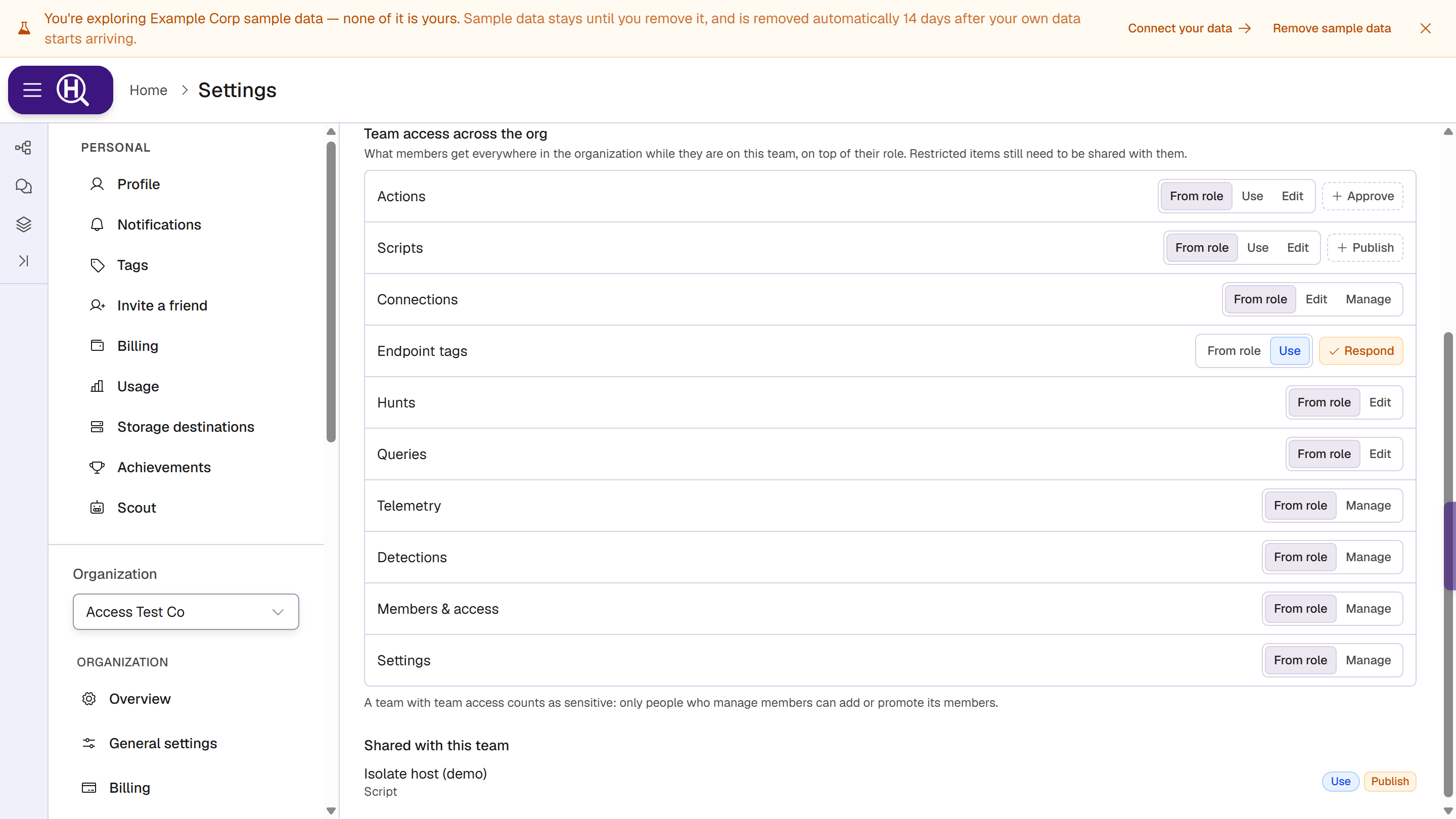
- Open the team and scroll to Team access across the org.
- For each capability, keep From role (members get what their role gives) or pick a higher level. Switch abilities on where needed.
- Click Save team access.
Restricted items still need to be shared with the team or the person. Only people who manage members can change team access; team managers can't. Giving Approve, Publish, or Manage on Members & access or Settings needs an org admin.
A team with team access counts as sensitive: only people who manage members can add or promote its members. A service API key that belongs to the team gets the team's access too, within the key's own levels.
Check what a team can do
Click Check access on the team's page. Access check opens with the team filled in; pick an item and a level to see whether the team has it.
Delete a team
Organization admins can click Delete on the team's page and confirm. Everything shared with the team stops being shared with its members. People keep the access they have through their role or direct grants.
When teams aren't available
| Message | What it means |
|---|---|
| Teams need the access service, which isn't running for this deployment. | Your Huntbase deployment doesn't support teams. You can still share with people. |
| Pick one organization to manage teams. | Teams belong to one organization. Open them from that organization's settings. |
| Only members of this organization can join a team. | The person you tried to add isn't in the organization. Invite them first. |
Next steps
- Sharing — share an item with the team
- Access check — confirm what the team can do
- Access log — see who changed a team