Explorer overview
Explorer is where you land when you open Huntbase and where most of your work happens. It has two parts: the dock on the left — a rail of views over your hunts, chats, queries, templates and Scout — and a tabbed workspace beside it, with a pinned Home tab (a launcher, suggested chats and a worklist) and one tab per chat, query, or hunt you have open. Nothing you open here is lost when you switch tabs — a running query keeps streaming and a half-typed chat message stays put.
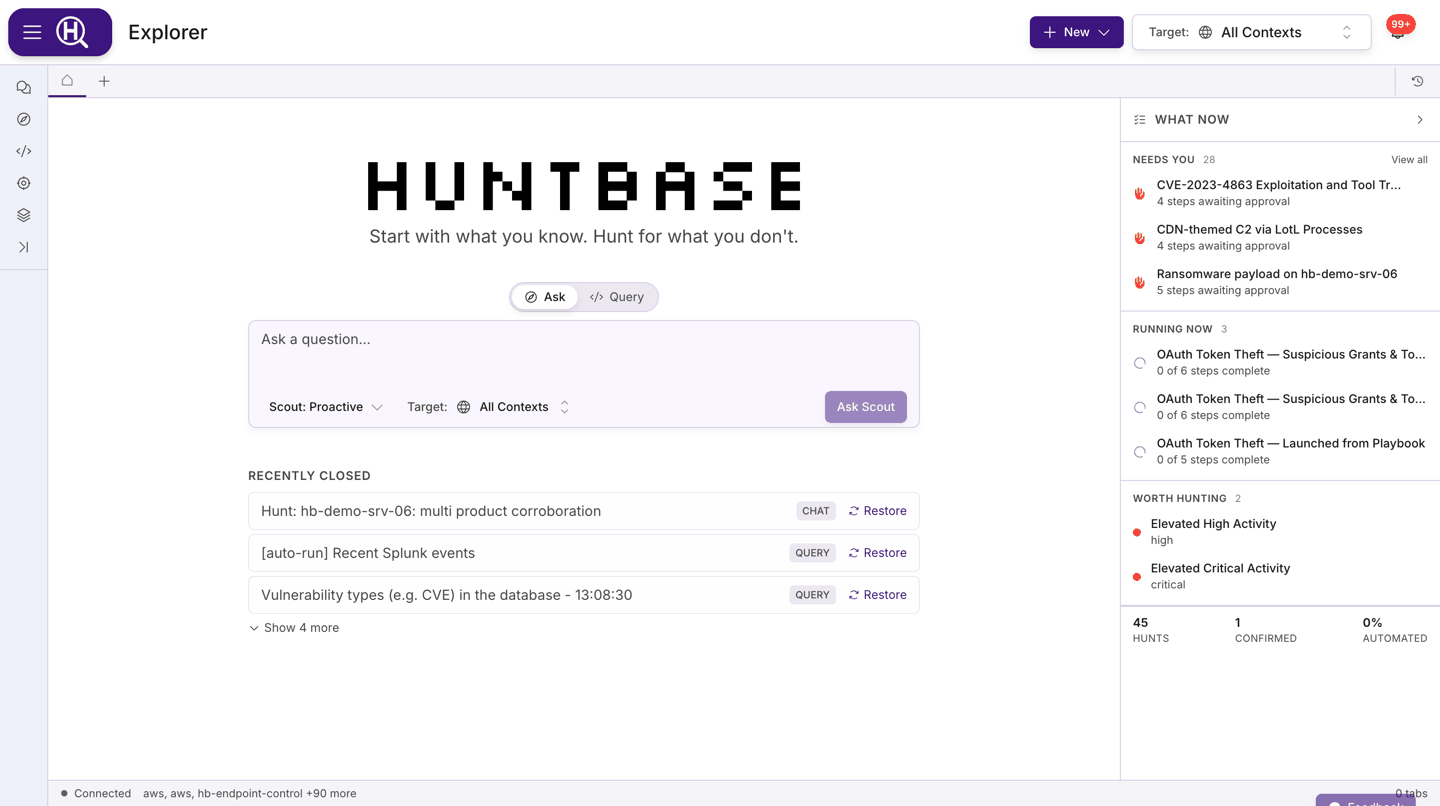
The dock
The dock is a rail of icons and one view at a time. Click an icon to show its view; click the active icon again, or Collapse dock panel, to fold the dock to the rail. Drag the dock's right edge to resize it. Badges on the rail carry what matters while it is collapsed: the number of things that need you across your hunts, and whether a query is running.
| View | What it shows |
|---|---|
| Workspace | A tree of folders. Hunts lists every hunt you can see, ordered by pinned first, then what needs you, then recency; the one you have open is highlighted with its state. Expand a hunt for its folder — Notebook, Flow, Results, Entities, Evidence, Report, Chats — each with a count. Stores lists your connections and Schedules links to the schedule pages. New hunt (+) sits in the header, and Find a hunt, host, IOC… filters the tree. |
| Chats | Your conversations, newest first. Inside a hunt the scope chips offer This hunt / All chats; elsewhere All / General. New chat starts a fresh one. See Chatting with Scout. |
| Queries | Inside a hunt, This hunt lists its query cells with what each found and a run control; Recent lists your recent queries anywhere. New query opens a blank query tab. |
| Library | Inside a hunt, Suggested for this hunt leads with templates ranked for it, each with Add to hunt; below that, the template list with search. Open the Library goes to the full page. See Query templates. |
| Scout | The docked conversation, full height, with Undock chat to a tab in its header. When the active tab is already a chat, the view says so rather than showing a second copy. |
Every list view ends with an Ask Scout strip: type a question and it opens a fresh chat with the current hunt attached. Hover a hunt in the tree for Open and Pin to top / Unpin; + N more shows the rest, and All hunts in the feed → goes to the Activity Feed. Expansion state and the last view you had open are remembered.
The home tab
The Home tab (the house icon at the left of the tab bar) greets you by name with a question, and holds the launcher, suggested chats, a short list of tabs to jump back into, and the What now rail.
The launcher
Under the greeting sits one input with an Ask / Query toggle above it. In Ask mode the placeholder cycles through example questions you can try.
| Mode | What it does |
|---|---|
| Ask | Type a question in plain language and press Enter or click Ask Scout. A new chat tab opens and Scout takes it from there. The initiative selector and Scope selector under the box apply to that chat. See Chatting with Scout. |
| Query | The full query editor: pick a language, choose connections, set a time window, expand to multi-line, and press Enter to run. Results open in a new query tab. Some languages need no connection — Cypher reads the entity graph, and KQL (Huntbase Lake) reads your data lake — so the picker says which source they use instead. On Auto, a query you type — SQL, SPL, KQL and so on — runs in its own language. For SQL, Auto picks the dialect from the tables the query names and the connections in scope. If you type plain English on Auto, Huntbase routes it to Scout instead. To look up an entity or a saved query, use the command palette. See Query workspace. |
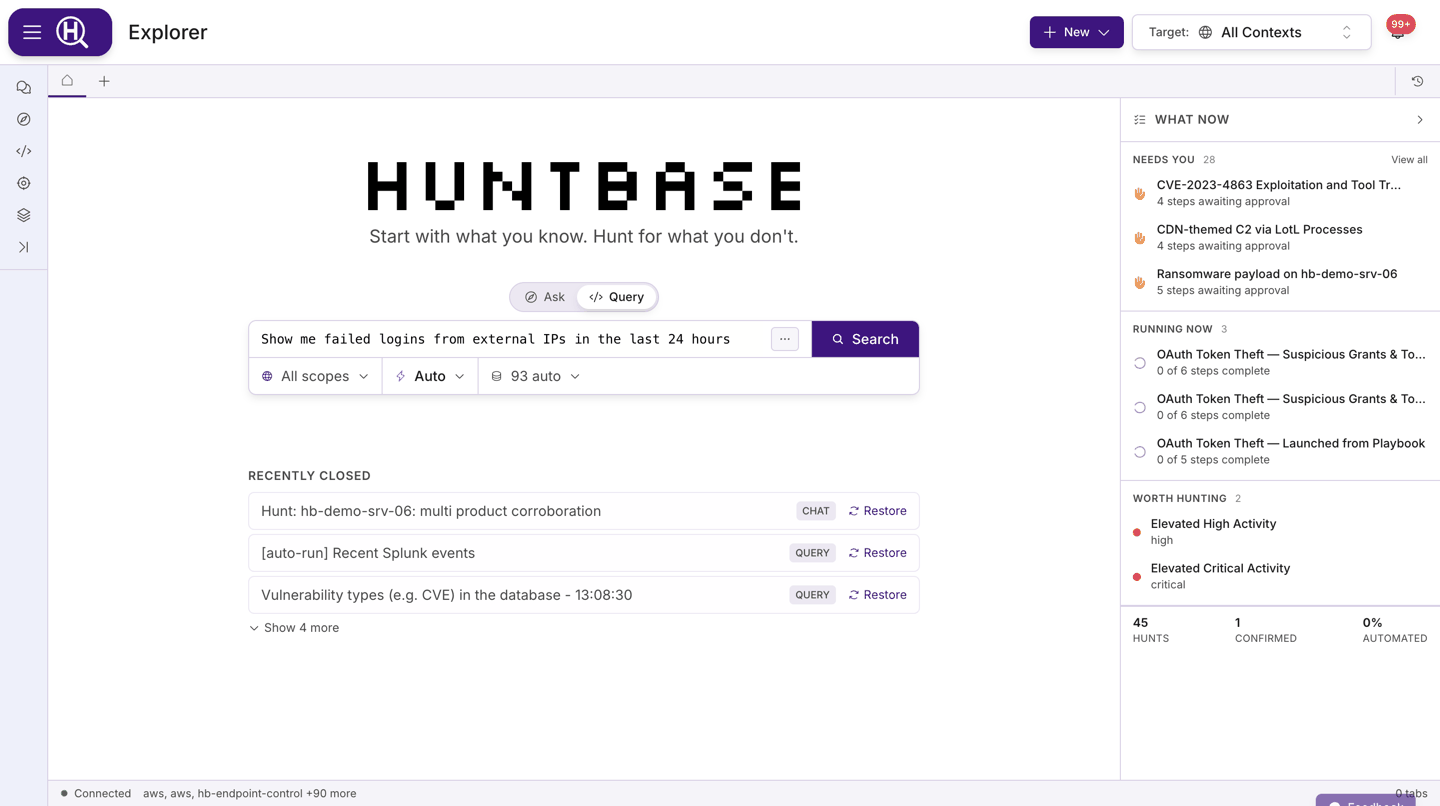
The new launcher is currently rolling out and may not be enabled for your organization.
With the new launcher, Home shows the same input as a new tab, with Auto, Chat, Query and Hunt above it in place of the Ask / Query toggle. What you submit from Home opens in a new tab of that shape. The rest of Home stays as described here.
Suggested chats
Below the launcher, Explore what Scout can do offers starter questions in four tabs: Triage, Investigate, Hunt and Learn. The cards match the sources connected in your current scope (a look-alike domain check appears once crt.sh is connected, for example), and the selection changes from day to day.
Clicking a card puts its question in the Ask box. Nothing is sent until you press Ask Scout, so you can edit the question or change the scope first. Learn walkthroughs drop off the list once you have used them.
Jump back in
At the bottom, Jump back in lists up to three tabs: the ones you have open, then recently closed ones. Click a row to switch to an open tab or restore a closed one. Closed tabs from another organization are not listed.
The What now rail
On wide screens a What now worklist sits at the right of the home tab (on narrower screens it becomes a collapsible block above the launcher). It shows only what needs a decision or is in flight:
| Section | Contents |
|---|---|
| Needs you | Hunts with steps awaiting your approval or with failed steps. Click a row to open the hunt. |
| Running now | Hunts currently executing. |
| Worth hunting | Suggested hunts based on recent activity. Start one directly or dismiss it. |
| Inbox | Up to three unread Inbox messages. View all opens the Inbox. |
| Footer | A three-number read on the last 30 days — Hunts, Confirmed, Automated — that opens Pulse. |
When nothing is pending you see Nothing needs you right now. View all on a section takes you to the Activity Feed filtered to hunts. Use the arrow at the top of the rail to collapse it to a strip. While it is collapsed, a line under the greeting tells you how many hunts need your approval or have errors, and how many new messages are in your inbox; click it to open the rail again, or click the messages to open the Inbox.
Open a new tab
This feature is currently rolling out and may not be enabled for your organization.
Click + at the end of the tab bar to open a New tab. It holds one input with four shapes above it: Auto, Chat, Query and Hunt. Type what you have, such as a question, a query, a value from an alert or a hypothesis. Then let Auto choose the shape, or pick one yourself. When you submit, the new tab turns into a chat, query, search or hunt tab in place.
The ▾ next to + still lists New chat, New query, Search telemetry and New hunt. Each one opens a new tab already set to that shape; Search telemetry opens Query on the Search language. New hunt creates nothing until you start it.
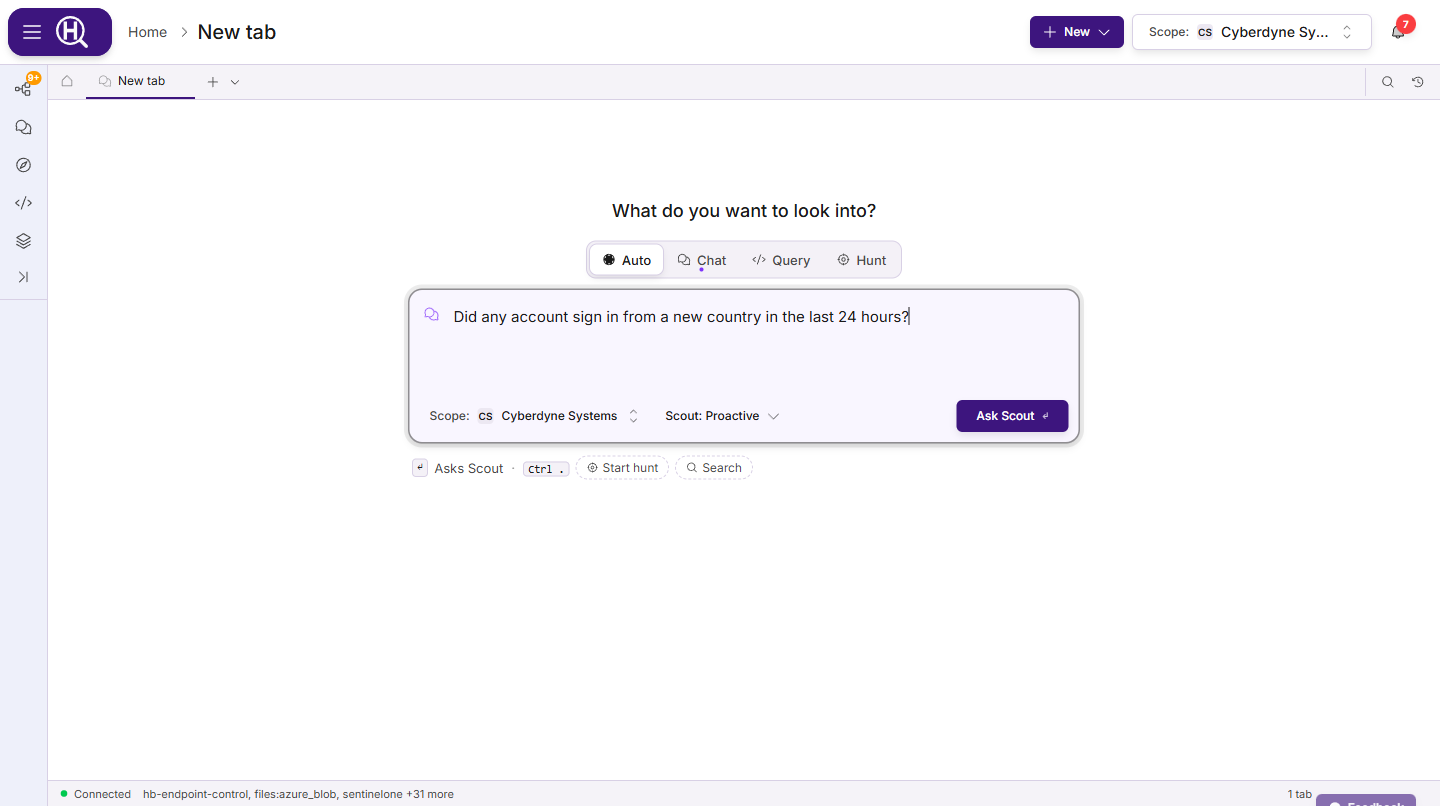
| Shape | What you type | What Enter does |
|---|---|---|
| Auto | Anything. | What the line under the input says. See How Auto decides. |
| Chat | A question for Scout, with @ mentions and the initiative selector. | Asks Scout in a new chat. |
| Query | A query, with the language, connections, time range and templates of a query tab. | Adds a line. ⌘/Ctrl+Enter runs the query. On the Auto language the input is one line: a query you type runs in the language it's written in, and plain language goes to Scout. |
| Query on Search (Huntbase Lake) | A search of your telemetry: values, field:value filters, sources, time range and Live tail. | Runs the search. See Search telemetry. |
| Hunt | What you suspect, with the Scout autonomy selector. | Starts a hunt that Scout plans from your hypothesis. With nothing typed, it starts an empty hunt. See Hunts. |
Switching shape keeps your text, and mentions stay as chips. When you have picked a shape and the text looks like another, the line under the input says so and offers Switch to …. It never switches for you. The same goes for a query on the Auto language that reads equally well in two languages your connections serve: the line names the one it will run as (for example Run as SQLite on 3 connections), adds This looks like valid osquery too., and offers to switch.
How Auto decides
The line under the input tells you what Enter will do before you press it. Auto picks one shape and lists the others as chips. Click a chip, or press Ctrl+. to cycle through them.
| If you type… | Auto… |
|---|---|
| A question, or anything else in plain language | Asks Scout in a new chat. |
One value, such as an IP, domain, hash, CVE or host, a single word, or field:value filters | Searches your telemetry for it with Search (Huntbase Lake). |
| A KQL query for the Huntbase data lake | Runs it when you press Enter, on the Huntbase data lake only. Your own lakes aren't read; the results offer Include it to run it again with them. |
| A query in any other language, such as SPL, SQLite or osquery | Opens it in Query with the language set. Nothing runs until you press ⌘/Ctrl+Enter, so a guess never runs a query against one of your connections. |
| The name of a saved query template | Opens the template in Query. |
| Pasted log lines | Asks Scout about them, and offers Hunt and Search. |
Auto never starts a hunt by itself. Hunt is offered as an alternative, never as the default.
Keys and slash commands
| Keys | Action |
|---|---|
| Ctrl+Shift+1 to 4 | Pick Auto, Chat, Query or Hunt. Ctrl+Shift+5 also picks Hunt. On a Mac, use Control, not Command. |
| Ctrl+. | Cycle through Auto's alternatives. |
| ⌘/Ctrl+Enter | Submit, in any shape. |
/chat, /query, /kql, /osquery, /search, /hunt, then a space | At the very start of the input, picks that shape. /kql also sets the language to KQL (Huntbase Lake), /osquery sets osquery, and /search (or /browse) opens Query on Search (Huntbase Lake). |
Paste or drop longer text
When you paste several lines or a long block, a row under the input asks what to do with it. Paste as text (or Esc) keeps it as typed text. Or pick Ask Scout about it, Search these N values, Hunt over it or Put in Query. The search option searches your telemetry for the IPs, domains, hashes and other values found in the text, and finds events that contain any of them (it joins them with OR). You can also drop a text file, such as a .log, .txt, .csv or .json file, onto the input.
An input holds up to 32 KB. Above that, the line under the input says how much text there is, and you need to shorten it before you can send.
Drafts
What you type in a new tab stays with that tab when you switch away or reload the page. If you close a tab that holds a short draft, it's listed under Jump back in on Home, so you can bring it back. Drafts are cleared when you sign out. If a submit fails, your text stays in the input with the error and Retry.
Tab kinds
Every tab is one of these:
| Tab | What it holds | Opens from |
|---|---|---|
| Query | A query workspace: editor, connections, results, and the selection panel. A query tab can also be in Search mode, where it's named Search telemetry (see Search telemetry). | Query launcher, a new tab in the Query shape, See Results in a chat, Run in explorer on a template, a feed query or run, the tab bar's + menu (New query, or Search telemetry for Search mode), Search telemetry for "…" in the command palette, New query in the dock, View events in Connections, Open in Browse in a chat or a hunt. |
| Chat | A conversation with Scout, with its query stash and hunt panel. | Ask launcher, a new tab in the Chat shape, New chat, the dock's Chats view, links from the feed. |
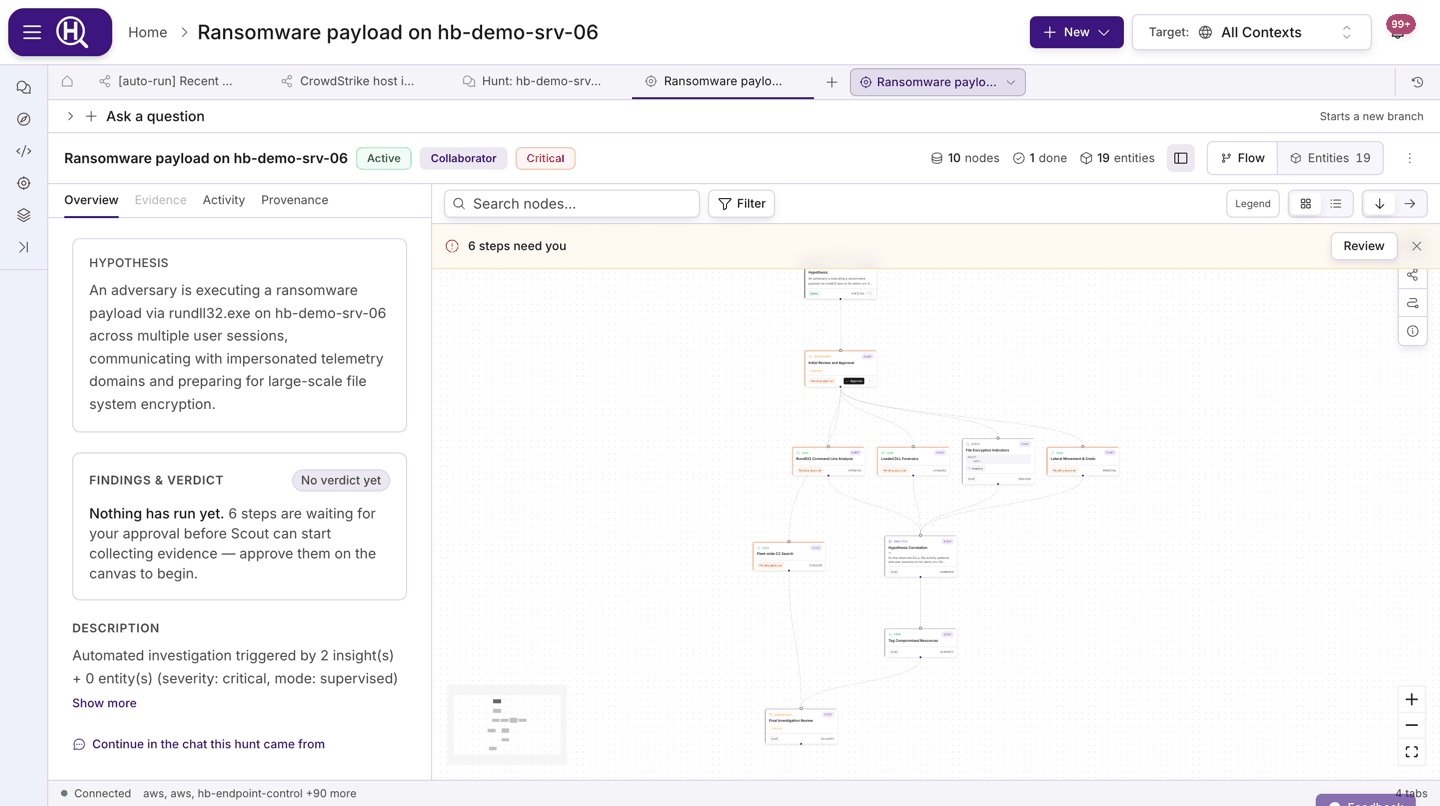
| Hunt | The hunt folder: Notebook, Results, Flow, Entities and Timeline views behind one switcher, plus the hunt's header actions. It opens on the notebook and remembers the last view you used. | New hunt, a new tab in the Hunt shape, Start hunt in a chat, Hunt now on an entity, launching a playbook, a hunt in the dock or the feed. |
| Hunt node | One step of a hunt in detail: its query, results, and activity. Show in notebook jumps back to its cell. | Open on a cell, or Open as tab from a cell menu. |
| Hunt report | The hunt's report. | Open report in a hunt, the Report row in the dock, or &report=1 on a hunt link. |
Chat and query tabs stay live in the background when you switch away. One hunt is one tab: opening it again from anywhere switches to it rather than adding another.
Tabs carry small badges when something about them changed: a marker when the scope was narrowed after the tab loaded (Scope changed — results may be inaccurate), and a marker when a query tab is attached to the active hunt. The New tabs attach to selector at the right of the tab bar chooses which hunt new query and chat tabs belong to. Where Add to hunt is available, the same selector reads Add to hunt goes to. It then picks the hunt that Add to hunt uses by default, and new tabs stay standalone until you add them to a hunt.
Opening tabs from elsewhere
Explorer is the destination for other surfaces:
- Library — Run in explorer on a query template opens a query tab with the template loaded. Launching a hunt playbook opens a hunt tab.
- Activity Feed — A hunt row's panel offers Open notebook. A query or run panel has a link that opens the run in a query tab. The feed's own New hunt / new query / new chat actions land in Explorer too.
- Chats — See Results on an execution card, Run in new tab on a follow-up suggestion, and Show hunt on a hunt card all open tabs beside the chat.
- Command palette — Picking an entity or query hit, Look up, Search telemetry for or a hunt opens it in Explorer. See The command palette.
Deep links
Explorer keeps its state in the URL, so you can bookmark or share a tab:
| URL | Opens |
|---|---|
/explorer | Home tab (and whatever tabs you already had open in this session). |
/explorer?q=<queryId> | The saved query in a query tab. Add &run=<runId> to load a specific run's results. |
/explorer?chat=<sessionId> | An existing chat session. |
/explorer?hunt=<sessionId> | The hunt, on its notebook. Add &view=flow, &view=table (Results) or &view=entities for another view, &node=<nodeId> to land on a cell, or &report=1 to open its report as well. |
/explorer?dock=<view> | Explorer with the dock open on that view: workspace, chats, queries, library or scout. |
/explorer?new=query / ?new=chat | A blank query tab or a blank chat. Where new tabs are available, these open a new tab set to that shape. |
/explorer?new=tab / ?new=hunt | Where new tabs are available: a new tab in Auto, or set to Hunt. Add &shape=chat, query or hunt to pick another shape. &shape=browse opens Query on Search (Huntbase Lake). |
/explorer?new=browse | A search of your telemetry: where new tabs are available, a new tab in Query on Search (Huntbase Lake); otherwise a Search telemetry tab on every source for the last hour. The links that View events and Open in Browse create also carry the view (&view=…), which opens the search tab directly, and can add &live=1 to start the live tail. |
/explorer?search=<text> | A search of your entities and saved queries, grouped by type, in a new tab. |
If a tab for the target already exists, Explorer switches to it rather than opening a duplicate.
The command palette
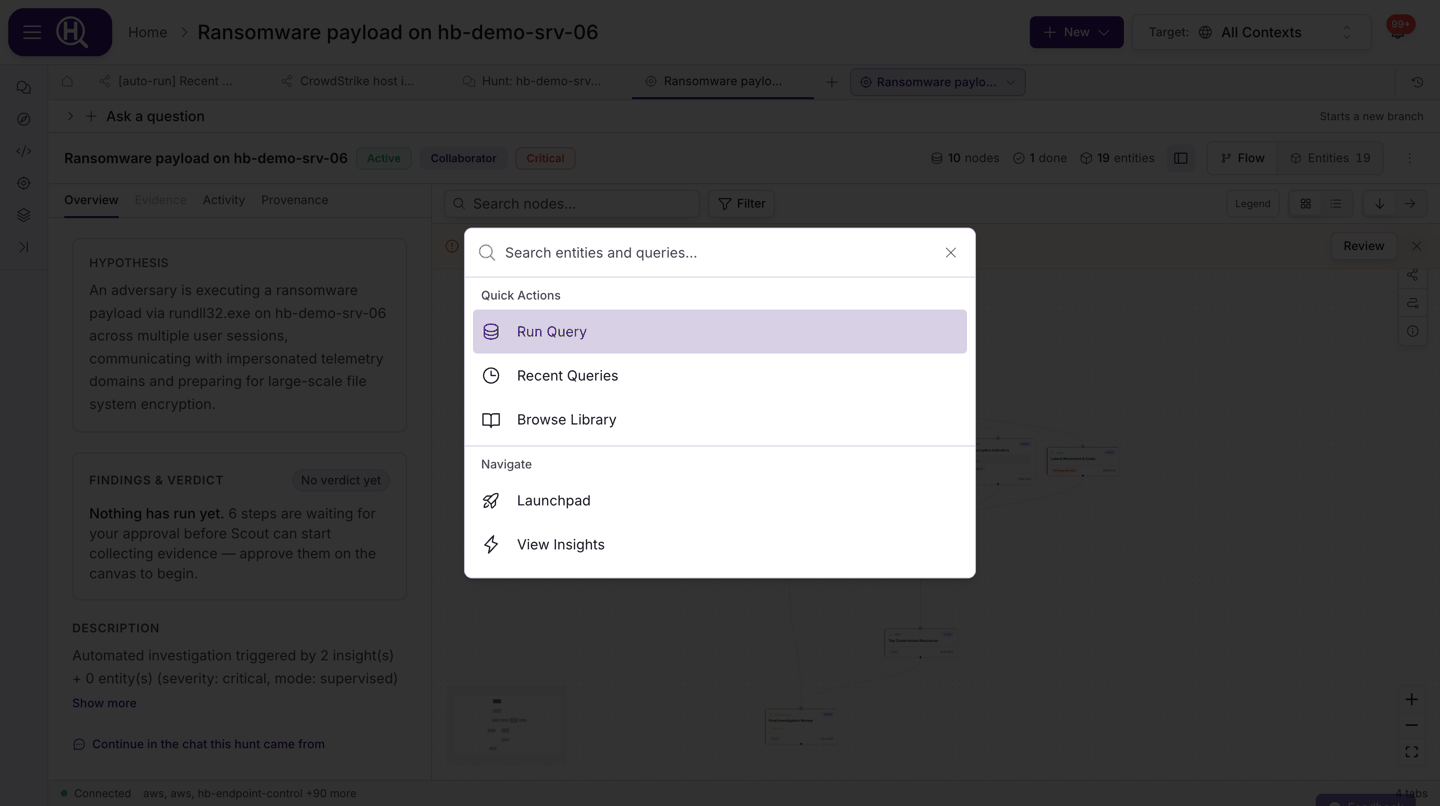
Click Search in the page header, or press ⌘K (Mac) or Ctrl+K (Windows/Linux), anywhere in Huntbase to open the command palette. On narrow screens the header button is just the magnifier icon.
-
With nothing typed, it lists your Recent hunts, Quick actions (Run query, and Recent queries where query history is enabled) and Go to: every page in the navigation menu that you can open, such as Pulse, Activity Feed, Watchers, Library, Connections, Telemetry, Endpoints, Inbox and Settings, plus View insights and Browse entities. Where new tabs are available, a New group comes first, with New tab, New chat, New query, New hunt and Search telemetry.
-
Type a page's name to go there. Pages and actions match on their name and on common words, so
connfinds Connections andlogsfinds Telemetry. -
Paste a value, such as an IP, domain, URL, hash, email address, CVE or host name, and it gets its own group at the top:
- Look up value (Enter) searches entities and intel for it.
- Open entity opens its relationship graph when Huntbase already tracks an entity by that name.
- Search telemetry for value opens a search of your telemetry over the last 24 hours, for that exact value. It appears where searching telemetry is available.
- Hunts that saw value lists the hunts that recorded it as an IOC. This covers IPs, domains, URLs, hashes and email addresses.
Defanged values work as pasted.
8.8.8[.]8andhxxps://evil[.]comare looked up as the real value, and the group heading says (refanged). Quotes, brackets and trailing punctuation around the value are ignored. -
Type anything else and, under Search, Search "…" in entities and queries runs a semantic search in a query tab. Where searching telemetry is available, Search telemetry for "…" opens the text as a search of your telemetry over the last 24 hours. Entities and queries that match appear below, grouped by type. Pick an entity to open its graph, or a query to open it ready to run. Saved queries match on their words first; queries that are only similar in meaning are listed when they are close, so an unrelated term no longer returns unrelated templates. The dock's Library search works the same way.
This is the place to look up an entity or a template. The query bar's Auto language no longer searches entities.
Guided tours
The first time you visit a surface, a short tour points out its main controls. There are tours for the Explorer home (including the header's Search button), the Activity Feed, Connections, the Library and the Telemetry page. Each tour runs once and can be dismissed at any step.
To see one again, choose Show me around in the navigation menu. It replays the tour for the page you are on. From any other page it opens the Explorer and runs the Explorer tour.
Keyboard basics
| Keys | Where | Action |
|---|---|---|
| Enter | Ask launcher, chat input | Send to Scout |
| Shift+Enter | Ask launcher, chat input | New line |
| Enter | Query launcher (single line) | Run the query |
| ⌘/Ctrl+Enter | Query launcher (expanded, multi-line) | Run the query |
| ⌘/Ctrl+K | Anywhere | Open the command palette |
@ | Ask launcher, chat input | Mention a user, organization, entity, or insight |
/query , /knowledge | Ask launcher, chat input | Switch the input to Query or Knowledge mode for one message |
| Ctrl+Shift+1–4, Ctrl+. | New tab | Pick a shape, or cycle Auto's alternatives — see Open a new tab |
| ⌥⌘Enter / Alt+Ctrl+Enter | Query tab | Run in a new tab — see Query workspace |
/, ⌘/Ctrl+E | Query tab, after a run | Expand the compact query bar |
| ← / → | Dock tree | Collapse / expand the focused row |
| ← / →, Home / End, Enter / Space | Explorer tab bar | Move between tabs, jump to the first or last, open the focused tab. Only the active tab is a Tab stop. |
| j / k, a / b, ⌘⏎ / Ctrl+⏎ | Hunt notebook | Move between cells, insert a query cell, run the focused cell (⇧⏎ also works outside an editor) — see Hunts |
| ↑ / ↓ / Esc | Command palette | Move through results, close |
Next steps
- Chatting with Scout — modes, initiative, mentions, and the cards Scout shows
- Query workspace — the query tab in depth
- Hunts — the notebook, cells, verdicts, and the flow
- Activity Feed — the team's shared record