Chatting with Scout
Scout is Huntbase's AI assistant. You talk to it in a chat tab inside Explorer: ask a question in plain language and Scout works out what to run, picks connections, runs it, and explains what came back. Along the way it posts cards you can act on — a query to confirm, a clarifying question, a hypothesis to turn into a hunt.
This page covers the chat input, what Scout streams back, and the cards you will see. For the home-tab launcher that starts a chat, see Explorer overview.
The chat input
The input at the bottom of a chat tab (and the Ask launcher on the home tab) has three controls around the text box.
Input modes
A mode toggle above the box switches what your message does. You can click a mode, or type its slash prefix at the start of the message — the box switches as soon as you type the space after it. A slash prefix applies to that one message: after you send it, the box goes back to Scout.
| Mode | Prefix | What happens when you send |
|---|---|---|
| Scout | (default) | Scout answers the question: reasons, drafts a query, runs it, and summarizes. |
| Query | /query | Scout searches your query templates and Library for matches instead of writing a query from scratch. Matches come back as a Scout Suggestions list you can run in place. |
| Knowledge | /knowledge | Scout searches your knowledge sources and returns recommended queries drawn from them. |
Knowledge mode is currently rolling out and may not be enabled for your organization.
Initiative
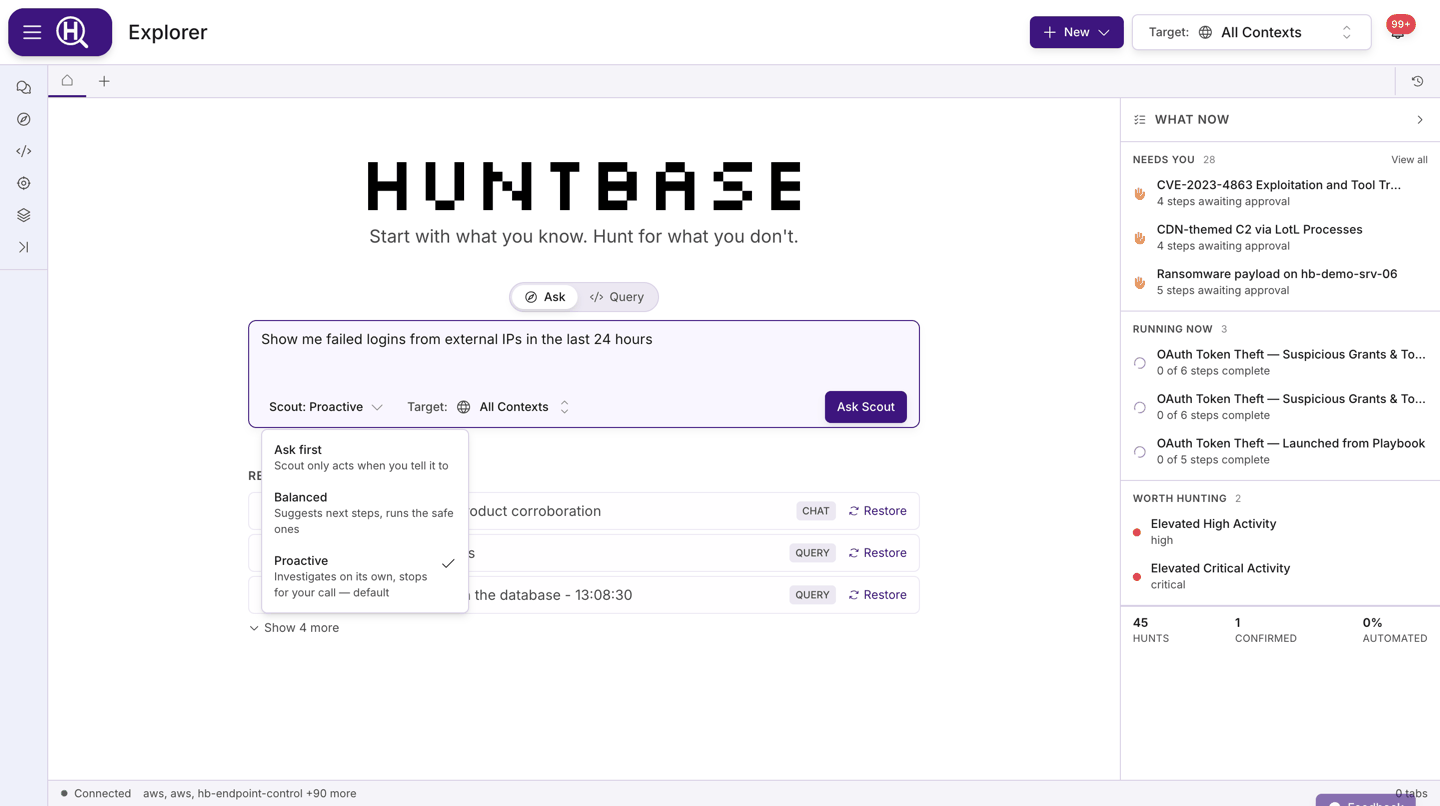
When the input is in Scout mode, an initiative selector under the box sets how far Scout goes before it stops for you.
| Level | Scout… |
|---|---|
| Ask first | only acts when you tell it to |
| Balanced | suggests next steps, runs the safe ones |
| Proactive | investigates on its own, stops for your call (default) |
Huntbase remembers the last level you picked and uses it for new chats. An existing chat keeps the level it was started with unless you change it there. The first time you see the selector, a small hint (Scout takes initiative) points it out; dismiss it and it stays dismissed.
@ mentions
Type @ in the box to mention something Scout should focus on. The picker searches as you type across:
- Users and organizations in your scope
- Entities — hosts, users, IPs, domains, hashes, and any other entity Huntbase knows about
- Insights — findings your team has recorded
Pick a hit with the mouse, or press Enter to pick the highlighted one, and it becomes a chip in your message. Scout receives the mentioned entities and insights themselves, not just their names, and treats them as context for the question.
Sending
Enter sends; Shift+Enter adds a line. Ask Scout is the send button on the home-tab launcher. While Scout is working, a stop control appears in the input area so you can cut a run short.
What Scout streams back
Scout's answers arrive as a stream, so you can watch it work rather than wait for a wall of text.
Chain of thought
Every response starts with a collapsible Chain of thought block. Each step is a short line — what Scout is checking, which tool it is calling, what it decided — with a live shimmer on the step in progress. Expand it when you want to see why Scout chose a query; collapse it once you trust the answer.
Interactive cards
Depending on your initiative level and what the question needs, Scout may pause with one of these:
| Card | When it appears | What you do |
|---|---|---|
| Clarification request | Scout needs a detail before it can proceed (a hostname, a time range, which environment). | Type a reply in the card's box and send. A minimum length is enforced so Scout gets something to work with. |
| Confirm execution | Scout has drafted a query and wants your sign-off before running it (always at Ask first; for riskier queries at other levels). Shows the query name, product, the query text, and the connections it will run against. | Review, optionally Edit the query in place, tick or untick connections, then Run — or Cancel. Invalid SQL opens the editor automatically and blocks Run until it validates. |
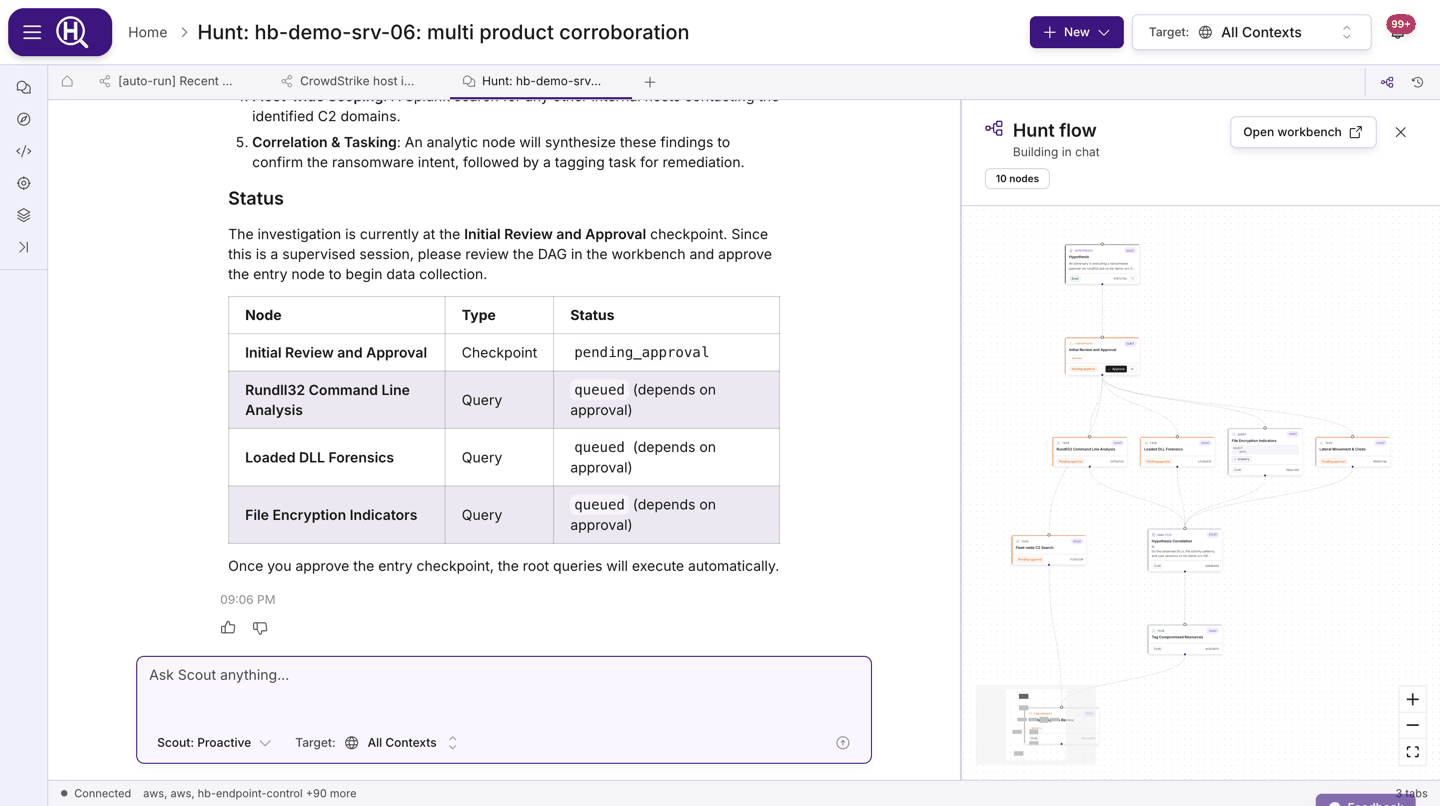
| Investigation plan ready / Investigation running in background | At Proactive, Scout has planned a multi-step investigation and is running it while the chat stays free. Steps tick off as they complete. | Read along, or click Open in workbench to follow the run in a hunt tab. |
| Approval required — auto-hunt | A checkpoint in a Scout-run hunt needs a human decision before it continues. | Approve & run, Refine (steer the hypothesis or add context, then Scout replans from that checkpoint), or Abort. If you are not a contributor on the hunt, the card offers a review link instead. |
| Hypothesis Draft | Scout thinks the conversation has turned into something worth hunting. Shows the hypothesis, a confidence badge, its rationale, and suggested techniques. | Click Start hunt to promote it (see below), or keep chatting. |
If a query fails on execution, the execution card gains a retry control and Scout offers a Query failed — what went wrong? chip that asks it to diagnose the failure.
Results and the analysis card
When a query runs, an execution card shows its progress and, on completion, a See Results button (See Details if it failed). See Results opens the run in a query tab beside the chat, where you can edit, re-run, tag rows, and save the query as a template. Note that in a chat the results themselves stay in the query tab — the chat keeps the summary.
After a successful run Scout posts a Scout Analysis card: the row count, a short summary, bullet key findings, and a collapsible Show statistics block. If the run matched nothing, the card says so and suggests widening the time range or loosening the query. A Query completed — analyze the results chip under the execution card asks Scout for that analysis if it has not offered one.
Below the analysis Scout may add up to three follow-up lists, depending on what the results look like: Followup Queries (each with Run in new tab), Hunt Ideas, and Questions to Answer. Each hunt idea shows its title, its hypothesis and Scout's reasoning, with a Start hunt button that asks Scout to start a hunt from that idea. Hunt ideas are not offered after every run — expect them when the results give Scout something worth following up.
Entity and insight cards
When Scout's answer refers to entities or insights it knows about, they render as cards in the chat rather than plain text. An entity card expands to show its fields, related queries, and (where hunts are enabled) related hunts; its menu offers Export as JSON / Export as CSV and View in Explorer, which opens the entity in a query tab. Insight cards work the same way and show the insight's review state. In your own messages, mentioned entities and insights appear as chips.
Template discovery in chat
In Query mode — or whenever Scout decides an existing template fits better than a fresh query — the answer includes a Scout Suggestions list under a Queries heading. Each row shows the query name, its source (Huntbase Library or Scout Suggested), and the product it targets; product pills at the top filter the list. Expand a row to read the query, fill any Parameters, Copy it, or Run it. Templates that need parameters keep Run disabled until the required ones are filled (Fill required parameters first). Rows that carry only a suggestion, not a query, offer Ask Scout to have it written.
The query stash
Every query Scout runs or suggests in a chat is collected in the Query Stash, a panel that slides in from the left edge of the chat. When the panel is closed a small pill at the top-left shows how many queries the chat has produced and pulses when a new one lands.
Open the stash to see each query with its runs and their status (Queued, Running, Done, Failed, Cancelled) and row counts. From a row you can View results (opens the run in a query tab), re-run the query, or Jump to message to scroll the chat to where it came from. Drag the panel edge to resize it or use the collapse control to tuck it away.
Start a hunt from a chat
When Scout posts a Hypothesis Draft, click Start hunt. Scout creates a hunt from the conversation so far — the hypothesis, the queries already run, and the entities found — and posts a Hunt session created card. Show hunt / Hide hunt toggles a hunt panel beside the chat where you can watch Scout draft the steps, then open the full hunt tab, which lands on its notebook. See Hunts.
To keep one answer rather than start a hunt, use Add to hunt under Scout's answer (where available). It adds the answer to a hunt as a note with a link back to the chat. See Add work to a hunt.
Chat history
Every chat is saved. Open the dock's Chats view (or the chat-history control in a chat tab) to see your conversations, newest first, each with its name and when it was last active. Inside a hunt the scope chips offer This hunt / All chats; elsewhere All / General hides chats tied to a hunt or query. Huntbase remembers the chip you chose for each hunt. Click a chat to reopen it in a tab, or click New chat to start a fresh one. Chats also have addressable links — see Deep links.
Scout in the dock
The dock's Scout view holds a docked conversation beside whatever you are working on — full height, with Undock chat to a tab in its header. When the tab you are on is already a chat, the view says so instead of showing a second copy. Every other dock view ends with an Ask Scout strip: type there and a fresh chat opens with the current hunt attached. Inside a hunt, Ask Scout in the notebook's Add cell bar does the same with the hunt's cells as context.
Ask about what's on screen
This feature is currently rolling out and may not be enabled for your organization.
Where you ask decides where the answer goes. A new question, from a new tab or Home, opens a chat tab. A question about something you're looking at goes to Scout in the dock, with that thing attached:
| You ask from | Scout gets |
|---|---|
| Ask Scout about this row in a query's row detail panel | The row, and the query and run it came from. |
| Ask Scout about this on a graph node | The node. |
| Ask Scout about this event in a search of your telemetry | The event and your view. |
| A hunt | The hunt, and the step you have selected. |
A line above the input says what's attached, for example Asking about these results or Asking about 3 selected rows. Scout no longer analyzes every query run by itself: the dock offers a Summarize results chip, and you click it when you want a summary.
When a docked conversation grows past a quick question, Open as chat tab in the dock's header moves it into its own chat tab. The tab you were on starts a fresh docked conversation.
Scout on endpoints
This feature is currently rolling out and may not be enabled for your organization.
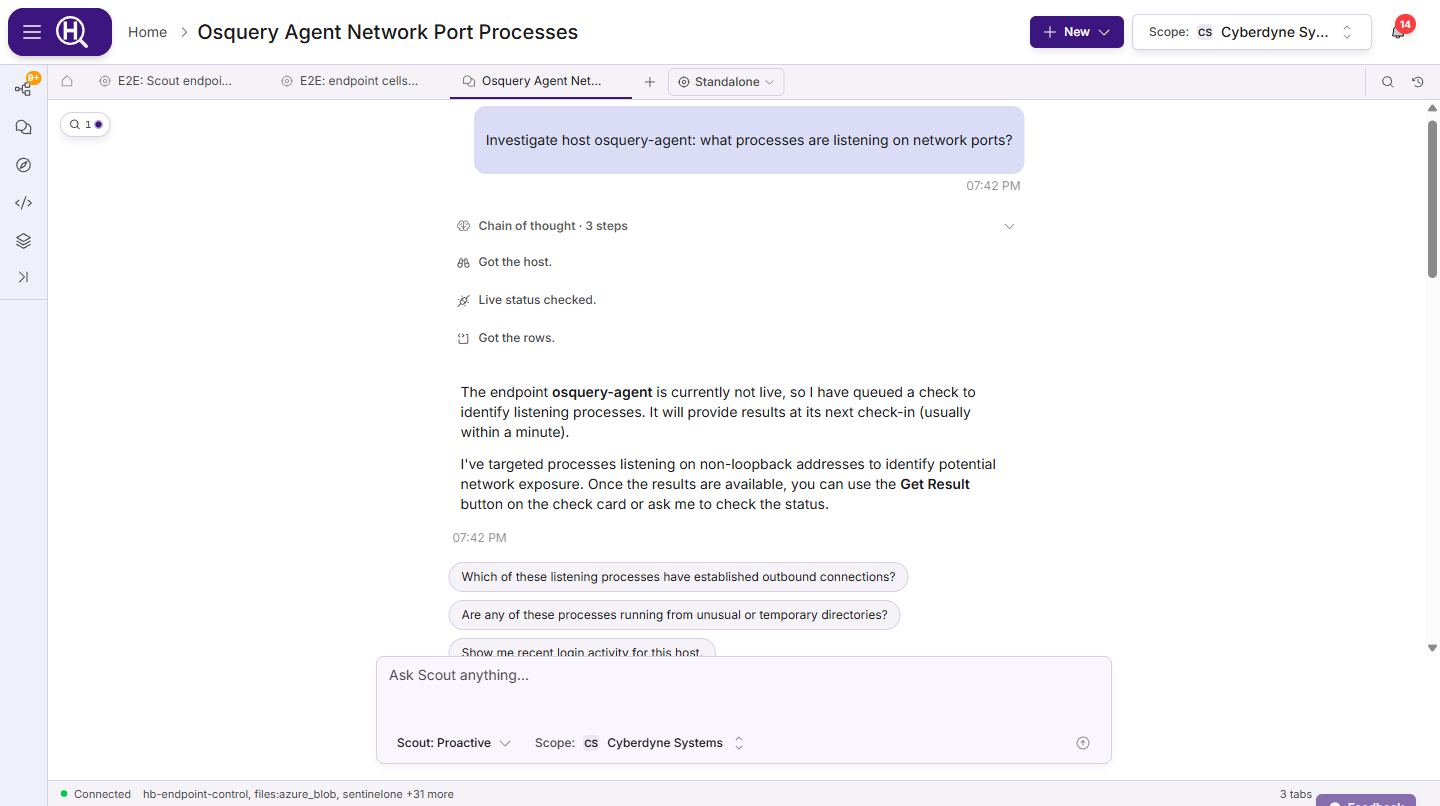
Scout can look at a single endpoint for you — what is running on it, what it is connected to, what starts with it — and, in a hunt, propose containment for a person to approve. Fleet-wide questions ("which hosts run X?") still go through queries; endpoint tools answer "what is happening on this host?".
It is off until your organization turns it on under Settings › [Organization] › Capabilities › Endpoint (see Capabilities), and you can turn it off for yourself under Settings › Personal › Scout.
| Where | What Scout can do |
|---|---|
| A chat | Reads only: find the endpoint, see whether it is live, run read-only checks, list directories and look at files, and read the endpoint's recent actions and audit trail. Results stay in the chat. |
| A hunt | The same reads, saved as endpoint cells — Endpoint snapshot and Endpoint check — that it cites as evidence. Where your organization allows proposals, it can also propose live response, a response action, a watch, or saving a console session to the hunt. Each proposal waits for a person to approve it. |
Scout acts for you
Scout never acts as itself on an endpoint. Every read and every proposal is made on behalf of the person it is working for, with that person's permissions on the endpoint — if you can't run console commands on a host, neither can Scout for you. Everything it does is in the endpoint's audit trail as Scout on behalf of you. Because a proposal Scout makes is yours, by default someone else has to approve it.
Some things are never available to Scout, whatever the settings: isolating an endpoint from the network, deleting files, and arbitrary shell commands.
How Scout works through an endpoint
Scout starts every endpoint investigation by checking whether the endpoint is live, and follows one of five guided processes. Each stops at the first proposal and waits for a person.
| Process | What Scout does | Where it waits for you |
|---|---|---|
| Endpoint triage | Takes a snapshot, then runs two to five checks chosen from what the snapshot shows, and summarizes what it found. | Only if it proposes live response to speed things up. |
| Fleet to endpoint drill-down | Groups suspicious fleet query rows by endpoint, runs a check on each of the top endpoints, and ranks them. | Never — reads only. |
| Containment | Confirms the process or file is still there, then proposes a kill or quarantine citing the evidence. After approval, it checks again to prove the process is gone or the file moved. | Approving each action. |
| Watch | Runs a baseline check, then proposes a watch on it. When rows change, it looks into the new ones. | Approving the watch. |
| Transcript to finding | Proposes saving a console session to the hunt, then summarizes its commands and results into a finding. | Saving the transcript, with or without output. |
Hunts Scout starts on its own
When Scout starts a hunt on its own and its starting point is an endpoint in one of your fleets, the hunt opens with an Endpoint snapshot of that endpoint and a few checks chosen from it — provided Scout's endpoint reads are on for the person the hunt runs for. Scout proposes nothing in those runs: if the evidence calls for containment, it says so in its summary and a person takes it from there.
Limits
- At most 20 endpoint reads each time Scout responds.
- At most 500 rows from any one result reach Scout; beyond that it works from a summary.
- Values that look like secrets — keys, tokens, passwords — are masked before Scout sees them.
- A proposal lapses if nobody approves it within 15 minutes.
- While a fleet is in safe mode, Scout can't propose anything for its endpoints.
Scout and your telemetry
This feature is currently rolling out and may not be enabled for your organization.
Scout can read the Huntbase data lake, where the telemetry you ship through ingest keys lands, and your own lakes. It reads the events the same way Search telemetry does, so the numbers Scout quotes match what you see there. Each lake tool is read-only. It always takes a time range and returns a bounded amount of data. It works within your scope and your permissions.
What Scout can do
Each tool call shows in the chain of thought under its own name:
| Tool | What Scout does with it |
|---|---|
get_current_view | Reads the telemetry view you shared with it (see below). |
list_telemetry_sources | Lists your sources with their status, shipper and destination. |
describe_source | Lists a source's fields, with example values. |
field_stats | Counts the top values of fields over a whole view. |
event_volume | Charts events over time, optionally by source, host or event type, to find spikes and gaps. |
sample_events | Reads up to 50 events from a view. |
suggest_view | Proposes a refined view for you to apply. It never changes your view itself. |
ingest_health | Checks whether one source is receiving, and why not. |
tail_events | Watches a view for new events for up to 10 seconds (up to 50 events). Huntbase data lake only. |
check_lake_store | Checks whether one of your lake stores is in federation, and if not, why. |
describe_lake_table | Describes a table in one of your lake stores. |
estimate_scan | Estimates how much of your own lake a view would scan before Scout reads it. |
add_telemetry_cell | In a hunt, pins a view to the notebook as a telemetry view cell. |
Reads of your own lake count against your organization's daily scan budget, just like searching it yourself does. Scout's older lake tools for aggregate questions over classified data (describe_lake_coverage and query_lake) are turned on and off with the same settings.
Ask about what you're looking at
In a Search telemetry tab, Ask Scout (next to Show as query), a question typed in the search box, and Ask Scout about this event all open Scout in the dock with your view attached. A Scout sees this view chip above the input sums up the view: sources, time range, filters and match count. Scout starts from that view instead of guessing. The view stays with the chat for later messages until you share a different one, or until you click × on the chip (Stop sharing this view with Scout).
Open in Browse, and Apply filters
When Scout reads a view, the chat shows one line naming the view and its match count, with Open in Browse. That opens a search on exactly what Scout looked at, so you can check its work.
When Scout suggests a view, it appears as a dashed Apply filters chip listing the change, with any removed filters struck through. Scout never changes your view on its own. Click the chip to open a search with those filters.
If Scout couldn't read something, the chat says why, so that "Scout couldn't look" never reads as "there was nothing there". For example, it might say That source isn't in your current scope., The lake didn't answer — try again shortly., Today's scan budget for your lake is used up. or Live tail isn't available for sources stored in your own lake.
Turn the lake tools on or off
Scout uses its lake tools only when both switches are on. Both are on by default:
- Your organization: Scout lake tools under Settings › [Organization] › Capabilities › Telemetry lake. See Capabilities.
- You: Let Scout read my telemetry under Settings › Personal › Scout. See Personal settings.
When either switch is off, Scout says that it can't read that telemetry and points you to the setting. It doesn't try to answer from other connections, such as a SIEM, which don't hold that data. If a lake tool is turned off partway through a chat, the chat shows Scout's lake tools are off for you or your organization. with a link to Scout settings.
Telemetry in hunts
In a hunt, Scout can record telemetry evidence with add_telemetry_cell. The chat shows the new cell (Added to the hunt notebook) with Open cell. When Scout plans a hunt on its own and the lake tools are on, it can add telemetry steps as telemetry view cells too.
Tags and notes from Scout
In a hunt, Scout can read every tag and note on the hunt's evidence. Ask it what have we tagged so far? or what did Alex note on that IP? The evidence is yours, though, so Scout makes suggestions rather than assertions:
- Scout never tags anything itself. When you ask it to tag, flag or mark something, or when it confirms from results that a row, an entity or the hunt looks malicious, it suggests a tag. Each suggestion has a confidence and a reason that cites the values it saw. Scout says "I suggested…", never "I tagged…". You accept or dismiss each one on the row or in the entity's Tags section, and it doesn't suggest a tag again once you've dismissed it.
- A suggestion isn't evidence until you accept it. Pending suggestions stay out of the hunt's Evidence tab, the tracker spreadsheet and the report.
- Scout writes a note only when you ask it to note, annotate or comment, or to record a finding next to its evidence. Its notes carry a Scout badge and read Written by Scout (AI) for you.
See Tags and notes.
Write up a hunt with Scout
Ask Scout in the hunt's chat whether you're ready, for example am I ready to write this up?, what's missing? or can we report on this?. Scout checks the hunt before it writes anything:
- Readiness. Scout leads with a verdict, ready or gaps, then up to five next actions. It names the items behind each one. The check covers tagged rows that aren't on the investigation timeline, timeline events with no linked evidence, IOC entities that aren't tagged, flagged entities missing from the timeline, open leads, a missing hypothesis or verdict, and whether there are any notes. The check is read-only and changes nothing.
- Template. If you want the report, Scout offers the templates you can use, with the default marked, unless you've already named one.
- Report. Scout queues the report with that template, and a report card appears in the chat with View Report. The card names the template.
A final report needs a closed hunt. Scout can close the hunt and write the report in one go. On a hunt that is still open, it writes a report only if you ask for a draft or interim report. The card then says Draft, and the report opens with a Draft report caveat. Regenerate after closing the hunt for the final version.
Scout can also answer questions about an existing report: what a section says, why one was left out, what its caveats mean. It points you to the download options too: Word document (.docx), Markdown (.md) and the tracker spreadsheet.
Tips for good prompts
- Name the thing and the window. "Failed logins for
jsmithin the last 24 hours" beats "look at logins". Use@to pin the entity. - Say what you would do with the answer. "…so I can decide whether to isolate the host" helps Scout choose the follow-ups.
- Let Scout confirm first when you are unsure. Drop the initiative to Ask first for a new data source and raise it once you trust the queries it writes.
- Use Query mode when a template probably exists. It is faster than having Scout write from scratch, and the template already knows the schema.
- Ask for the analysis. If Scout ran a query but you want more, send Query completed — analyze the results, click Summarize results in the dock, or just ask "what stands out?".
- Promote early. When a thread turns into an investigation, Start hunt so the steps and evidence stay together instead of scattering across chats.
Next steps
- Query workspace — where See Results takes you
- Hunts — what happens after Start hunt
- Query templates — the templates Query mode searches
- Search telemetry — the view Scout reads when you ask from a search