Roles
A role sets what a person can do across the whole organization: a level on each area, such as Actions or Connections, plus any special abilities. Owner, Admin and Member work exactly as before. On top of them, Huntbase ships three ready-made templates, and admins can make custom roles that fit how their team works.
This feature is currently rolling out and may not be enabled for your organization. See Access control overview.
Open Roles
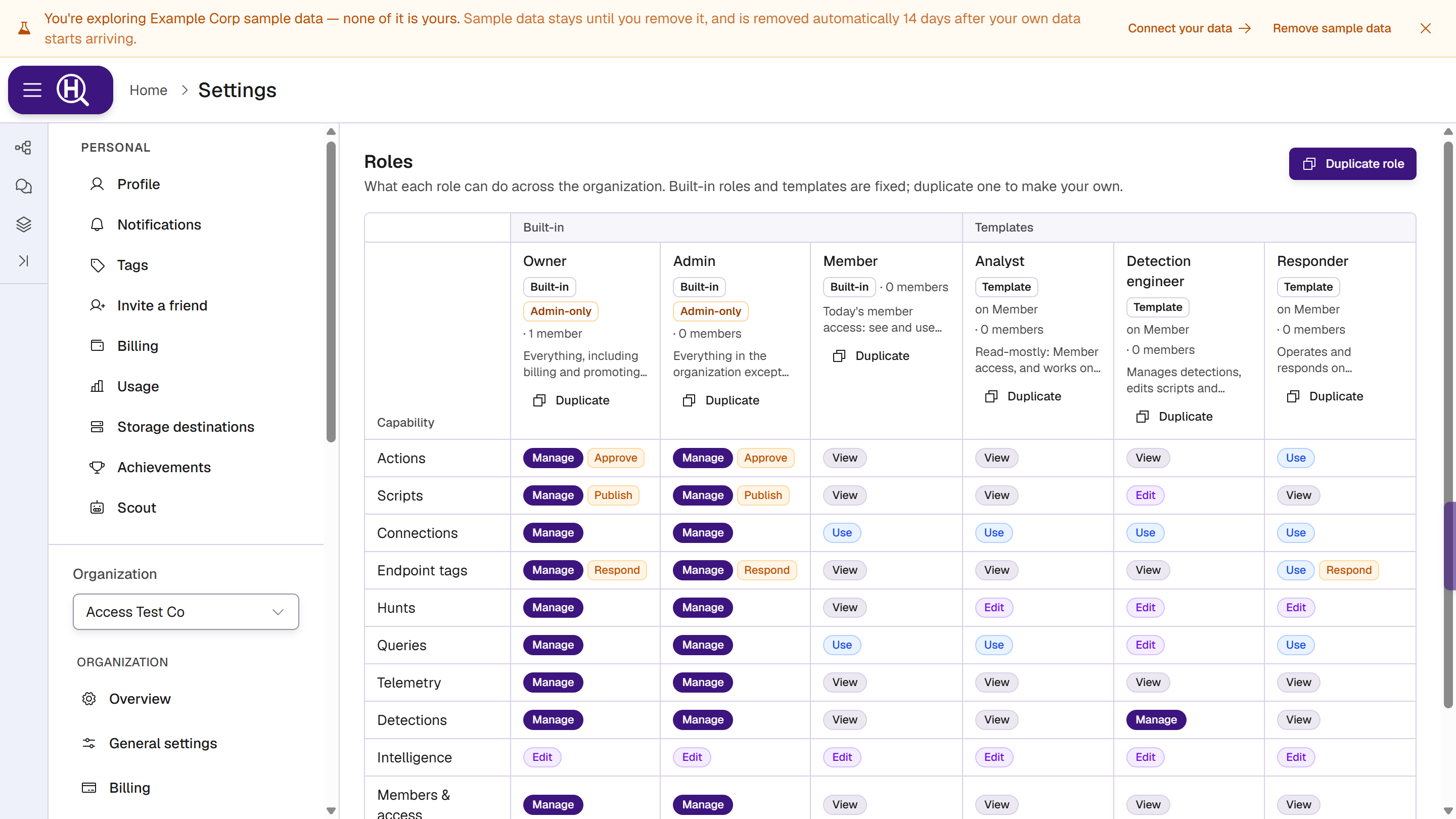
Go to Settings › [Organization] › Roles, under People & access. The page reads What each role can do across the organization. Built-in roles and templates are fixed; duplicate one to make your own.
Every role is a column, grouped as Built-in, Templates and Custom. Every capability is a row: Actions, Scripts, Connections, Endpoint tags, Hunts, Queries, Telemetry, Detections, Intelligence, Members & access and Settings. Each cell shows the role's level and abilities. A column header shows the role's kind, what it is based on (on Member), how many members hold it, and Admin-only when only an org admin can hand it out.
Everyone in the organization can see the page. Only people who manage members can create or change roles.
Built-in roles and templates
| Capability | Member | Admin and Owner | Analyst | Responder | Detection engineer |
|---|---|---|---|---|---|
| Actions | View | Manage + Approve | View | Use | View |
| Scripts | View | Manage + Publish | View | View | Edit |
| Connections | Use | Manage | Use | Use | Use |
| Endpoint tags | View | Manage + Respond | View | Use + Respond | View |
| Hunts | View | Manage | Edit | Edit | Edit |
| Queries | Use | Manage | Use | Use | Edit |
| Telemetry | View | Manage | View | View | View |
| Detections | View | Manage | View | View | Manage |
| Intelligence | Edit | Edit | Edit | Edit | Edit |
| Members & access | View | Manage | View | View | View |
| Settings | View | Manage | View | View | View |
The three templates are based on Member: they get everything a member gets, raised where shown in bold. The Owner can also manage billing and promote people to Owner.
Built-in roles and templates can't be changed. Duplicate one to make a role you can edit.
How a role's access applies
A role raises access across the organization, never lowers it. What it adds reaches every item that isn't restricted; a restricted item still has to be shared with the person directly. Hunts a role lets you edit are the ones open to the organization, not private hunts.
Single items can still give more than the role: sharing, teams and being the creator all add to it. See Where access comes from.
Make a custom role
- Click Duplicate role, or Duplicate on the column of the role to start from.
- In Duplicate role, choose Copy from, enter a Name and, optionally, a Description. Click Duplicate.
- The new column opens for editing. For each capability, pick a level and switch abilities on or off.
- Choose Based on: Member or Admin.
- Click Save at the bottom. The bar says what is unsaved; saving updates everyone who holds the role.
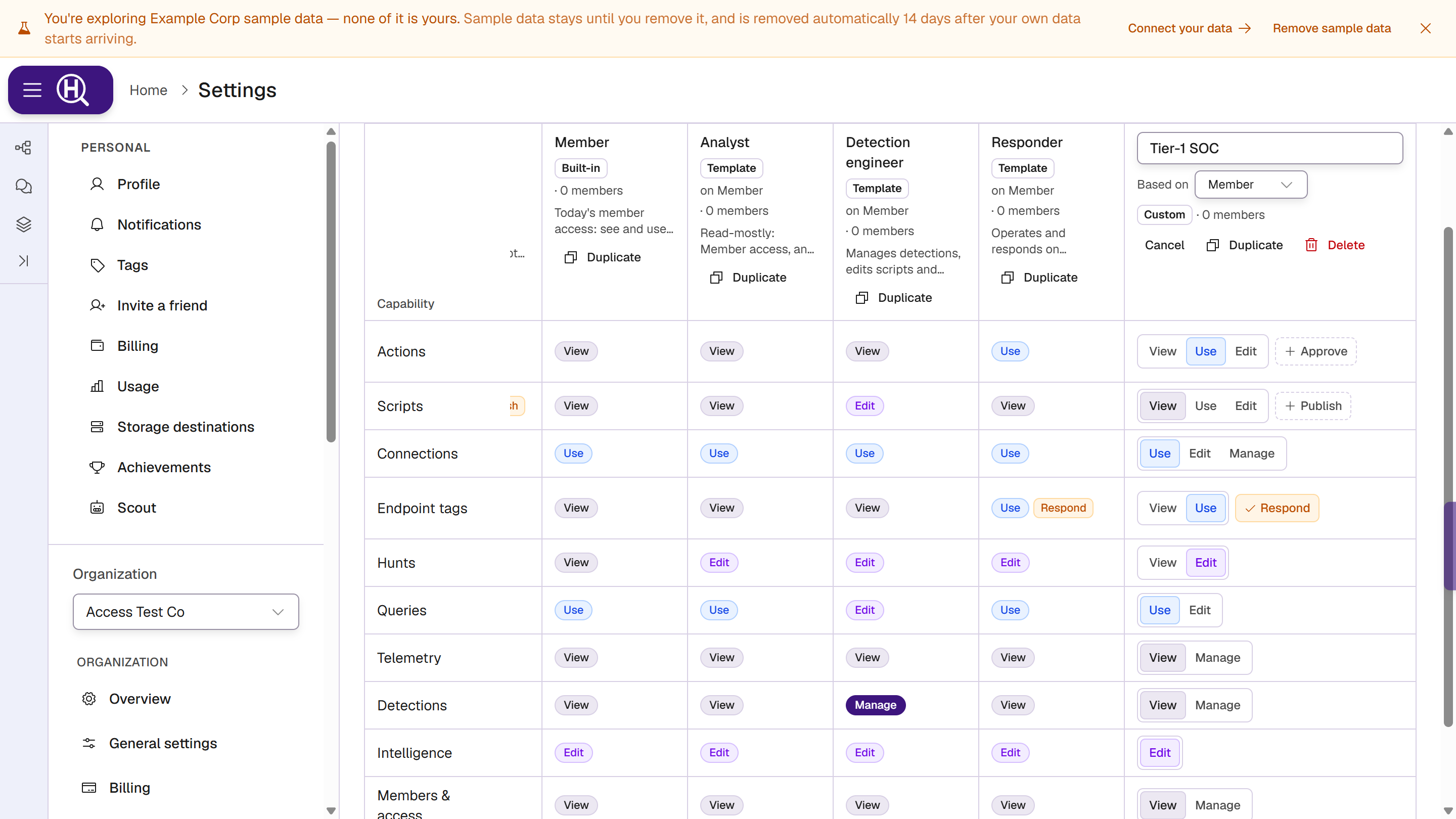
To change a custom role later, click Edit on its column. Discard throws away unsaved edits, and leaving the page with unsaved edits asks first.
Role names are unique in the organization, including the built-in and template names. A clash shows Another role already has this name.
Based on Member or Admin
- Member: people with the role have a member's access, raised where the role says.
- Admin: people with the role have full admin access, so there is nothing to raise. Only an org admin can choose this base.
While people hold a role, its base can't change (People have this role, so its base stays.). Moving people between admin and member access is a change for each person: give them another role first, or duplicate the role.
Sensitive roles
Some access is only for an org admin to hand out:
- Approve or Publish
- Manage on Members & access or Settings
- an Admin base
A role with any of these is marked Admin-only. Only an org admin can save it, assign it or change it. On a Member-based role, these abilities are shown in amber with a warning that everyone with the role gets them, though members don't have them by default.
Assign a role
In Settings › [Organization] › Members, pick a role in the member's Role select, or in the role select of their member summary. The select groups roles into Built-in, Templates and Custom.
- Only owners can make someone an Owner.
- Roles marked Admin-only can be assigned only by an org admin. Changing the role of someone who already holds one needs an admin too: Only an org admin can change the role of someone who is Admin.
In the select, a template or custom role shows its base, for example Tier-1 SOC · Member. The member summary says Custom role, based on Member under the select, and the role appears as a source on each row it raises, for example Role Tier-1 SOC.
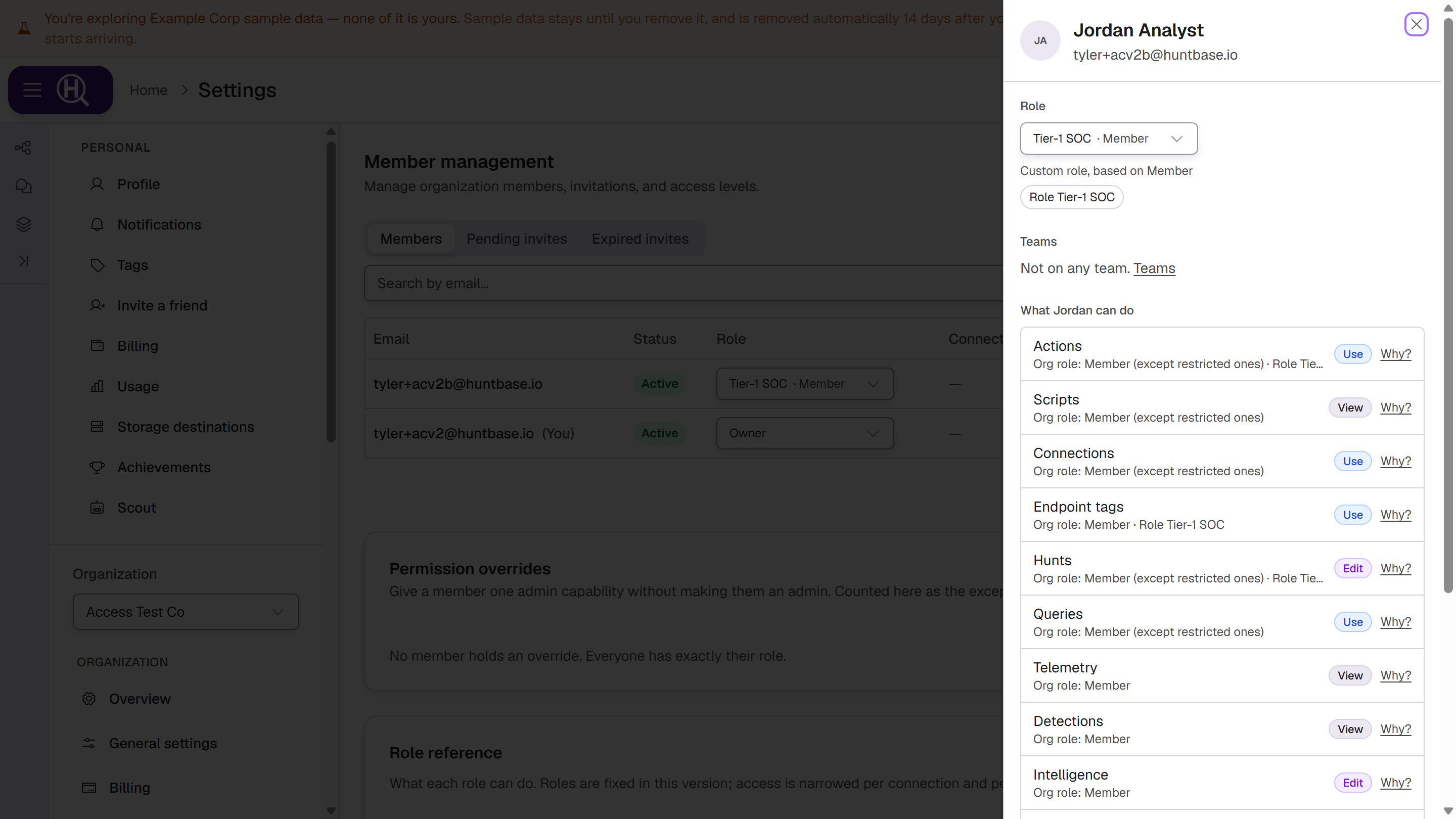
With the new access screens on, the Role reference card on the Members page points to Roles instead.
Delete a custom role
Click Delete on its column. If nobody holds it, confirm to delete. If people hold it, the dialog says how many and asks Move them to another role; their access changes to match it. Click Delete role.
Moving people needs permission to change roles, and an org admin when either role is Admin-only.
Team access across the org
A team can carry access across the whole organization, the same way a role does. Everyone on the team gets it while they are on the team, on top of their role. See Team access across the org.
Turn overrides into teams
Before roles, admins could give one member one admin capability as an override, such as managing connections. Overrides keep working. Where anyone holds one, the Members page shows Turn overrides into teams, for org admins:
- Review the preview. Everyone with the same set of overrides joins one shared team with matching team access, for example Connection managers.
- Tick the people to move, or select everyone, and click Apply selected.
- Check the results. Each person either joined the team, was skipped, or wasn't moved and keeps their overrides.
Nobody loses access: an override is removed only after its team is in place. Two overrides have no team equivalent and are Kept: Manage storage destinations and Use Scout endpoint tools. They stay on the person and keep working.
Who can approve runs
By default, every member can approve Action runs that need sign-off, within the risk tiers. An organization can limit approval to admins and people given Approve. The setting is Only people with Approve can approve runs, on the Action approvals card in Settings › [Organization] › Capabilities.
Switch it on
- Turn on Only people with Approve can approve runs.
- Limit approval to people with Approve lists everyone who Approved runs in the last 90 days, and whether each one Keeps approving or Would lose it.
- Tick anyone who should keep approving, then choose how to give them Approve: Directly (each person gets Approve on Actions across the org) or Through a team (they join the team you pick, and the team gets Approve).
- Click Give N Approve and switch on, or Switch on if nobody needs it.
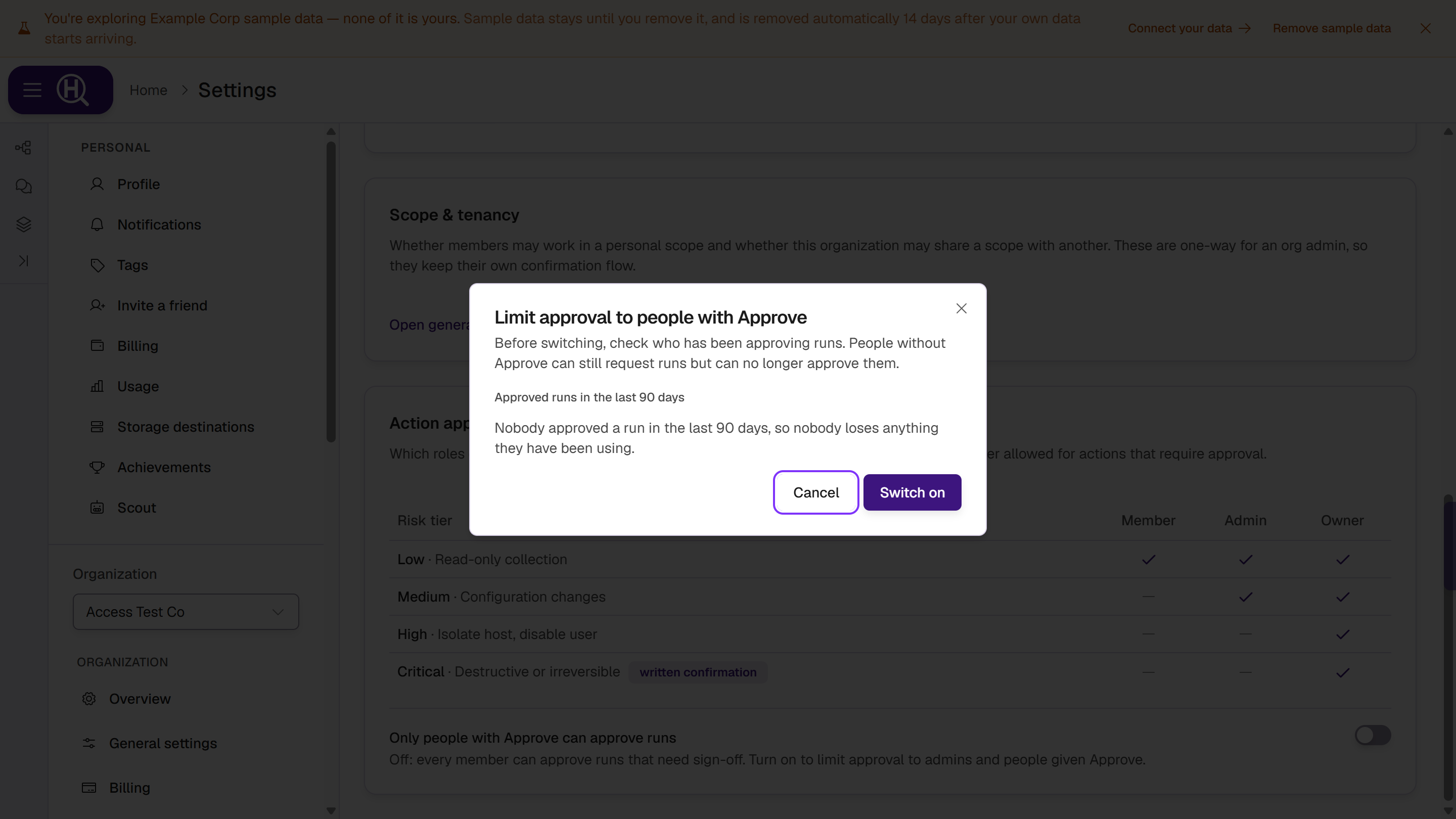
People without Approve can still request runs. The rule that nobody approves their own request doesn't change.
The switch and the risk tiers on the same card both apply. The switch decides who may approve at all; each tier then still needs at least the base role ticked for it. A Member given Approve can approve only the tiers ticked for Member.
While it is on, the card lists recent approvers with Can approve or Can't approve now. Remove direct Approve takes away Approve given to someone directly; Approve from their role or a team stays.
Who can change it
People who manage members can switch it on. Giving or taking away Approve, and switching it off (Let every member approve runs again?), need an org admin.
Next steps
- Teams — give a group access across the org
- Access check — see which role or team gives someone access
- Access log — every role change and who made it