API keys
API keys let scripts, CI jobs and integrations call the Huntbase API without a person signing in. You choose exactly what a key can do, every key expires, and its secret is shown once.
This feature is currently rolling out and may not be enabled for your organization. See Access control overview.
Kinds of key
| Kind | Belongs to | Who can create it | Use it for |
|---|---|---|---|
| Personal | You | Any member, for themselves | Your own scripts and tools. It acts as you and never has more access than you do. |
| Service | The organization, or a team | Organization admins and owners | Automation that should keep working when people come and go. |
| Ingest | — | Created on the telemetry sources screen | Sending telemetry in. Listed here read-only, so every key is in one place. |
A key works in one organization only: the one you created it in.
Open API keys
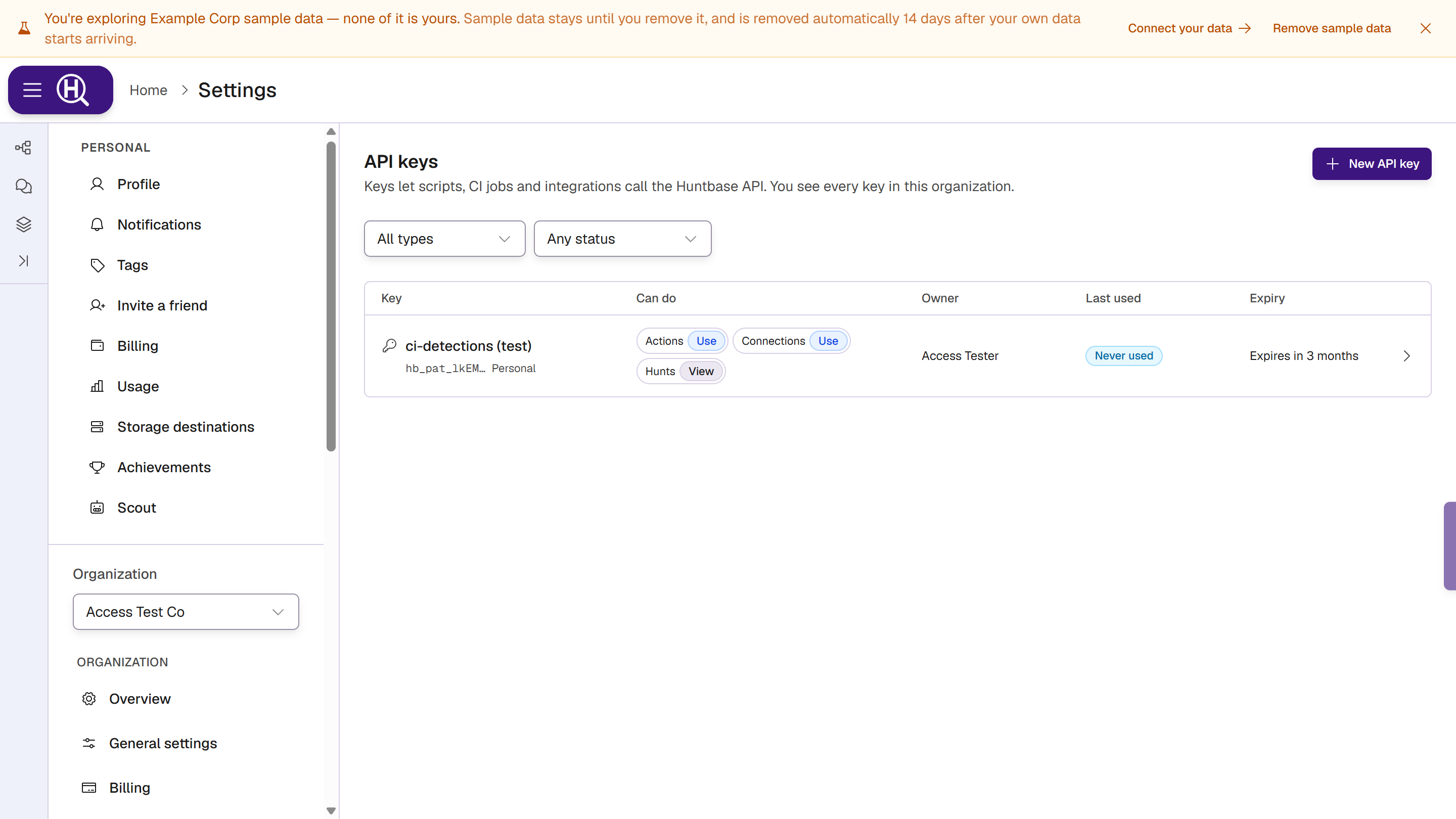
Go to Settings › [Organization] › API keys, under People & access. Org admins and owners see every key in the organization; everyone else sees their own personal keys. A team's managers also see that team's service keys.
Each row shows the key's name and the start of its secret (for example hb_pat_7Kq2…), its kind, what it Can do, its Owner, when and from which IP address it was Last used, and its Expiry. Two things are highlighted on live keys:
- Expiring soon — it expires within 7 days.
- Never used — it has never been used, so it may be forgotten or not wired up.
Revoked and expired keys are dimmed. Filter the list by All types / Personal / Service / Ingest and by Active, Expiring soon, Expired or Revoked.
Create a key
- Click New API key.
- Choose Personal or Service. Service is unavailable, with the reason, if you aren't an org admin (Only org admins can create service keys.).
- Enter a Name, for example Laptop scripts or SOAR integration.
- For a service key, choose the Owner: The organization or one of its teams.
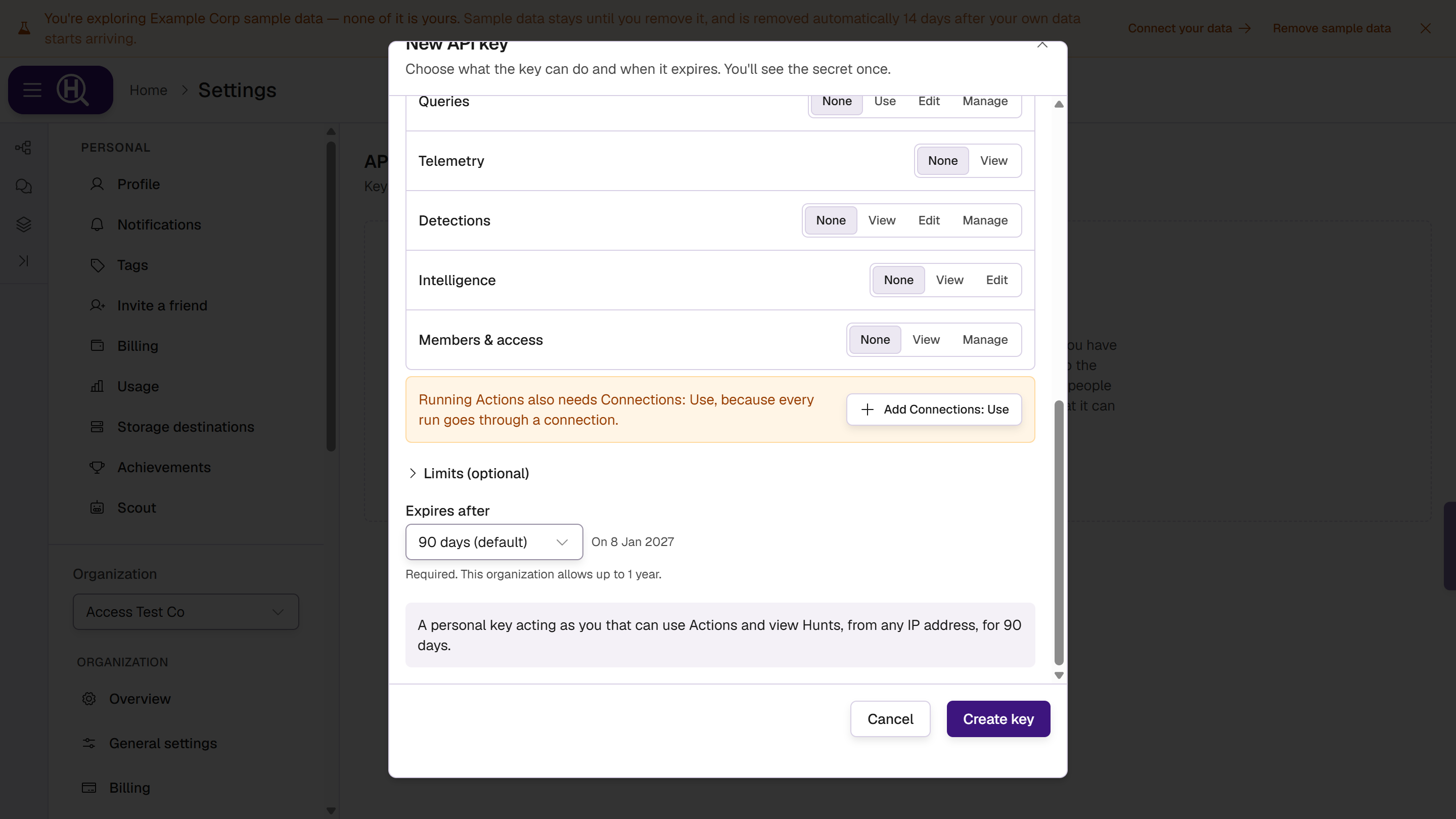
- Under What it can do, set a level for each area the key needs. Leave the rest on None.
- Optionally open Limits (optional) to restrict the key to named resources or to IP addresses.
- Choose Expires after.
- Check the summary sentence at the bottom, for example A personal key acting as you that can use Actions and view Telemetry, for 90 days.
- Click Create key, then copy the secret (see The secret is shown once).
What a key can do
What it can do has one row per area, with the same levels as the rest of Huntbase: Actions, Scripts, Connections, Endpoint tags, Hunts, Queries, Telemetry, Detections, Intelligence and Members & access. Rows for Actions, scripts and endpoint tags also have the Approve, Publish or Respond toggle.
Options a key can't have stay visible but disabled, with the reason:
- A personal key can't go above your own access, for example Above your own access (Use). A personal key can't do more than you.
- Only org admins can give a key Approve or Publish.
- Service keys can't have Hunts or Queries yet: Service keys can't use Hunts; use a personal key.
A personal key is checked against your access every time it is used, not just when it was created. If your access goes down, the key's does too. If you leave the organization or are suspended, the key stops working.
A service key starts with what a member gets on items that aren't restricted, never more than its own levels allow. On top of that it gets what is shared with its team (for a key that belongs to a team) and what is shared with the key itself. Admins can add a service key in an item's Share panel like a person, on Actions, scripts, connections and endpoint tags.
Running things needs Connections too
Runs go through a connection, so a key that runs anything needs Connections: Use as well as the level for what it runs:
| To run | The key needs |
|---|---|
| An Action | Actions: Use and Connections: Use |
| A query | Queries: Use and Connections: Use |
| A hunt step | Hunts: Edit and Connections: Use |
A key limited to named connections can't start runs.
Limits
- Only these resources — add a resource type and its ID to limit the key to those items. Leave it empty to cover everything the key's levels allow. A key limited to named items can't list all items of that type, and can't look up a run by its ID.
- Allowed IPs — one IP address or CIDR range per line, IPv4 or IPv6. Calls from anywhere else are refused. Leave it empty to allow any IP.
Expiry
Every key expires. The default is 90 days and the longest is 365 days. Your organization may set a lower maximum; the form says This organization allows up to … and won't accept more. Pick a preset or Custom… for a number of days.
The secret is shown once
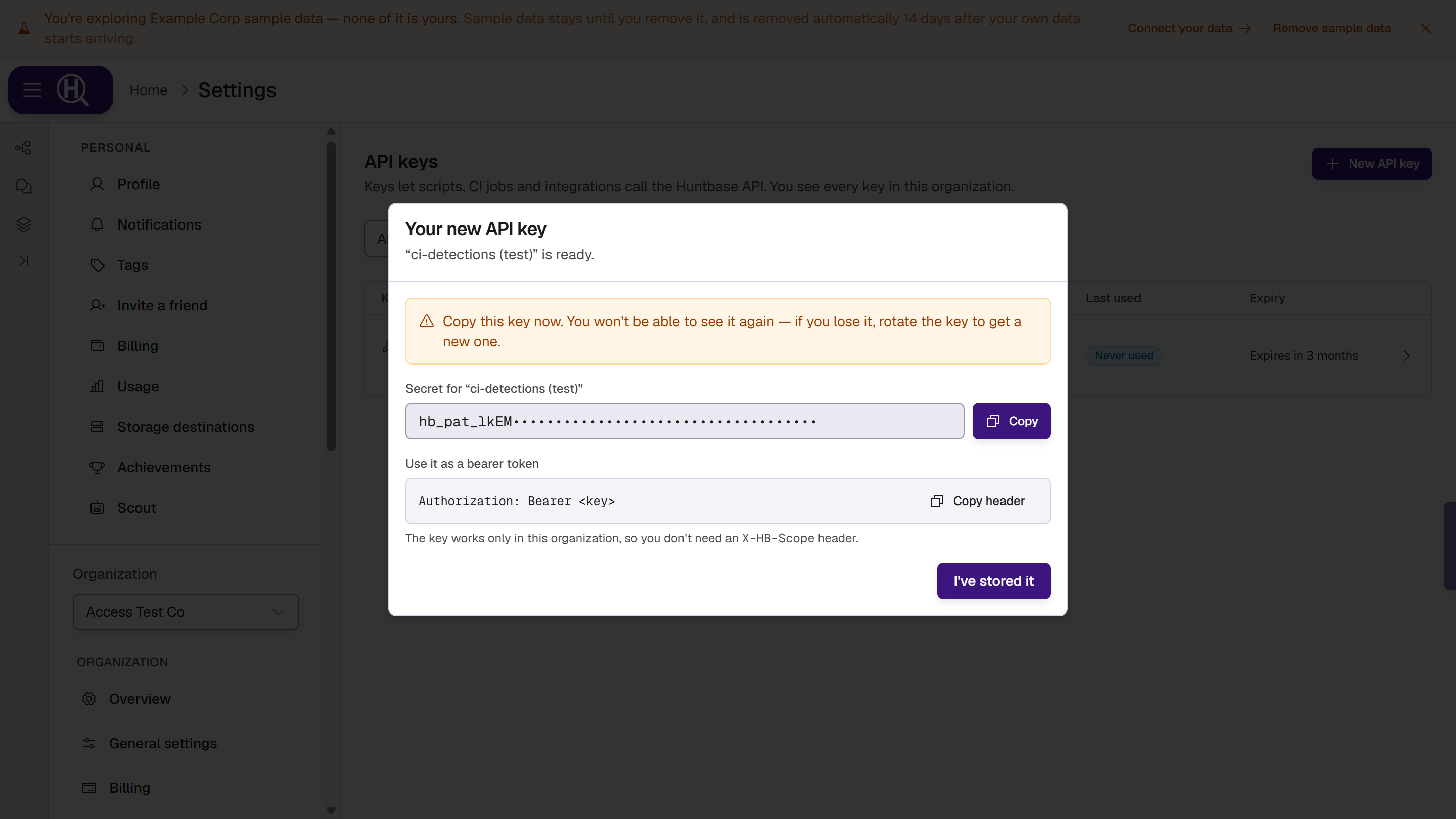
After you create a key (or rotate it), Huntbase shows its secret one time:
- Copy copies the secret. If your browser blocks copying, the secret is selected so you can copy it with Ctrl+C or ⌘C.
- Copy header copies it as
Authorization: Bearer <key>. - I've stored it closes the screen. Nothing else closes it while the secret is showing.
Huntbase stores only a fingerprint of the secret and can't show it again. If you lose it, rotate the key.
Use a key
Send the secret as a bearer token on every request:
Authorization: Bearer hb_pat_…
Personal keys start with hb_pat_ and service keys with hb_svc_. The key already knows its organization, so you don't need an X-HB-Scope header. If you send one, it must name the key's organization.
| Response | Why |
|---|---|
| 401 | The key is unknown, revoked or expired, its owner left the organization, or its team was deleted. |
| 403 | The key's levels don't cover the request, the request names another organization's scope, the call came from an IP address the key doesn't allow, or the request isn't available to API keys. |
API keys can call a growing set of the API: the list, detail, stats and results calls for Actions, scripts, connections, queries and hunts; running Actions, queries and hunt steps; searching telemetry; and reading access information and the access log. Not every read is open to keys yet. Managing keys and teams, and changing who has access, need a person signed in. A key can't approve runs yet. See the API reference.
Manage a key
Click a key to open it. The panel shows what it can do, its Owner, Created, Last used, Expires, Allowed IPs and Limited to. Admins and people who manage members also get Changes to this key, which opens the access log for it.
Only a personal key's owner can rename, extend or rotate it. Service keys are managed by org admins. Admins can revoke any key.
Rename or extend
Change the Name and click Save. Under Extend, pick a new expiry, counted from today, and click Extend key. You can't go past the organization's maximum.
Rotate a key
Rotating gives the key a new secret while keeping everything else about it: its levels, limits and anything shared with it.
- Under Rotate, choose when the Old secret stops working: Immediately, or after 1, 4, 12 or 24 hours.
- Click Rotate key…, read what will happen, and click Rotate now.
- Copy the new secret and click I've stored it.
During the grace period the old and new secrets both work, so you can swap the secret without downtime. The panel shows Old secret: Works until …. An expired key can't be rotated; extend it first.
Revoke a key
Under Revoke, click Revoke key…, then Revoke key. Anything using the key stops working right away. This can't be undone.
Ingest keys
Ingest keys send telemetry in. They're listed with Sends telemetry in and open read-only, with Manage ingest keys linking to the screen where you create and revoke them. See Telemetry.
Next steps
- Access log — every key created, rotated and revoked
- Access control overview — the levels a key's scopes use
- API reference — the endpoints you can call