What is Huntbase?
Huntbase is a threat hunting platform for security teams that want to find what their alerts miss. It brings your data sources, an AI investigation partner, structured hunts, and outcome tracking together in one workspace, so you can go from a question to a documented finding without switching tools.
Huntbase is built for threat hunters, SOC analysts, detection engineers, and the security leaders who need to see what hunting is delivering.
The problem
Proactive hunting is hard to sustain. Analysts juggle a SIEM, an EDR console, cloud logs, and a notebook full of half-finished hypotheses. Queries live in personal folders, findings get lost in chat threads, and nobody can say afterwards how many hunts were run or what they caught.
How Huntbase helps
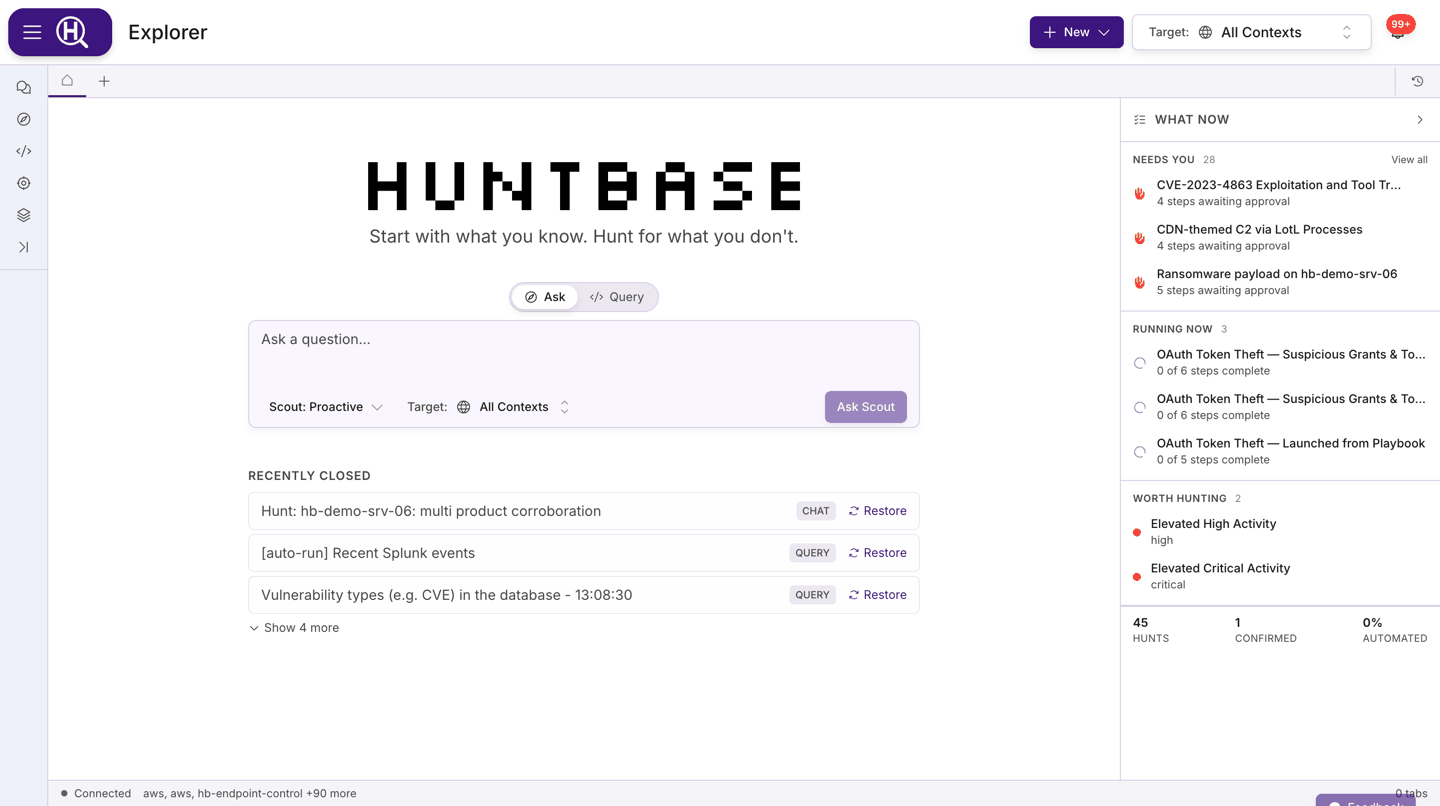
- Explorer with Scout — Explorer is your home. Ask Scout, your investigation partner, a question in plain language, paste a value from an alert, or write a query yourself, and the answer opens as a chat, a search, a query or a hunt. Scout translates natural language into queries, runs them across your connected sources, summarises what came back, and suggests what to look at next. See Explorer overview and Chatting with Scout.
- Query workspace — Write and run queries in Auto (natural language), SQLite, osquery, Cypher, SPL, KQL, ES|QL, ES DSL, or STIX 2.1 against one or more connections, browse results, and save what works as a template. See Query workspace.
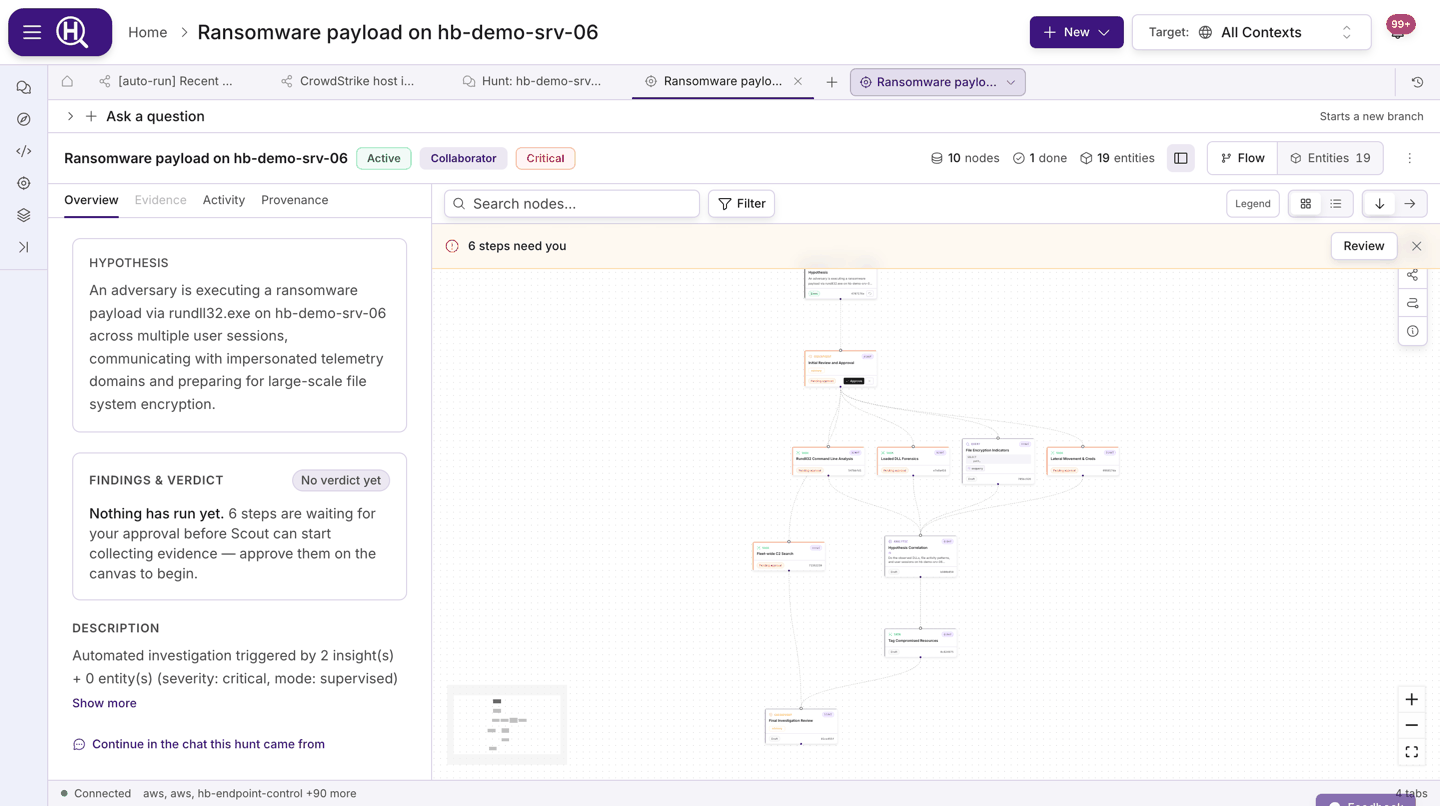
- Hunts — Turn a question or a Scout chat into a structured hunt: a notebook of steps that Scout and you work through together, with checkpoints where Scout stops for your call, a verdict, and a report at the end. See Hunts.
- Inbox — One place for what waits on you: detections to judge, approvals and paused hunts, decided in place, plus your mentions, updates and messages. See Inbox.
- Activity — One place for everything the team has produced: hunts, insights, entities, and queries, with filters, side panels, and quick actions such as starting a hunt from an entity. See Activity.
- Pulse — The outcomes dashboard. See how many hunts ran, what was confirmed, how much was automated, and how your hunting practice is maturing over time. See Pulse.
- Content library — Reusable content: hunt playbooks you can launch as new hunts, query templates you can run in Explorer or schedule, and watchers you can switch on for your organization. See Hunt playbooks, Query templates and Watchers.
- Connections — Integrate cloud, endpoint, network, identity, and threat intelligence products through the New connection page, and manage your osquery fleet with Endpoint Control. See Connections and Endpoint Control.
- Watchers and Notifications — A watcher is a rule Huntbase runs for you. When it fires, it can create a detection, which starts a hunt or another workflow (notify, digest, tag) within the autonomy level you allow; Notifications keep you informed in-app and by the channels you choose. See Watchers and Notifications.
Hunts are available to every organization. Some capabilities depend on your plan: where your plan doesn't include one, the app names the plan that does (for example "Endpoint Control is included on the Professional plan and above") with See plans. A few, such as telemetry ingest and Endpoint Control, are also switched on per organization — on a paid plan that includes the capability but hasn't had it switched on yet, the app shows a Request access button and the relevant guide explains it. Endpoint Control is requested from Endpoints — see Get Endpoint Control.
Finding your way around
The navigation menu groups Huntbase by the work you're doing:
| Group | What it is for |
|---|---|
| Explorer | Ask Scout, look something up, write a query, and see what needs you. |
| Investigate | Inbox (what needs you, mentions, updates and messages), Hunts and Endpoints (with Action runs under it). |
| Threat intel | Threats & indicators and Threat reports. |
| Detect & automate | Watchers, the Content library (playbooks, query templates and more) and Query history. |
| Reporting | Pulse, Hunt reports and Compliance. |
| Set up | Connections, Settings and, for admins, Admin. |
The header above every page holds breadcrumbs that say where you are, Search (Ctrl K), New for creating a hunt, query, watcher or connection, Inbox with the number of items that need you, and the Scope selector, which controls whose data you are looking at: one of your organizations, or your Personal scope where your account has one. See Explorer overview.
The new navigation is rolling out and may not be enabled for your organization yet. The classic menu has the same pages under Work, Investigate, Detect & automate and Set up, with Activity as the shared record of hunts, queries and runs.
How a hunt flows through Huntbase
- Connect a data source once.
- Ask Scout a question in Explorer, look up a value, or write the query yourself.
- Investigate the results: pivot through entities and insights, and decide what needs you in the Inbox.
- Hunt when the question deserves structure: Scout plans the steps, runs the safe ones, and pauses at checkpoints for your decision.
- Report the outcome and let Pulse track it alongside every other hunt.
One box to start from
You don't have to choose between chatting and querying. Explorer has one ask box: type a question, paste a value from an alert or a list of indicators, or write a query. The line under the box says what Enter will do before you press it: ask Scout, look up the value (is it known bad, where was it seen, and its telemetry), or run the query. Treat as overrides it when you want a query or a hunt instead.
Where the one box isn't enabled yet, Explorer has a launcher with an Ask mode, which sends your question to Scout, and a Query mode, which gives you the query editor directly.
Everything you start lands in the same workspace, so you can start in one and continue in the other.
New to Huntbase? Just type a question. Scout shows you the query it wrote, and you can open it and edit it whenever you want more control.
What Huntbase is not
- Not a SIEM. Huntbase does not ingest and store all your logs. It queries the products you connect where they already live, and keeps the outcomes: queries, results you keep, entities, insights, and hunt reports.
- Not an alert queue. Insights and watchers exist to feed hunts, not to replace your triage tooling.
- Not a black box. Every Scout action shows its steps, the query it ran, and where the results came from, so you can check the work.
Who is this for?
- Threat hunters running hypothesis-driven investigations across many sources
- SOC analysts who need to answer "is this bad?" fast, with the query written for them
- Detection engineers building and sharing playbooks and templates
- Security leaders who want visibility into hunting outcomes, not just activity
Next steps
- Quickstart — from sign-up to your first hunt
- Key concepts — the terminology used throughout these docs
- Explorer overview — get to know your home surface
- Connections — connect your first data source