Hunts
A hunt keeps an investigation together: the hypothesis you are testing, the steps you and Scout run, the entities and evidence they turn up, and the verdict and report you hand off at the end. In Explorer a hunt is a folder: one tab with five views — Notebook, Results, Flow, Entities and Timeline — plus a Report tab and the hunt's chats. The dock's Workspace tree lists the same folder for every hunt you can see.
A hunt opens on its Notebook: the steps as an ordered list of cells you read top to bottom, with what each one found. The Flow view draws the same steps as a graph. Nothing in a hunt is linear by design — you can plan, run, review, plan again, and record a verdict at any point.
Ways to start a hunt
| From | What to do | What you get |
|---|---|---|
| A chat with Scout | Click Start hunt on a Hypothesis Draft card. | A hunt built from the conversation — hypothesis, queries already run, entities found. See Chatting with Scout. |
| An entity | Open the entity's panel and click Hunt now. | A conversation seeded with that entity; Scout drafts the hunt with you. |
| A hunt playbook | In the Library, open a playbook and click Launch, then Launch hunt. | A fresh hunt with the playbook's steps copied in. See Hunt playbooks. |
| The dock | Click New hunt (the +) in the Workspace header. | A blank hunt, opened on an empty notebook. |
| A new tab | Pick Hunt in a new tab, or New hunt from the ▾ next to +. Type what you suspect, choose the Scout autonomy, and press Enter. | A hunt that Scout plans from your hypothesis, or an empty hunt if you typed nothing. No hunt exists until you press Enter. |
| Work in another tab | Add to hunt › New hunt from this on query results, a Scout answer or a graph node. | A hunt that starts with that work as its first step. See Add work to a hunt. |
| The Activity Feed | Click New and choose New hunt. | A blank hunt. |
| Explorer Home, with sample data on | Click Start this hunt on a card under Try a hunt on Example Corp. | A hunt of your own with the card's hypothesis and its suggested queries as query cells. Once you have started one, the card offers Resume instead. |
| Query results | In a query tab, click Start hunt in the title row, or right-click rows and choose Start hunt from this row / Start hunt from N rows. | A hunt seeded with those results. |
| An event in a search | Expand an event in Search telemetry and click Start a hunt. | A hunt named after the event, with a telemetry view cell covering the 5 minutes either side of it. |
New hunts begin as a Draft. Until it has any steps, the owner can remove it with ⋯ › Discard draft.
The empty notebook
A new hunt's notebook opens with a Subject or hypothesis cell and three doors under How do you want to start?:
| Door | What happens |
|---|---|
| Have Scout plan it | Scout reads the subject and proposes a section of query cells, behind one checkpoint that approves the plan. In Guide and Collaborator, nothing in the plan runs until you approve that checkpoint. |
| Write a query | Adds one blank query cell and opens it for editing. |
| Add from Library | Opens the template picker; templates land as cells you can edit. |
You can mix these at any time. The Scout's autonomy selector under the doors sets the mode — Guide (Scout pauses at every finding; you drive each step), Collaborator (Scout runs low-risk queries automatically; you approve actions), Operator (Scout runs the full investigation; you review the report). The hunt header shows the mode afterwards as Scout: Guide, Scout: Collaborator or Scout: Operator. It is how much Scout runs on its own, not anyone's access to the hunt. Hunts started by a watcher default to Collaborator unless the trigger says otherwise.
The notebook
The notebook lists the hunt's cells in order. Each cell has a gutter on the left — a run control and an execution mark such as [3] ✓, [5] ✕ or [*] for a cell that is running — and a body with the cell's type, title, who ran it, its content, and the output of its latest run.
| Cell | What it holds |
|---|---|
| Hypothesis | The subject or hypothesis, with Edit, and Suggest with Scout / Regenerate with Scout to have Scout draft one. Its meta line shows the scope, owner and any IOCs. |
| Section | A heading that groups the cells beneath it until the next section. Scout adds one for each batch it plans or rewrites; click the title to rename yours. |
| Query | A query against your connections. The query text shows inline; Edit opens the same editor the query workspace uses, with Run (save then run) and Save without running. |
| Task, Checkpoint, Action, Detection, Analytic | The other step types, with the same controls the Flow view offers: Approve / Mark done on a task, Approve step / Refine / Abort on a checkpoint (under Your approval is needed), and so on. |
| Note | Free-form markdown between cells. Note opens a draft; nothing is saved until you click Save note. |
| Endpoint transcript | A console session saved from an endpoint with Save to hunt: its commands, times and outcomes, shown like a terminal, with the output tables when output was included. Read-only; it never runs. See Save a console session to a hunt. |
| Endpoint check, Endpoint snapshot, Endpoint action, Endpoint watch | Work on one endpoint from inside the hunt: a read-only query, a snapshot of what is running, a proposed response action, or a timed re-check. See Endpoint cells. |
| Telemetry view | A view of your shipped telemetry pinned to the hunt, with a snapshot of what it matched. See Telemetry view cells. |
| Verdict | Always last. See Verdicts. |
Steps Scout proposes. When Scout plans a task, query, collection, detection or action that needs a go-ahead, the cell says Scout proposed this step — waiting for approval. and has its own buttons. Approve & run approves and runs a query or collection, and Approve approves a task or detection. Reject turns the step down. An action shows Review instead, which opens its panel, because approving some actions needs a confirmation note. If you can't edit the hunt, you only see Review.
Queries with parameters. A query cell that hasn't run and still contains a {{parameter}} shows an input for each one. Run (or Approve & run) stays off, with a hint such as Fill in instance_name to run, until you fill them in. The values are saved with the cell and used for the run.
What a cell found
The output under a runnable cell says what happened, in one word first:
| Output | What you see |
|---|---|
| Failed | The error, with Fix with Scout, Edit and Retry. Cells that failed for the same reason say same error in cell N. |
| N rows | A preview of the first three rows, flagged rows highlighted, and Open in Results for the full grid. If the run didn't report a row count, the cell reads the first rows of the result to show the preview. |
| No rows | A one-line explanation. A clean run is a result, not an absence. It's only shown when the result is actually empty. If the result can't be read, the cell just says Done. |
| Running | A progress bar; the gutter shows [*]. |
| Not run | Nothing yet. A Stale badge means something upstream changed since; Rerun stale runs the cell and everything below it. |
Fix with Scout does not overwrite the failed cell: Scout writes a new cell that replaces it, badged v2 of N, and the original is marked replaced by N. Keep the original for the record or Archive it from the cell menu — archived cells stay in place, dimmed, and drop out of counts, Results and the Entities count (Hide archived at the top of the notebook hides them entirely). The Cell archived message has Undo, and an archived cell offers Restore in its header and its ⋯ menu, in place of Open and Edit. Anyone who can edit the hunt can restore a cell.
Scout's discovery probes — schema lookups it ran to learn a store — fold into one strip, N cells · Discovery, with Show to open them.
Add, move and remove cells
- Add cell at the bottom offers Query, Note, Section, Endpoint and Telemetry view (where available), Ask Scout and From Library…. Hover the gap between any two cells for a + with the first three cell types in place.
- The cell menu (⋯) offers Insert above / Insert below, Move up / Move down, Open as tab, Show on canvas, Archive, and — for a cell that has never run, and for sections and notes — Delete. Deleting asks first and removes the cell from the flow as well.
- A query cell you cancel with nothing typed is removed for you. A new cell you save or run stays.
- A new cell hangs off the step it follows, so it sits in the right place in the Flow view: after the focused cell when you insert one there, otherwise after the last step. Drill into endpoint places its cell right after the query cell it came from.
- Open as tab opens a query cell in a query tab that stays linked to the step. A strip above the results reads Hunt step with the step's title and Runs update this step, with Show in notebook. Edit and run the query there and the cell updates, with no duplicate step. When the cell runs again from the notebook or the Flow view, the tab shows the new run.
| Keys | Action |
|---|---|
| j / k | Move focus down / up through cells |
| a / b | Insert a query cell above / below the focused cell |
| ⌘⏎ / Ctrl+⏎ | Run the focused cell. The same keys run a query from inside the cell's editor. Outside an editor, ⇧⏎ works too. |
| Esc | Leave an edit |
Endpoint cells
This feature is currently rolling out and may not be enabled for your organization. Endpoint cells already in a hunt always show.
Endpoint cells work on one endpoint at a time, from inside the hunt. Their rows stay on the cell: they are hunt evidence, but they never become entities in the graph. Each cell shows its output like the endpoint console — osquery> SELECT … and an osquery-style table.
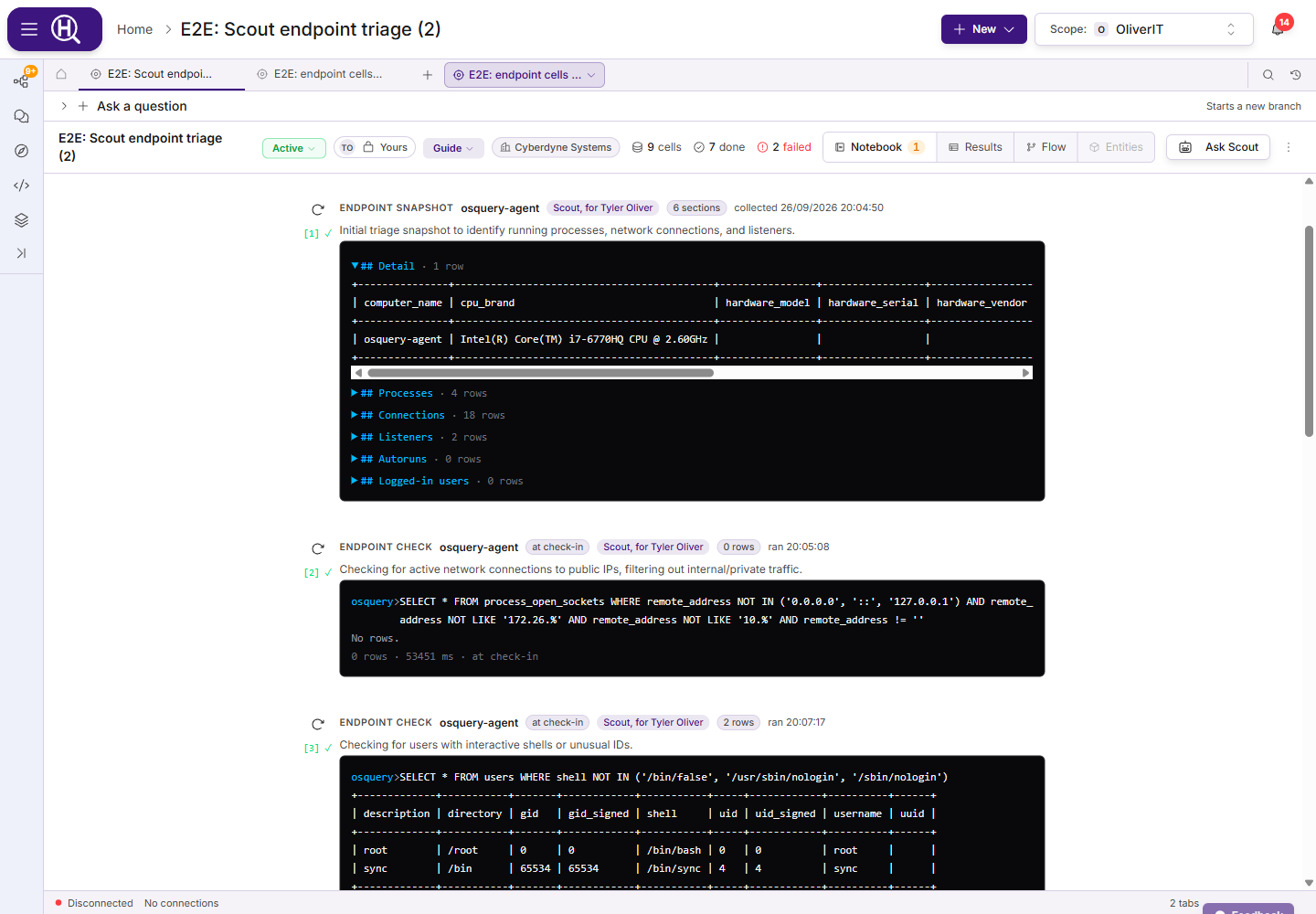
| Cell | What it does | Runs |
|---|---|---|
| Endpoint check | One read-only osquery SELECT on one endpoint, checked against the same rules as a command typed in the console. The cell keeps its latest rows (up to 500) and lists earlier runs. | On demand; the gutter button runs it again. |
| Endpoint snapshot | A frozen picture of one endpoint in six sections: Detail, Processes, Connections, Listeners, Autoruns and Logged-in users, each folded under its heading (up to 200 rows each). | Once; Collect again takes a new one. |
| Endpoint action | A proposal to kill a process, quarantine or restore a file, release network isolation, run a signed script, or start live response. Scout can also propose saving a console session to the hunt; you do that yourself with Save to hunt. | Once, after someone approves it. |
| Endpoint watch | A proposal to re-run a query every few seconds while the endpoint is live, listing rows that appear (+) or disappear (−) since the previous run. | After someone approves it, while the endpoint is live and the hunt is open. |
Each cell says how fast its command will arrive: Live — runs in about a second when the endpoint has live response on, or Runs at next check-in, up to about a minute otherwise. While a cell waits it updates on its own, and stops checking while the browser tab is hidden.
Add an endpoint cell. Click Endpoint in Add cell and pick Endpoint check, Endpoint snapshot, Endpoint action or Endpoint watch. Type the endpoint's hostname or ID under Endpoint; if several endpoints you can see match, the dialog lists them and asks which one you mean. A check or watch takes osquery SQL; an action takes What (A response action or Start live response), the Action and its target; a watch takes Every (seconds) (at least 5), Stop after (minutes) (1 to 60) and an optional Row key that identifies a row. For an action or a watch, Why tells the approver what they need to know, and Based on cites the cells it rests on.
Drill into endpoint. On a query result row that names an endpoint (a hostname, host identifier or node UUID column), Drill into endpoint offers Endpoint check… and Endpoint snapshot…, opening the same dialog with the host filled in.
What you need
You need to be able to edit the hunt, and a role on the endpoint's fleet — or on a tag it carries — that allows what the cell does. See Access and activity.
| To… | You need |
|---|---|
| Add or run a check, snapshot or watch, or propose live response | Permission to run console commands on the endpoint (Responder). |
| Propose or approve a response action | Permission to run response actions on the endpoint (Responder, granted separately from the console). |
| See a cell's rows | Permission to see the endpoint. |
Anyone on the hunt without access to the endpoint sees You need access to this endpoint to see these results. in place of the rows, snapshot sections, watch changes or action output. Endpoint cells can't run on a sample fleet or a shared fleet.
Approve an action or a watch
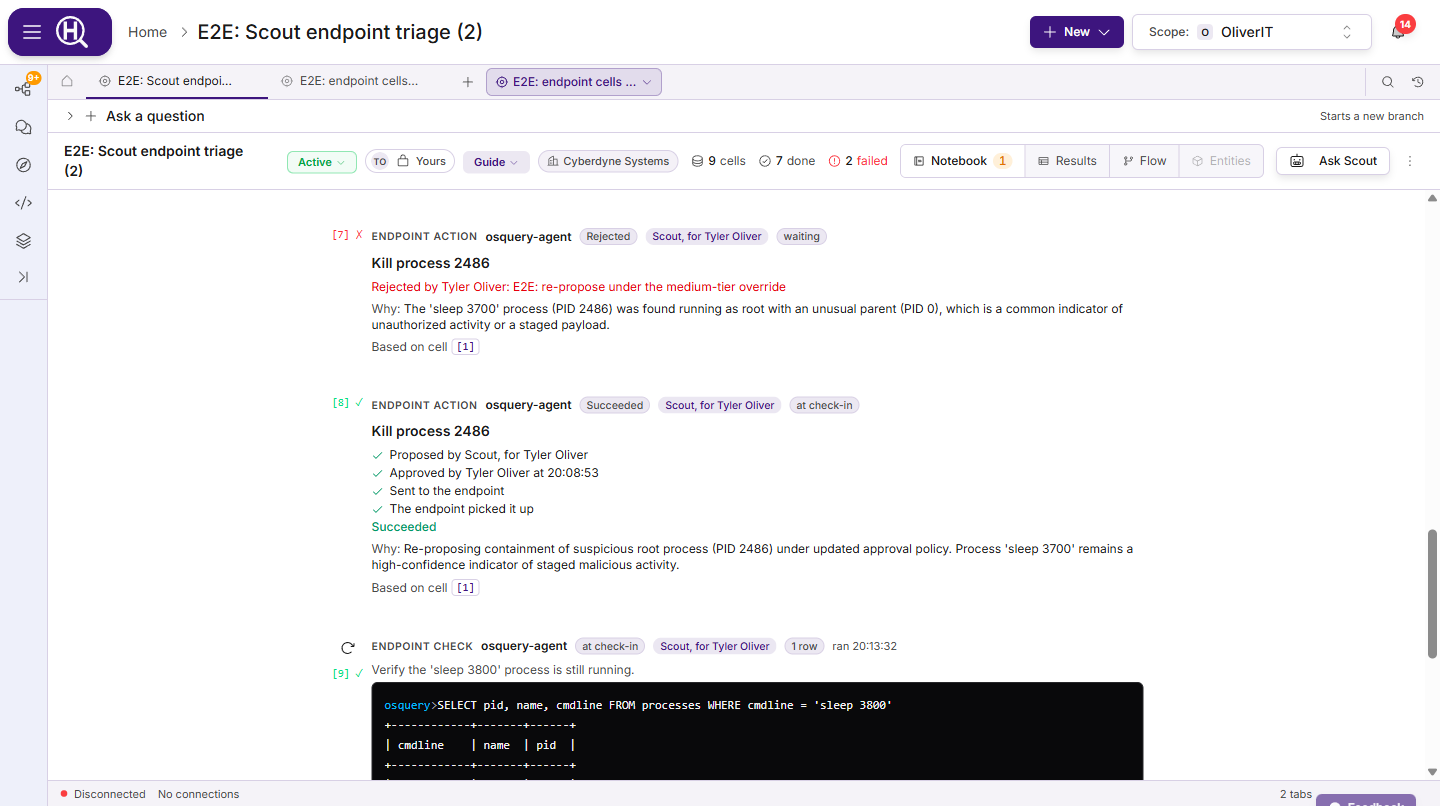
An endpoint action or watch — whether you added it or Scout proposed it — starts as a proposal with an approval card. The card shows what will happen and on which endpoint, how risky it is (Low risk, Changes the endpoint or High risk), who proposed it, why, the cells it is based on (click one to jump to it), and who may approve it under your organization's policy — for example Scout proposed this. Needs someone other than Alex to approve. The line below says which rule decided that, or Organization default.
- Four-eyes by default. Unless your organization's rules say otherwise, the person who asked cannot approve — and when Scout proposed on your behalf, that person is you. Organizations can relax or tighten this by endpoint tag or risk level, or require an org admin; see Approval rules.
- Approve is checked with the server first. If you can't approve — you asked for it, only an org admin may approve, or you lack the permission on the endpoint — the button is off and the card says why, for example Scout proposed this on your behalf, so someone else has to approve it. Only the hunt's owner and contributors can approve or reject.
- Reject takes an optional reason, shown on the cell.
- A proposal lapses 15 minutes after it was made if nobody approves it; the card counts down. A lapsed proposal can't be approved — ask again if it is still needed.
- Nothing can be proposed or approved while the endpoint's fleet is in safe mode.
- Once approved, the cell follows the action — Approved by…, Sent to the endpoint, The endpoint picked it up — and then shows how it ended (Succeeded, Failed, Refused by the endpoint, Expired before the endpoint picked it up). Output appears only when the requester chose to include it.
- An approved watch shows watching, the time to its next run and Stop. It holds one live response slot while it runs, and pauses while the page is hidden. If the endpoint is not live, it runs once instead and says so.
Endpoint cells never run as part of Run all; a proposal waiting for approval appears under Needs you. Everything done through these cells — by you or by Scout on your behalf — is recorded in the endpoint's audit trail, including each proposal, approval, rejection and lapse. Scout adds these cells too when it works on an endpoint; see Scout on endpoints.
Telemetry view cells
This feature is currently rolling out and may not be enabled for your organization. Telemetry view cells already in a hunt always show.
A Telemetry view cell pins a Search telemetry view to the hunt as evidence: its sources, time range, filters and search. With it, the cell keeps a snapshot of what the view matched: the number of events, a small volume chart, the Top fields with their top values, and up to 10 Sample events. The header says how old the snapshot is (as of 5 minutes ago). If the count is an estimate, it starts with ~. Like endpoint cells, the events stay on the cell and never become entities in the graph.
A snapshot records what the view matched when it was taken. It doesn't change as new events arrive, so the evidence stays what it was when you cited it.
| Control | What it does |
|---|---|
| Refresh | Takes a new snapshot of the same view. ⌘⏎ / Ctrl+⏎ on a focused cell does the same. Telemetry view cells never run as part of Run all. |
| Open in Browse | Opens the view in a Search telemetry tab, to look further or change the filters. Where Add to hunt is available, the tab stays linked to the cell. A Telemetry step strip says whether the view still Matches the step. After you change the view, Update step saves it to the cell and takes a new snapshot. |
| Ask Scout | Opens the hunt's chat, asking what stands out in this view and what to check next. |
If a refresh fails, the cell shows the error and keeps Showing the last snapshot that worked. If a lake store the view reads is excluded, the cell lists it under Not included, and its counts cover the other stores only.
Who sees the events. A snapshot contains events, so it's shown only to people who can see every source the view reads. Anyone else on the hunt sees You can't see every source this view reads, so its snapshot is hidden. in its place. Contributors on an open hunt can refresh and archive the cell.
Add a telemetry view cell. Click Telemetry view in Add cell to open Add telemetry view. Then either:
- Build the view here: pick a Source (or All sources) and a Time range, and type Filters as
field=value,field!=valueorfield exists. - Paste from Browse: paste a link or view copied from a search of your telemetry.
Give it an optional Title (it defaults to a summary of the view) and Why it matters, then click Add view. Huntbase takes the first snapshot as it adds the cell.
Telemetry view cells also come from:
- Start a hunt on an event in a search of your telemetry. This creates a hunt with a cell called Events around the starting event, covering the 5 minutes either side of the event.
- Scout, which can add a cell with
add_telemetry_cellwhile it works on the hunt, and can add telemetry steps when it plans a hunt on its own. Cells Scout added are badged Scout. See Scout and your telemetry.
The right pane
The notebook's right pane (resize it from its left edge; Hide outline / Outline in the notebook header toggles it) has five tabs:
| Tab | Contents |
|---|---|
| Outline | One row per cell with its outcome, and the sections between them. Click a row to jump. Beneath it, Needs you lists what is waiting — failed cells, checkpoints, approvals, the verdict — in notebook order, with the verdict last, and Next to walk through them. Checkpoints can be approved from the list with Approve step. A query, collection, task or detection Scout proposed can be approved there with the same button as on the cell. A query that still needs parameters shows Fill in parameters, and an action or endpoint proposal shows Review; both take you to the cell. |
| Brief | The hunt's framing: the hypothesis and findings block, a Description, the hunt's Notes, and — for hunts Scout drove — a Scout Summary with Continue in chat. Scout writes the summary from the hunt's own cells: its hypothesis, queries and row counts, notes and verdict. Notes here are about the hunt as a whole; see Tags and notes. |
| Evidence | Everything tagged in this hunt: tagged rows, tagged entities, labels and IOCs. Tags Scout suggested appear only after you accept them. |
| Activity | A timeline of what happened, in order. |
| Provenance | Where the hunt came from — Owner, Scope, Team, Planned in, Sources, Template, and for watcher-started hunts a What fired this block — plus labels, linked context and Seed Signals. |
On narrower screens the pane opens as a sheet from the Outline button.
Read-only hunts
When you cannot edit, the notebook says why in place of Add cell. A closed hunt is read-only and offers Reopen hunt to its owner and anyone with Can edit. It asks for nothing: checkpoints and proposed steps can't be approved, steps can't be run again, and new Explorer tabs no longer attach to it. Someone else's hunt is read-only unless you are a contributor on it; the strip names the owner.
The hunts that come with sample data are owned by Example Corp (sample) and are read-only for everyone. Their access chip says Example Corp sample hunt. You can read it but not change it.
Add work to a hunt
This feature is currently rolling out and may not be enabled for your organization.
Work you do in other tabs goes into a hunt only when you add it. Add to hunt appears in these places:
| Where | What it adds |
|---|---|
| The results header of a query tab | The query, as a step pinned to the run you're looking at. |
| Under a Scout answer in a chat | The answer, as a note with a link back to the chat. |
| A graph node's detail panel | The entity. |
| Next to Save view in a search of your telemetry | The search, as a query step. |
Add to hunt adds to the hunt picked in the tab bar's Add to hunt goes to selector. Use its ▾ to pick another open or recent hunt, or New hunt from this to start a hunt with it. A message confirms the add, with Show in notebook.
A query tab you add is linked to its step. Its results header shows Step with the step's title and Show in notebook, and every later run in that tab updates the step.
Verdicts
The Verdict cell sits last. It shows the current outcome line, the four verdicts as buttons, a one-line rationale, and the Verdict log beneath:
| Verdict | Meaning |
|---|---|
| Confirmed | Adversary activity found. Needs at least one cell with results as its basis. A finished endpoint check that returned rows counts. |
| Nothing found | Coverage confirmed, hypothesis ruled out. Blocked while a flagged row is still unreviewed. |
| Inconclusive | Could not test. Records the gap as a finding. |
| False positive | The triggering insight was noise. |
To record a verdict, pick one and type a one-line rationale (One line on why — required). Both buttons stay off until the rationale has text:
| Button | What it does |
|---|---|
| Record & close hunt | Adds the verdict to the log and closes the hunt in one step. Enter in the rationale does the same. |
| Record only | Adds the verdict to the log and leaves the hunt open, so you can keep adding cells and record again. |
The latest entry wins and all of them remain, each with its rationale. Scout adds Draft entries as the hunt progresses ("not tested" after failures, "supported on host" after a hit) so the line is never blank. The verdicts are Confirmed, Nothing found, Inconclusive and False positive, the same four everywhere a hunt's outcome appears. Generate report and Open report live here too.
You can also close from the header: Close hunt… in the ⋯ menu closes the hunt on the verdict already recorded, and it will not close while none has been — record one first.
What closing does. A closed hunt is read-only until someone who can edit it reopens it. Closing settles work still in flight: steps waiting for approval are rejected, running queries and collections stop (Stopped: the hunt was closed), and the hunt drops out of Needs you and its counts. Notes and endpoint cells are left as they are. After you reopen the hunt, you can run the stopped and rejected steps again.
After a reopen. The verdicts the hunt was closed on no longer describe the hunt you're working on, so the log marks them Superseded instead of Recorded, and the cell says superseded — hunt reopened, record a new verdict.
The Flow view
Flow draws the same cells as a graph: every step is a node, edges show what fed what, and clicking a node opens its side panel. Above the graph you can Search nodes…, Filter, switch layouts, and open the Legend. Node cards say what a step found — 12 rows, No rows, Failed — rather than just that it ran. A dashed v2 edge links a replaced cell to its replacement.
The canvas is still the place to edit the graph: drag between nodes to set what depends on what, use Add node on a node to attach a Query, Task or Detection beneath it, and use the side panel for the full node experience. Show in notebook on a node tab jumps back to its cell; Show on canvas in the notebook goes the other way.
The Results view
Results is the full grid of every cell's rows: a source rail with All results and one entry per cell, free-text search, Tagged only, Group by, row detail and export. Right-click a row to tag it, add a note or Add to timeline… — see Tags and notes and Investigation timeline. Open in Results from a cell lands here with that cell selected. Rows from discovery cells and archived cells are hidden by default; Show scaffold and Show archived bring them back.
The Entities view
Entities is the hunt's entity graph, with the entity's panel on the right. See Entities.
The Timeline view
Timeline is the hunt's investigation timeline: the events you decided matter, oldest first, in UTC, each linked to its evidence. Add events from result rows, entities and endpoints, by hand, or with Suggest from tagged evidence, and export them with Export tracker spreadsheet. See Investigation timeline.
Header actions
The hunt header carries the title (click to edit), status, an access chip, severity, the Scout mode chip (Scout: Guide, Scout: Collaborator or Scout: Operator), and counts of cells, done, failed and entities. The title comes first: when the header is short of space, chips that don't fit fold into a +N button, and you can still see and change them there. The access chip shows the people on the hunt, a lock (private) or a building (visible to the organization), and your own standing — Yours, Can edit or Read-only. Click it to see who owns the hunt, who created it if that was someone else (Scout, say), everyone on it with their role, and who can see it. The owner can add or remove people and choose between Only people on this hunt and Everyone in the organization from there. ⋯ offers Add from Library…, Import YAML, Export YAML (tick Flow only for a clean, reusable structure), Export tracker spreadsheet (.xlsx)… (see tracker spreadsheet), Save as playbook…, Triggers…, then the hunt's lifecycle — Close hunt… on an open hunt, Reopen hunt on a closed one, Archive hunt / Restore to active — and, on a draft, Discard draft (owner only). Import YAML, Triggers… and the lifecycle entries appear for the owner and anyone with Can edit, and Add from Library… only while the hunt is open. The menu stays available on a closed hunt, so its exports do too.
Run all (N) in the header runs every step that can run. When some steps will stop for approval, the button says so instead, for example Run 2 · 6 need approval, and its tooltip lists the steps it will pause at.
Relaunch automatically with triggers
Open ⋯ › Triggers… to Arm a trigger: pick a watcher pattern, a session mode and a severity floor, and Huntbase launches this hunt's playbook whenever that watcher fires. If the hunt is not a playbook yet, arming saves it as one first. Armed triggers are listed with their state — Armed, Needs data, Backed off — with Run now and Remove. See Watchers.
The report tab
Generate report has Scout write the hunt up against the template you pick — the Huntbase default Threat hunt report, the Incident / hunt investigation report, or your organization's own — and Open report opens it as its own tab. The report draws on the hunt's results, entities, tags, notes and investigation timeline. Caveats such as a draft report on an open hunt, or claims the evidence doesn't support, are shown above the body. Download saves it as a Word document (.docx) or Markdown (.md), and Regenerate rewrites it after the hunt has moved on. See Hunt reports.
Collaborators and visibility
Every hunt has an Owner and a Scope. On an organization's hunt, the person shown as the owner is the person who created it. The owner and anyone with Can edit can add and run cells, edit the title, description, hypothesis and scope, and close, reopen or archive the hunt. Only the owner can delete the hunt (Discard draft), add or remove people, and change who can see it. Someone with Can view reads the hunt but cannot change it. Hunts are private to the people on them by default; the owner can make one visible to everyone in the organization from the header's access chip, and what you can do is always stated there.
Where hunts appear
Every hunt you can see is a folder in the dock's Workspace tree, with its needs-you count beside it; pin the ones you return to with Pin to top. Hunts are listed under Feed › Hunts in the Activity Feed, and outcomes roll up in Pulse.
Next steps
- Hunt playbooks — save a hunt as a reusable definition and launch it later
- Activity Feed — browse and triage the team's hunts
- Chatting with Scout — where most hunts begin
- Hunt reports — templates, caveats and downloads