Investigation timeline
A hunt's investigation timeline is the story of the incident as you tell it. It lists only the events you decided matter, oldest first, in UTC: when the attacker got in, what they touched, what you did about it. Each event can link back to the row, entity or endpoint it came from.
Huntbase doesn't assemble it for you. That's the difference from the hunt's Activity tab, which logs what people and Scout did in the hunt, and from the entity timeline, which collects everything known about one host or user. You build this one as you find evidence, and it becomes the Timeline sheet of the tracker spreadsheet and the timeline table of an incident report.
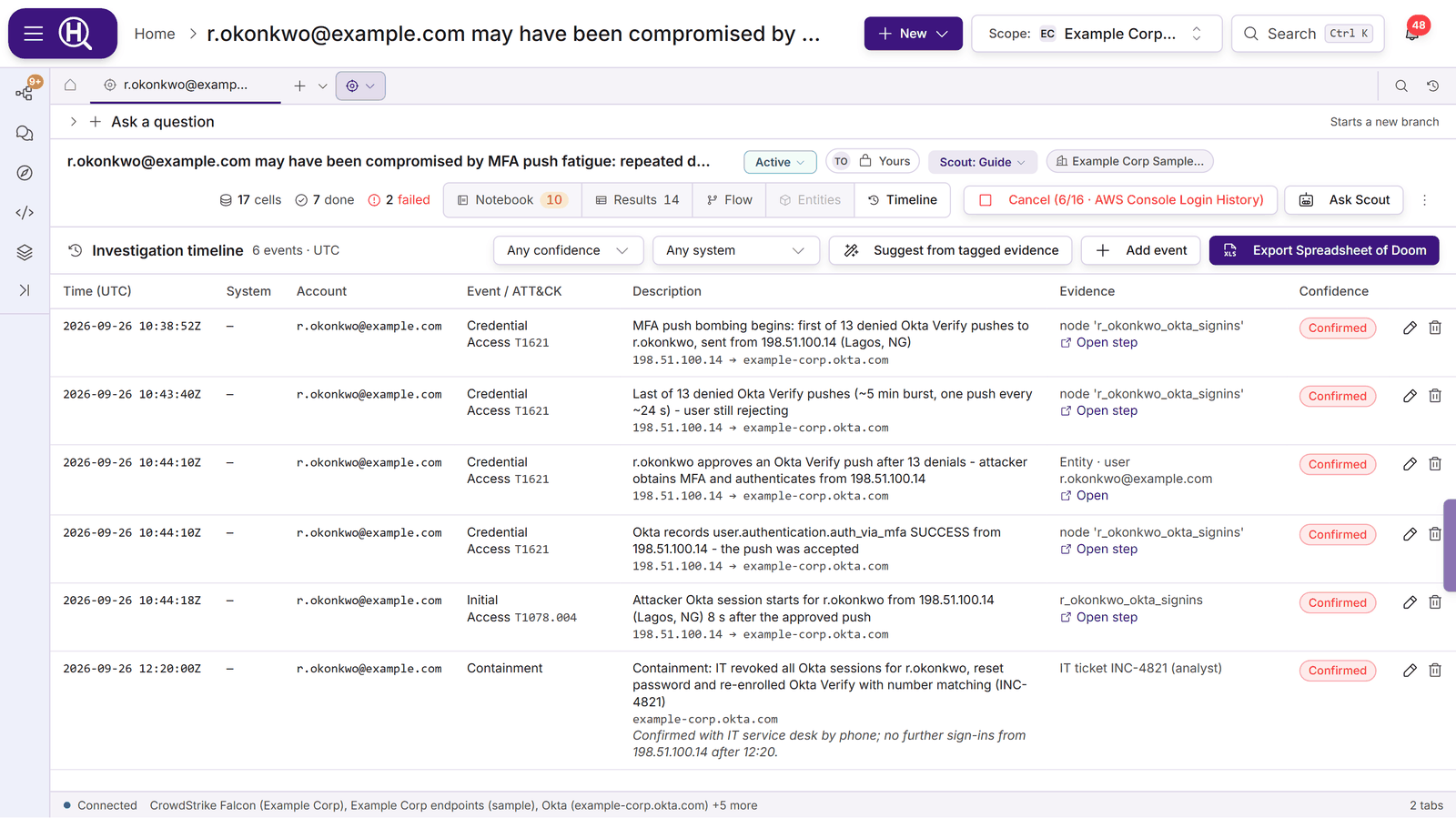
Open the Timeline view
In a hunt's tab, click Timeline in the view switcher next to Notebook, Results, Flow and Entities. The hunt's folder in the dock's Workspace tree has a Timeline row too.
The header shows how many events there are, the filters Any confidence and Any system, and the actions Suggest from tagged evidence, Add event and Export tracker spreadsheet.
What an event holds
| Field | What to put in it |
|---|---|
| Event time (UTC) | Required. Entered and shown in UTC, not your local time zone. |
| Confidence | Confirmed, Suspected (the default) or False positive. |
| What happened | Required. One sentence, e.g. Attacker approved MFA push after 14 denied attempts. |
| System | The hostname the event happened on. |
| Account | The user or service account involved. |
| Event type / ATT&CK tactic | Free text or a tactic, e.g. Initial Access, Containment. |
| ATT&CK technique | A technique ID, e.g. T1621. |
| Source address / Destination | Where it came from and where it went. |
| Evidence source | Where you saw it, e.g. Okta sign-in logs · node "MFA pushes". |
| Analyst notes | Anything else: how you confirmed it, the ticket it's tracked in. |
In the table, Time (UTC), System, Account, Event / ATT&CK, Description, Evidence and Confidence are columns. Confirmed events show a red chip, Suspected amber, and False positive struck through. When an event came from evidence, the Evidence column links back to it: Open step opens the hunt step the row came from, and Open opens the entity.
Add events
From a result row
Right-click a row in a query tab, a hunt cell, the hunt's Results view or a search of your telemetry, and choose Add to timeline…. The Add to investigation timeline dialog opens, prefilled from the row: the time from its timestamp column, and the account, source address, destination and system from the columns that look like them. Evidence source is set to the step the row came from. Check the fields, set the confidence, and click Add to timeline.
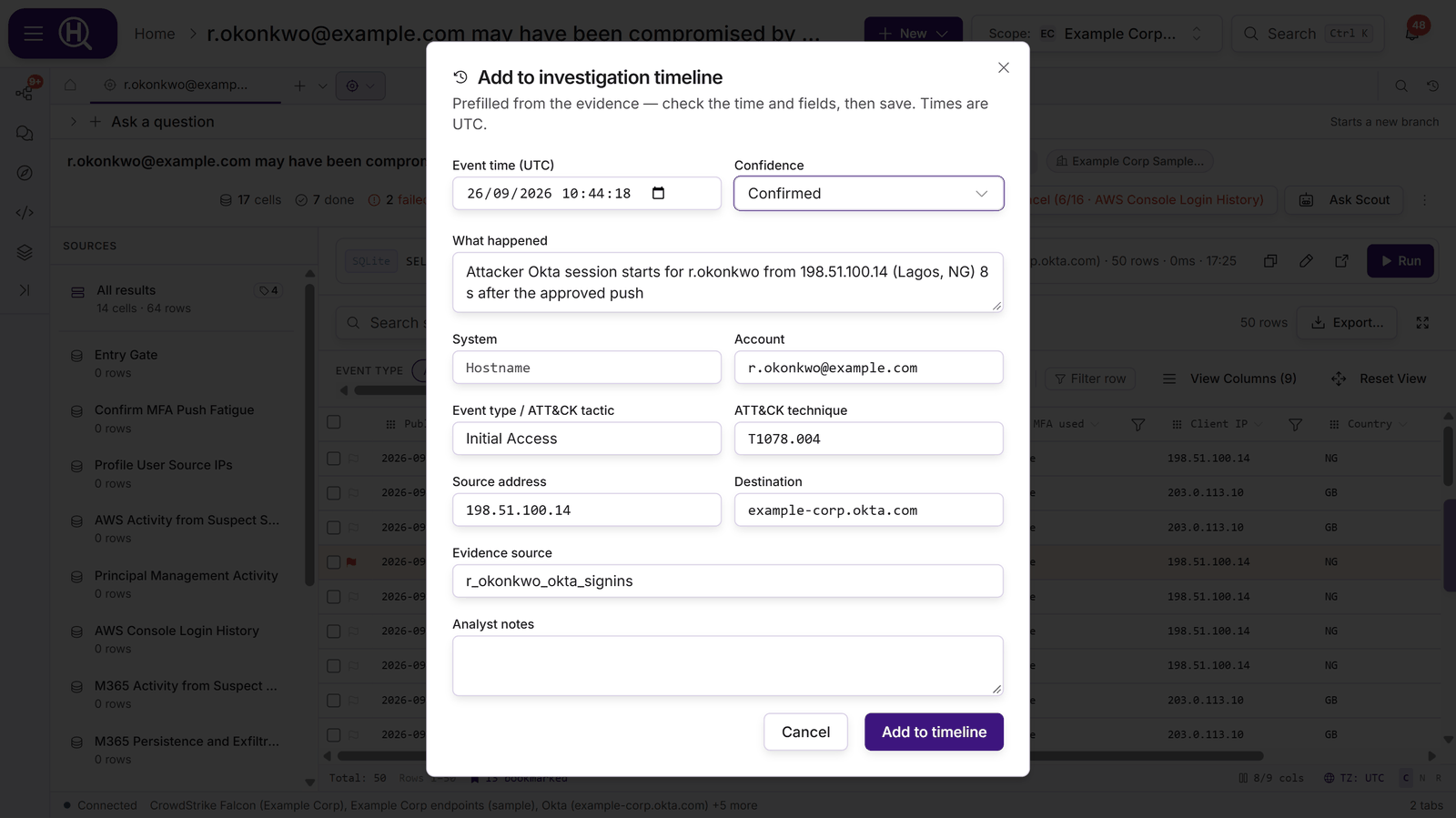
The event keeps a link to the row, so the tracker spreadsheet and the report can show the evidence behind it.
From an entity, an endpoint or an entity timeline
- An entity's panel has Add to timeline next to Hunt now.
- An endpoint's page has Add to timeline in its header. System is filled in with the endpoint's hostname.
- An item on an entity timeline shows an Add to timeline button when you hover it.
When you add from outside a hunt, the dialog asks which hunt the event belongs to (Choose an open hunt). Only open hunts in your current scope are listed. Each one shows a short ID, so two hunts with the same title can be told apart.
By hand
Click Add event, fill in the form, and click Add event again. Use this for things that aren't in your data, such as when IT reset a password or the user was called.
Suggest events from tagged evidence
Click Suggest from tagged evidence. Huntbase looks at the hunt's tagged result rows that carry a timestamp column (time, timestamp, published, @timestamp and similar). It drafts one event for each, with the account, source address and system filled in from the row and the step as the evidence source.
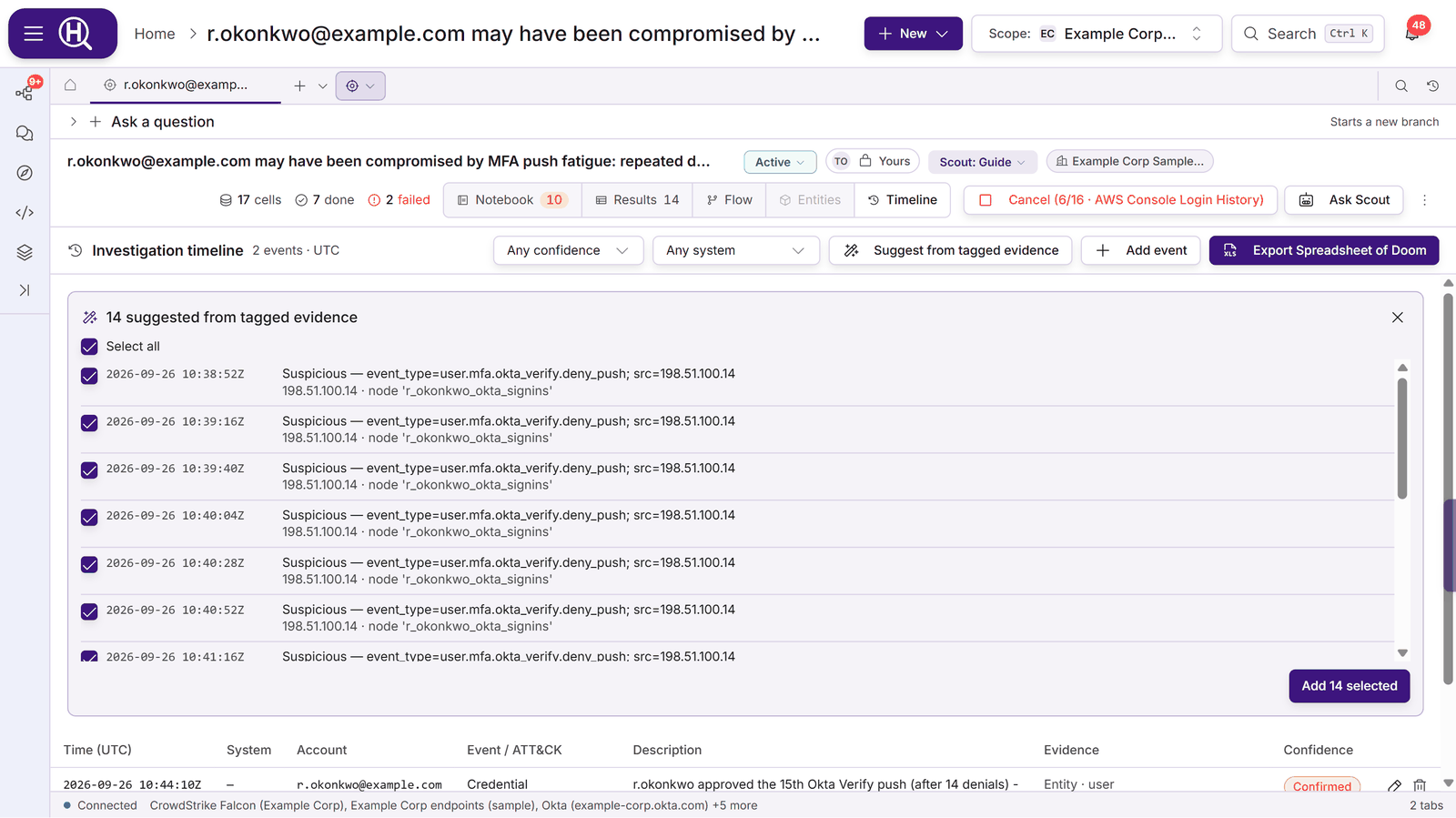
Nothing is saved until you choose. Untick the ones you don't want, or use Select all, then click Add N selected. Close the panel with × to discard the rest. If nothing comes back, tag rows that carry a timestamp first: right-click a row and choose Tag row.
Suggestions are a starting point. Rewrite the description so it says what happened, not which tag the row carried, and set the confidence.
Edit, filter and delete
- Click the pencil on an event to edit it in place. Save or cancel the edit.
- Click the bin to delete an event. Huntbase asks first (Delete this timeline event?).
- Any confidence and Any system narrow the list. If nothing matches, the view says No events match these filters.
Anyone who can see the hunt can read its timeline. Adding, editing and deleting events needs edit access to the hunt.
How the timeline is used
| Where | What it does with the timeline |
|---|---|
| Tracker spreadsheet | Every event goes on the master Timeline sheet, coloured by confidence. Systems, accounts and addresses on the timeline also feed the Investigated Systems, Compromised Accounts and Network Indicators sheets. A Confirmed event marks them Compromised, a Suspected one Suspected. |
| Hunt report | The Incident / hunt investigation report template copies the timeline into its Timeline of Attacker Activity table exactly as you wrote it. Scout doesn't rewrite it. |
| Scout | When you ask whether the hunt is ready to write up, Scout points out tagged rows that aren't on the timeline yet, and events with no linked evidence. |
Next steps
- Tags and notes: tag the evidence you'll build the timeline from
- Tracker spreadsheet: export the timeline with everything else
- Hunt reports: turn it into an incident report