Hunt reports
A hunt report is the written account of a hunt. Scout writes it from the hunt's own evidence: its steps and results, the entities it found, and your tags, notes and investigation timeline. The template you pick sets its shape. You read it in the hunt's Report tab and download it as a Word document or Markdown.
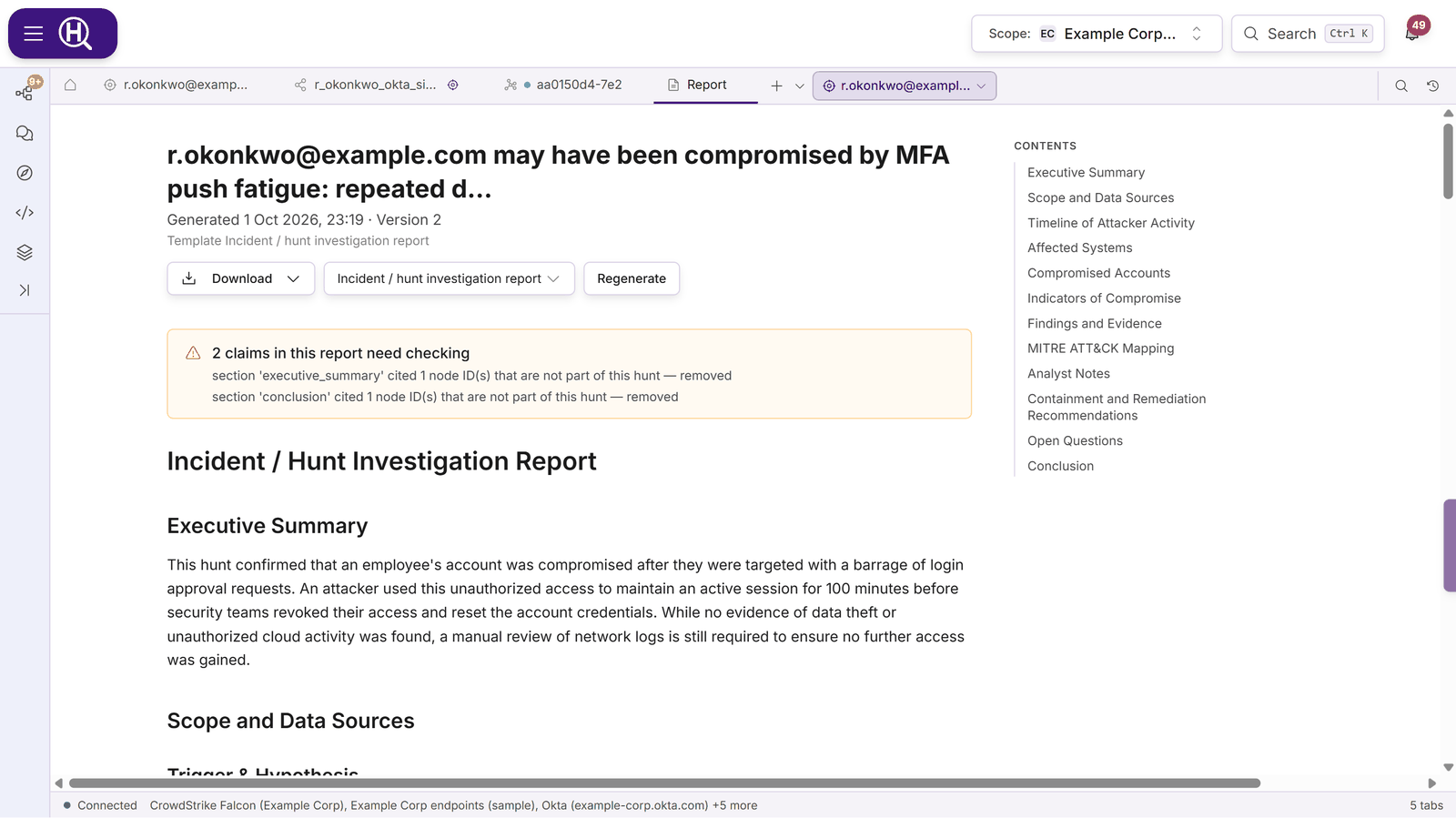
Generate a report
- Open the report: Generate report (or Open report, once there is one) in the hunt's verdict cell, or the hunt's Report tab.
- If the hunt has no report yet, the tab says No report has been generated yet. Pick a template in the Report template select. Its description and sections are shown below it.
- Optionally tick Also save a spreadsheet snapshot to keep the tracker spreadsheet as it stands, paired with this report. It's unticked by default.
- Click Generate Report. The tab shows Generating report… while Scout works, usually for under a minute.
You can also ask Scout in the hunt's chat. See Write up a hunt with Scout.
To write the report again after the hunt has moved on, or with a different template, pick the template next to Regenerate and click Regenerate. Each run is a new version, and earlier versions are kept as they were (see Versions and snapshots). The header shows when it was generated, its version and the template it used. If generation fails, the tab says why and offers Retry, with the template picker beside it.
Choose a template
| Template | Use it for |
|---|---|
| Threat hunt report | Huntbase's default. A hypothesis-driven write-up: findings, analysis, risk, IOCs, ATT&CK mapping, detections and follow-up hunts. |
| Incident / hunt investigation report | An incident-style report built on your investigation timeline, notes and tags. It covers the attacker timeline, affected systems, compromised accounts, IOCs, containment and open questions. |
| Your organization's template | Listed first and marked (your organization) when your organization has one. It's then the default. See Report templates. |
The default is marked · default in the list. An organization template that no longer parses isn't offered.
The Incident / hunt investigation report has these sections: Executive Summary, Scope and Data Sources, Timeline of Attacker Activity, Affected Systems, Compromised Accounts, Indicators of Compromise, Findings and Evidence, MITRE ATT&CK Mapping, Analyst Notes, Containment and Remediation Recommendations, Open Questions and Conclusion.
What goes into the report
Scout reads:
- the hunt's hypothesis, steps, results and verdict
- the entities it found, its tagged rows and tagged or IOC entities, and the hunt's labels
- the investigation timeline
- notes made in the hunt, on the hunt, and on the entities, endpoints and graph nodes its evidence points to
Some sections are copied from your work, not written by Scout. In the incident template, Timeline of Attacker Activity, Affected Systems, Compromised Accounts and Analyst Notes are tables built from your timeline and notes, exactly as you recorded them. Affected Systems and Compromised Accounts list the systems and accounts named on the timeline. Events marked False positive are left out. To change these tables, change the timeline or the notes and regenerate.
Tag suggestions from Scout that you haven't accepted aren't evidence, so they don't reach the report.
A section with nothing to say is left out rather than padded. A note at the foot of the report lists how many sections were omitted. Sections such as Indicators of Compromise say Not assessed and why.
Read the caveats
Before it stores a report, Huntbase checks it against the hunt's evidence. Anything that changes how you should read the report appears in an amber box above the body, headed One claim in this report needs checking or N claims in this report need checking:
| Caveat | What it means |
|---|---|
| Draft report: generated while the hunt was still open | The hunt wasn't closed. Findings, timeline and verdict may still change. Close the hunt and regenerate for the final report. |
| repeats specifics from the hypothesis that no evidence in this hunt shows, followed by unverified: and the specifics | The report restates a premise from the hypothesis as a finding, such as where a user "always" signs in from. Nothing in the hunt shows it. Check it or remove it before sharing. |
| states duration(s) not present in the evidence, followed by unverified: and the durations | A duration, such as "a 100-minute session", that Scout worked out rather than read from the data. Check the arithmetic against the timeline. |
| removed indicator(s) this hunt never observed | Scout named an IP, hash, domain or URL the hunt never saw. It was removed from the indicator list, and any mention in the prose is marked [unverified]. |
| cited node ID(s) that are not part of this hunt — removed | A citation pointed outside the hunt and was removed. |
These checks only flag. They never rewrite your timeline or tables, and nothing is removed silently. A caveat is a prompt to check the claim before you share the report. See What is checked regardless of your template.
Versions and snapshots
Every time a report is generated or regenerated, Huntbase stores it as a new version: v1, v2 and so on. A regenerate never overwrites an earlier version. Click Versions & snapshots in the report header to see them. The same list is on the report's side panel in the Activity Feed's Reports view.
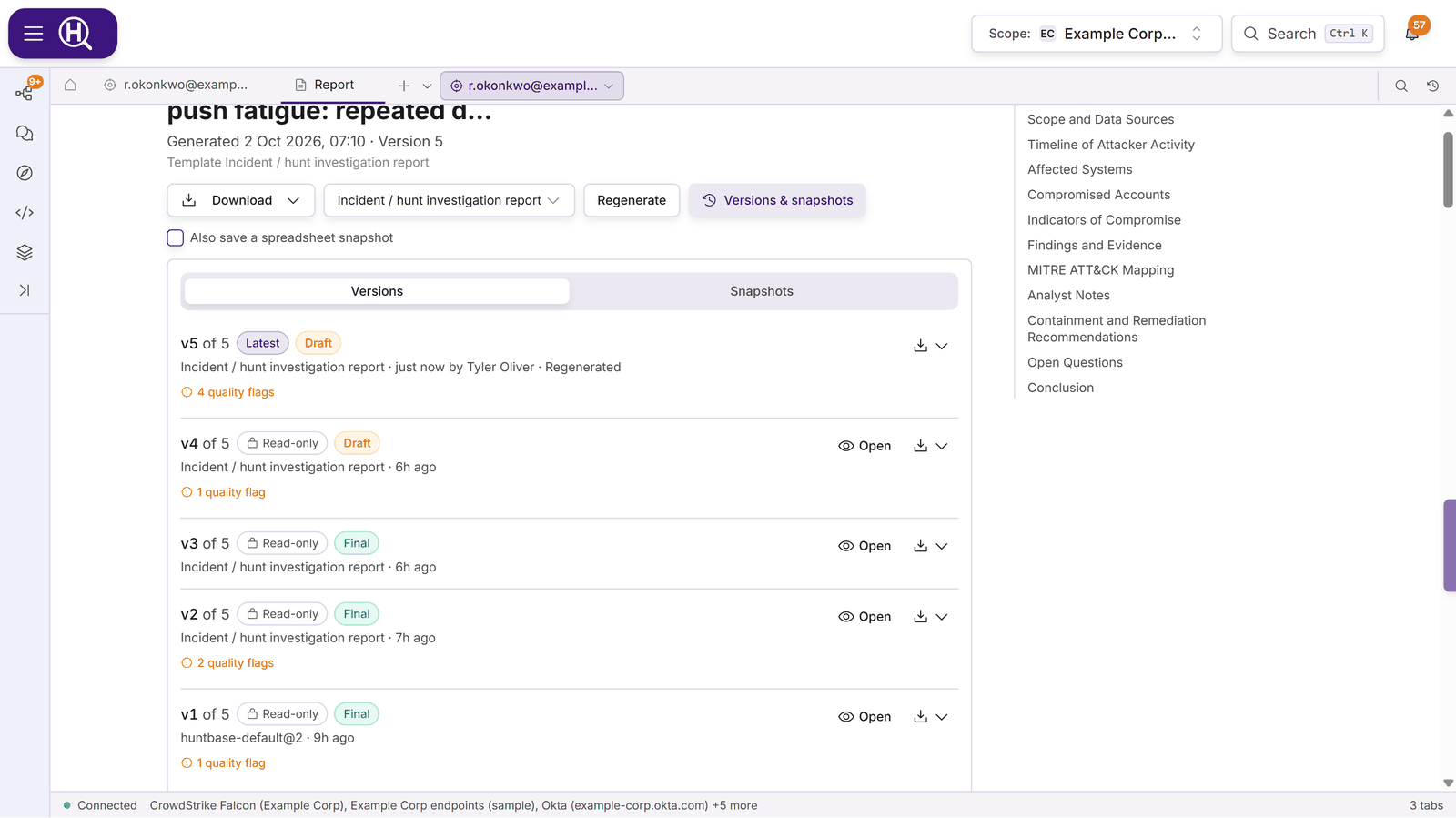
Versions
The Versions tab lists every version, newest first. Each one shows:
- vN of M, with Latest on the newest version and Read-only on every older one
- Draft or Final: a draft was generated while the hunt was still open
- the template it used, when it was generated and by whom
- what produced it, when Huntbase knows: Generated by hand, Regenerated, Written by Scout or On hunt close
- how many quality flags it has (see Read the caveats)
Open shows any version. An older version opens read-only, exactly as it was generated: older versions are kept for the record and can't be edited or overwritten. The download menu on each version offers Word document (.docx) and Markdown (.md), so you can send the version a stakeholder saw rather than the latest one. To change a report, regenerate it. That makes a new latest version and leaves the old ones as they were.
Snapshots
A report says what you found. The tracker spreadsheet holds the evidence behind it, and the hunt's evidence can keep changing after the report goes out. To keep the workbook that matches a report, save a snapshot. Nothing is stored unless you ask: an ordinary export is downloaded and not kept.
- Tick Also save a spreadsheet snapshot next to Generate Report or Regenerate. Huntbase stores the workbook of tagged evidence when you click, labels it With report vN and pairs it with the new version.
- Or click Save snapshot now on the Snapshots tab, with an optional Label and the Contents (Tagged evidence or All results).
The Snapshots tab lists each snapshot with its label, contents, size, the report version it was taken with, when it was saved and by whom. Download gets the stored file. Delete removes it permanently after you confirm. See Snapshots for who can save, see and delete them.
Download
Download offers:
| Option | What you get |
|---|---|
| Word document (.docx) | The report as a Word document, with its headings and tables, ready to edit or send. |
| Markdown (.md) | The same document as Markdown. |
Download in the report header gets the latest version. To download an older one, use its download menu under Versions & snapshots.
Reports written before templates existed can only be downloaded as Markdown. For the evidence behind the report as a workbook, export the tracker spreadsheet.
Next steps
- Report templates: write your organization's own template
- Investigation timeline: the timeline the incident report is built on
- Tracker spreadsheet: the evidence workbook, and saving snapshots of it
- Activity Feed: every hunt's latest report in one list
- Chatting with Scout: ask Scout whether the hunt is ready to write up
- Hunts: verdicts and closing a hunt