Hunt playbooks
A hunt playbook is a reusable hunt definition: the hypotheses, queries, checkpoints, analytics and tasks that make up a hunt, saved as a versioned document you can launch again and again. Playbooks live in the Library, which opens on the Hunt playbooks facet by default.
Launching a playbook copies its steps into a fresh hunt in Explorer, so every run starts from the same plan but produces its own findings and report.
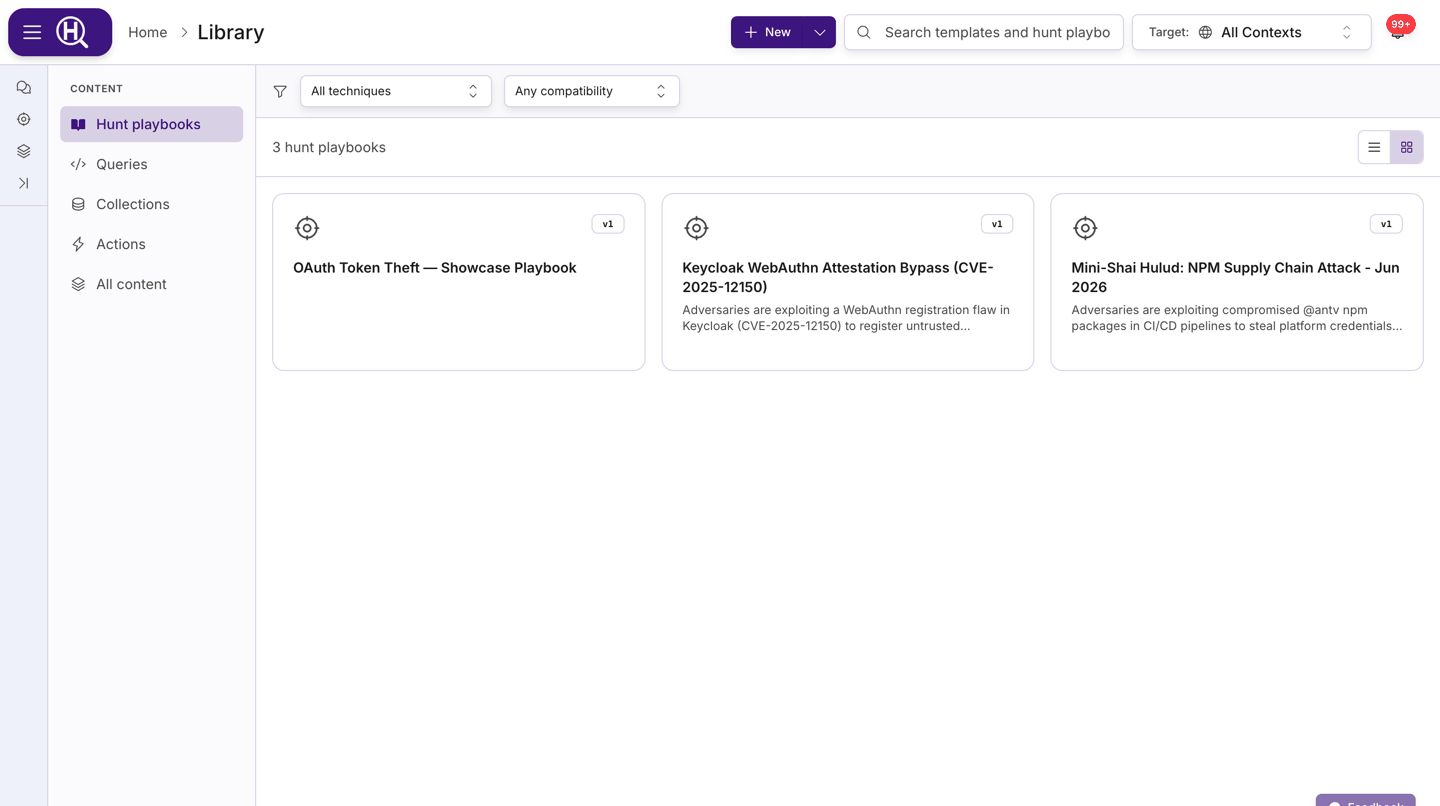
Browse playbooks
Open Library from the navigation. The Hunt playbooks facet is selected; each playbook shows as a card (or a row in list view) with:
| Element | What it shows |
|---|---|
| Version badge | The current version, e.g. v3 |
| Technique badges | Up to two MITRE ATT&CK technique IDs, with a +N overflow |
| Step summary | Counts by step type — hypothesis, query, checkpoint, analytic, task, and so on |
| Required products | The logos of the products the playbook needs. A green check marks products you have a connection for; a grey cross and a greyed-out logo mark products you don't. Hover a logo for the product's name. After four products the rest collapse into +N |
| Owner | The user or organization that owns the playbook |
Every playbook in your current scope is listed, a page at a time as you scroll. Filtering, sorting and the counts all happen on the server, so every option and number describes the whole catalogue rather than the part that has loaded. Use the toolbar to narrow it:
| Control | What it does |
|---|---|
| Search box (top bar) | Matches playbook names and descriptions |
| All sources | My organization for playbooks written in your organization, Huntbase for ones that ship with the platform |
| All techniques | One or more MITRE ATT&CK techniques. A parent technique also matches its sub-techniques, so T1059 finds a playbook tagged only T1059.001 |
| Any product | Playbooks that need a connection to that product |
| Tags | Playbooks carrying the tags you pick |
| Any usage | Used by a hunt or Not used yet |
| More filters | Tactic, Origin (saved from a hunt or written directly), Owner, Author (written by me), Compatibility (all required products connected) and Status (include archived) |
| Sort (right of the count) | Recently updated, Newest, Name or Most used |
| Card / list toggle | Switch between the card grid and a compact list |
Every option carries the number of playbooks it would match, and options that would match nothing are left out — so a control only offers what your catalogue actually has. A control whose dimension is unused disappears entirely: with no playbook carrying a tactic, there's no tactic filter to open.
Filters combine: choosing a source and a technique shows playbooks matching both, while picking two techniques shows playbooks matching either. Each applied filter appears as a token under the toolbar; remove one with its ×, or use Clear all.
The count above the list says how many playbooks match — "221 hunt playbooks", or "12 hunt playbooks match" once filters narrow it.
Hunt playbooks also appear under All content alongside queries, collections and actions, and clicking one there opens the same playbook panel.
Open a playbook
Click a card to open the playbook panel. The header shows the name, owner, version and technique badges, plus the Launch button and a ⋯ menu. Five tabs sit below:
| Tab | What you find there |
|---|---|
| Overview | Description; Lineage ("Saved from …") linking back to the hunt the playbook was created from; step counts; Required sources with a per-product Connected / Not connected status; and a read-only Definition graph of the flow |
| Source | The playbook as a portable document. Pick hunt.md, CACAO or YAML, then Copy or Download. hunt.md is an open format — see the hunt.md spec |
| Versions | Every saved version with date, author and changelog, newest first |
| Usage | Recent hunts launched from this playbook, with severity and status; click one to open it in Explorer |
| Watchers | Where watcher triggers for this playbook will be managed. Today triggers are armed from a hunt — see Launch a playbook from a watcher |
Deep links of the form /library/playbooks/<id> open the Library with that playbook's panel selected, so you can share a link to a specific playbook.
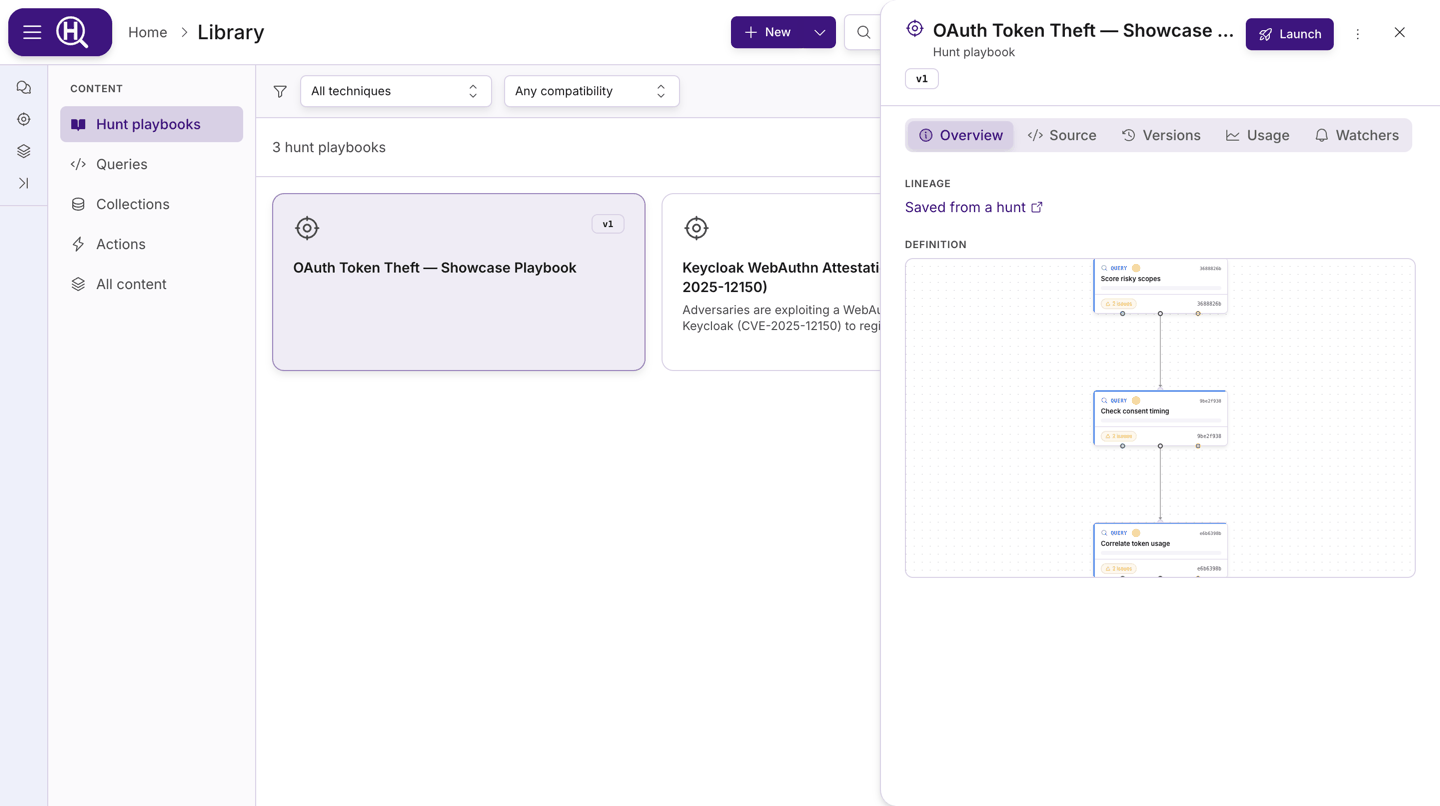
Launch a playbook
- Open the playbook and click Launch.
- The Launch playbook dialog explains that a new hunt will be started from this playbook and version, and how many steps will be copied.
- Below the description, a readiness panel lists each required product with a Connected / Not connected mark, summarised as one of:
- All required sources are connected
- Some sources need attention
- Required sources are missing — the Launch hunt button is disabled until you add a connection If some steps don't need a connection, the panel notes how many will run via Scout automation.
- Click Launch hunt. The new hunt opens in Explorer.
The playbook itself is unchanged; the hunt you launched has its own findings, checkpoints and report. See Hunts.
Create a playbook
From the Library
- In the Library, open the New split button and choose New playbook.
- Pick a mode at the top of the New playbook dialog:
- Start blank — give it a Name, choose an Owner (yourself or one of your organizations), add a Description and Tags, then click Create playbook. This creates a playbook shell with no steps yet.
- Import — paste a document into Source (hunt.md, CACAO, or YAML) or click Upload file (
.md,.yaml,.yml,.json). The name is optional on import; if you leave it blank it is taken from the document. Click Import playbook. Looking for something to import? The Huntbase Hunt Hub publishes reviewed threat hunts as open hunt.md files.
- The new playbook opens in the Library.
While you type or paste, the source is validated and any findings are listed as errors and warnings:
- Errors block the import until you fix the source.
- Warnings mean a construct was converted rather than imported as-is; the import still succeeds and the confirmation notes how many warnings there were.
From a hunt
In a hunt's overview tab, open the ⋯ menu and choose Save as playbook…. Give it a Name, Description and Tags. The playbook records the hunt as its lineage, and later launches start from that plan. See Hunts.
Export a playbook
From the playbook panel:
- ⋯ › Export › hunt.md, CACAO or YAML downloads the file directly.
- The Source tab lets you preview each format and Copy or Download it.
| Format | Best for |
|---|---|
| hunt.md | Portable Markdown source — git-friendly and readable; the default. The format is documented in the hunt.md spec |
| CACAO | CACAO v2 JSON, for sharing with partners and SOAR platforms |
| YAML | The raw Huntbase playbook definition |
Anything you export can be re-imported with New › New playbook › Import.
Edit, version and delete
- Edit — if you own the playbook (or belong to the owning organization), ⋯ › Edit… lets you change the Name, Description and Tags.
- Versions — the Versions tab lists each saved version with who saved it and when. The card and panel always show the latest version number, and launches use that version.
- Delete — ⋯ › Delete asks you to confirm. Deleting archives the playbook and removes it from the Library; hunts already launched from it are unaffected.
Launch a playbook from a watcher
A watcher can relaunch a playbook automatically when its pattern fires. Open a hunt that has been saved as a playbook, choose ⋯ › Triggers…, pick the Watcher, a Hunt mode and an optional severity floor (Only if severity ≥). If the hunt isn't a playbook yet, the dialog saves it as one first. Hunts started this way carry watcher provenance in the Activity Feed. See Watchers.
Tags
Playbooks carry free-form tags you set when creating, importing or editing them (type a tag and press Enter). Tags are shown on the playbook and help you organise the Library alongside technique badges.
Next steps
- Hunts — run, refine and report on the hunt you launched
- Query templates — the reusable queries a playbook's steps can call
- Watchers — trigger playbooks automatically
- Connections — connect the products a playbook requires