Tags and notes
As you work a hunt you mark what matters. A tag records a judgement, such as Suspicious, Compromised or Known Good. A note records your reasoning in your own words. Tags and notes are saved and shared with everyone who can see the same data. Huntbase reads them back when it builds the hunt's investigation timeline, the tracker spreadsheet and the hunt report.
Where you can tag and note
| Where | Tags | Notes |
|---|---|---|
| Result rows and cells: query tabs, hunt cells, a hunt's Results view, the graph results table | Yes, on a row or a cell | Yes, on a row or a cell |
| Rows in a search of your telemetry | No | Yes, on a row or a cell |
| An entity's panel (Entities) | Yes | Yes |
| A graph node's side panel | Yes | Yes |
| An endpoint's page (Endpoints) | Yes | Yes, in the Notes box on Overview |
| A hunt | Hunt labels, listed on the Evidence tab of the notebook's right pane | Yes, under Notes on the Brief tab |
| An indicator's page in Intelligence | No | Yes, in the Notes card |
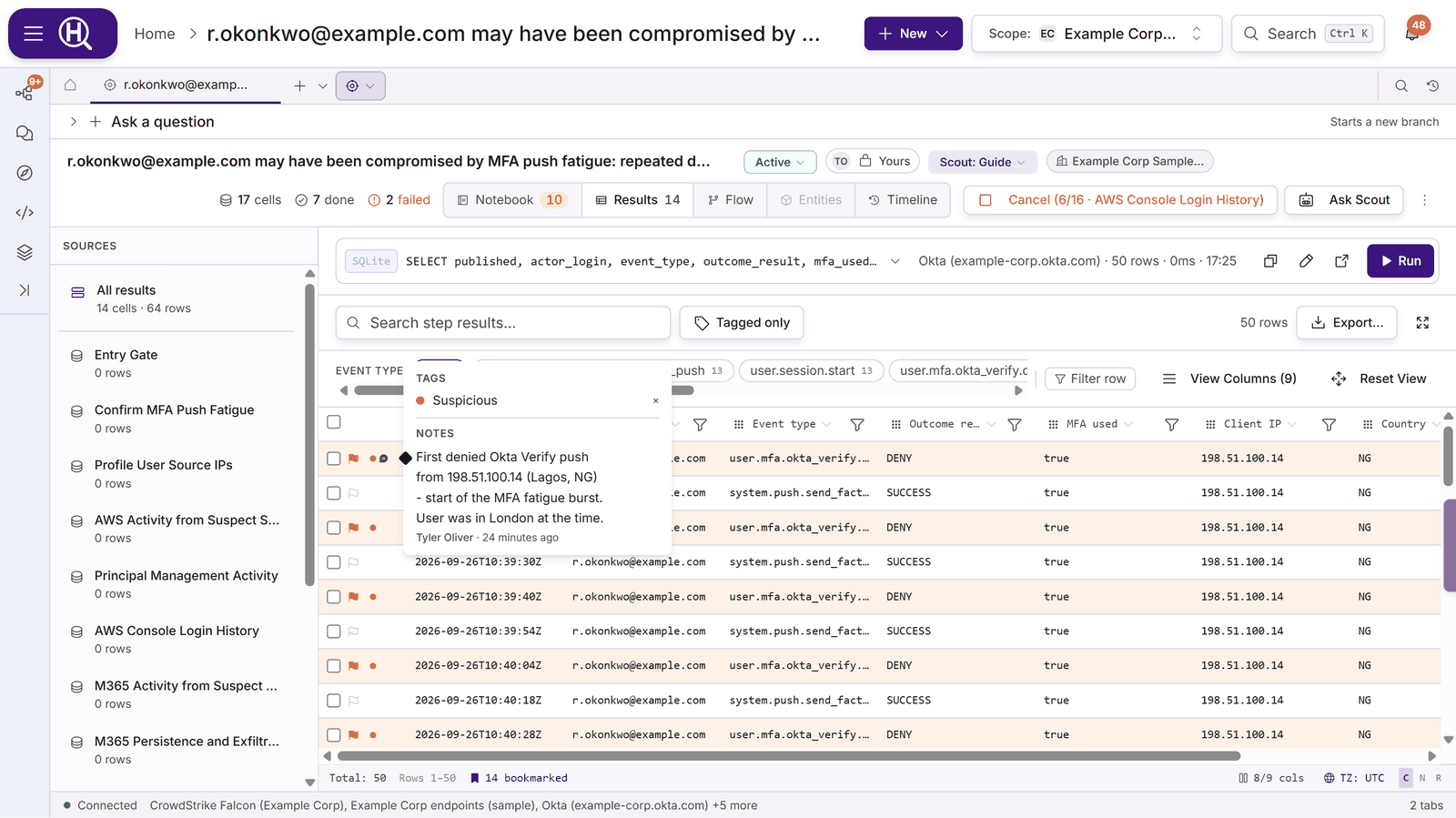
A row's tags and notes follow the row. If you open the same results in another tab, for example with Open as tab, they appear there too.
Tag a row, a cell or a resource
Rows and cells. Right-click a row and choose Tag row, or select several rows and choose Tag N rows. To tag a value, right-click the cell and choose Tag cell: with the column's name. You can also drag across several cells and choose Tag N cells. Search for a tag, pick it, or type a new name and choose Create. Tagged rows show coloured dots in their first column. Hover the dots to see the tags and notes on that row.
Entities, graph nodes, endpoints and hunts. Use Add tag in the Tags section of the panel or page.
Which tags to use
Every organization starts with these tag folders. The first two are made for evidence, and they now apply to entities, graph nodes, endpoints and hunts as well as result rows. That means you can mark the user, the host or the IP as Compromised, and not just the log line that showed it.
| Folder | Tags | Use it for |
|---|---|---|
| Threat Indicators | Suspicious, IOC · Confirmed, C2 Beacon, Malware, Phishing, Data Exfiltration, Lateral Movement, Privilege Escalation, Persistence, Recon / Scanning, Brute Force, Anomaly | What kind of finding this is, and how strong the evidence is |
| Tags | Investigate, Suspicious, Compromised, Reviewed, Known Good, False Positive, Comment | Where you left it |
| Severity, Confidence, Asset Context, Response Action | Critical to Informational; High to Low Confidence; Crown Jewel, Production…; Blocked, Quarantined, Pending Action… | Extra context |
These tags carry meaning in the exports. In the tracker spreadsheet, Compromised or IOC · Confirmed marks a system, account or indicator Compromised. Suspicious, Investigate or a Threat Indicators tactic marks it Suspected, and Known Good, False Positive or Reviewed marks it Cleared. Rows tagged Investigate or Pending Action become action items.
Your organization's own tag folders are managed in its Tags settings. See Organization management.
Add a note
On a row or a cell. Right-click the row and choose Add note. If the row already has notes, the entry reads Notes (N). For a single value, right-click the cell and choose Add cell note (or Cell notes (N)). Type the note and click Save note. A row with notes shows a note marker next to its tag dots, and a cell with notes shows a small marker in its corner.
On an entity, graph node, endpoint, hunt or indicator. Type in the Notes box (Add a note… (⌘/Ctrl+Enter to save)) and click Add note, or press ⌘⏎ / Ctrl+⏎.
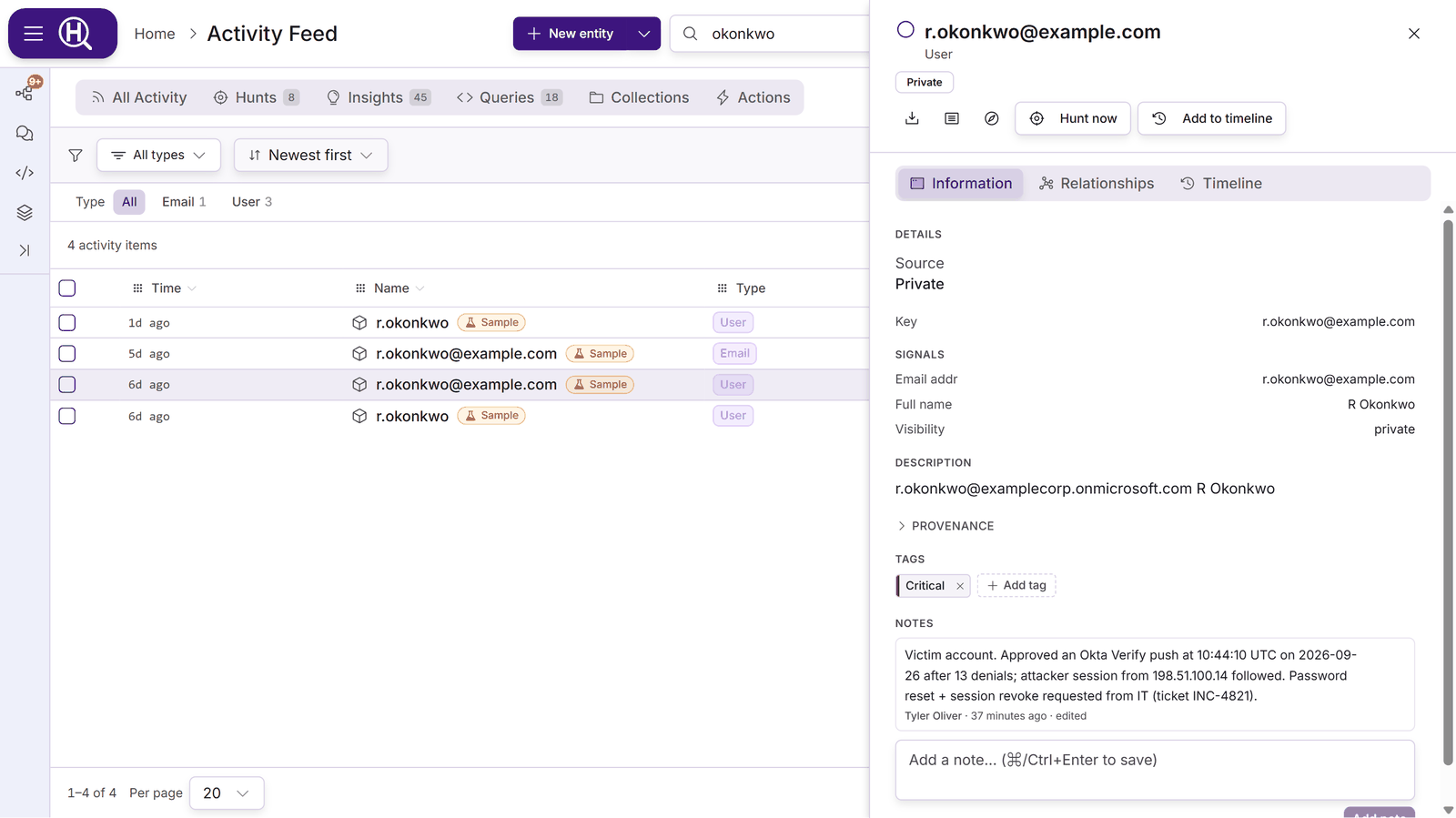
Every note shows who wrote it and when, and says edited once it has been changed. The author can edit or delete a note. An organization owner or admin, or the hunt's owner, can too.
A note saves a short snapshot of what it was written on, such as the row's key values, the cell value or the step it came from. The note still makes sense in an export or report after the results it was written on have aged out.
Scout's suggestions and notes
Scout can read a hunt's tags and notes, but it never tags anything itself. When you ask it to flag something, or when it confirms from results that a row, an entity or the hunt looks malicious, it suggests a tag. You decide.
- On a result row, a Scout marker appears with the row's tag dots. Hover it: the card lists the suggestions under Suggested by Scout, each with its tag folder, tag name and confidence. Click the tick to accept a suggestion or the cross to dismiss it.
- On an entity or a hunt, suggestions appear in the Tags section with the same accept and dismiss buttons.
An accepted suggestion becomes an ordinary tag. A suggestion that hasn't been accepted doesn't count as evidence: it stays out of the hunt's Evidence tab, the tracker spreadsheet and the report. Scout doesn't suggest a tag again after you've dismissed it.
Scout writes a note only when you ask it to note or annotate something, or to record a finding next to its evidence. Its notes carry a Scout badge and read Written by Scout (AI) for the analyst who asked, so they're never mistaken for your own words. See Chatting with Scout.
Find tagged evidence again
- Tagged only in a hunt's Results view (and in a single step's results) hides untagged rows. The badge counts what's in the current view.
- The Evidence tab in the notebook's right pane lists everything tagged in the hunt: tagged rows, tagged entities, labels and IOCs.
- Suggest from tagged evidence in the Timeline view turns tagged rows that carry a timestamp into timeline events.
Next steps
- Investigation timeline: put the tagged evidence in order
- Tracker spreadsheet: export tags, notes and the timeline as an IR workbook
- Hunt reports: write the hunt up from the same evidence
- Hunts: the notebook, Results and Brief