Entities
Entities are the things your data keeps talking about: hosts, users, IP addresses, domains, files and processes discovered in query results, plus vulnerabilities, ATT&CK techniques and other public threat-intelligence objects Huntbase already knows about. Every entity has a detail panel and a relationship graph, and most can be turned into a hunt in one click.
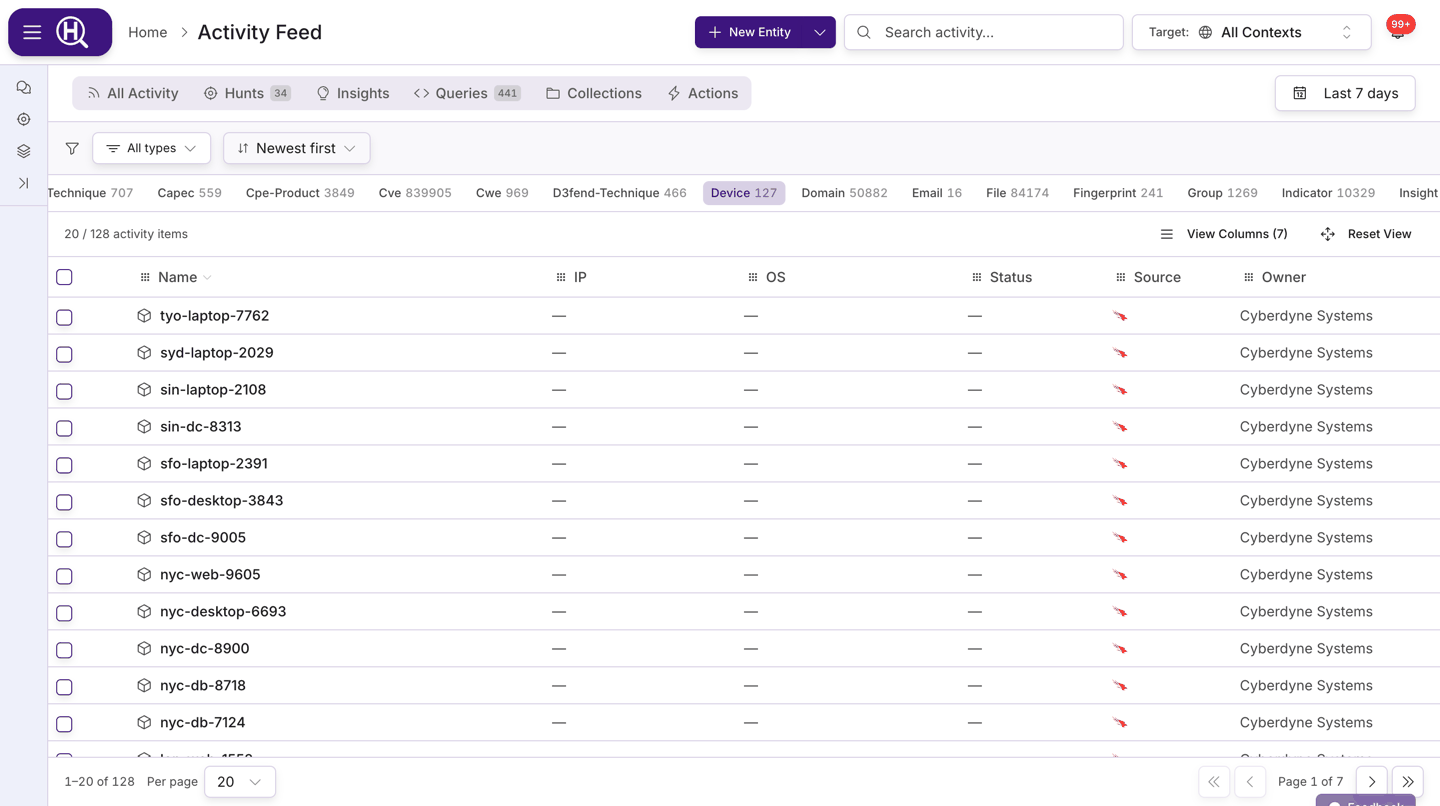
Where to find entities
Entities live in the Activity Feed but don't have a tab of their own — there are usually far too many. Open them in one of these ways:
- Press ⌘K (Ctrl+K on Windows/Linux) and choose Browse Entities. Entity search results in the palette also open here.
- Click an entity chip in a Scout chat, a hunt, or an insight and choose View in Explorer to open its graph, or use the panel actions described below.
- Follow an old
/entitiesbookmark — it forwards to the entities list.
Once open, the header search box (Search activity…) narrows the list. Search is a case-insensitive substring match on the entity's name or value; 192.168. finds every address in that range, and srv-web finds srv-web-01. There are no wildcards.
Filter and sort
| Control | What it does |
|---|---|
| Type chips | One chip per entity type present in your data, with a count. Types are defined on the server, so the row reflects what your organization actually has — for example device, endpoint, host, user, account, IP address, domain, URL, file, process, certificate, cloud resource, CVE, vulnerability, ATT&CK technique or indicator. Platform administrators can add types. |
| Time range | The same picker as the rest of the feed — presets or a custom range. |
| Sort | Newest first, Oldest first, Most severe first, Least severe first, Name A–Z, Name Z–A. |
| Per page | 10, 20, 30, 50 or 100 rows. |
Entity counts on the chips are computed across everything you can see, so they stay accurate even when the list runs to hundreds of thousands of rows.
The entity panel
Click a row to open the entity in the side panel. The header shows the entity's smart name, its type and context (for example Device · macOS), a source badge (Public, Private, Manual, Agent or System) and an Inactive badge where the source has marked it retired. Two tabs follow, Information and Relationships. Hosts, users, IP addresses and hashed files have a third tab, Timeline.
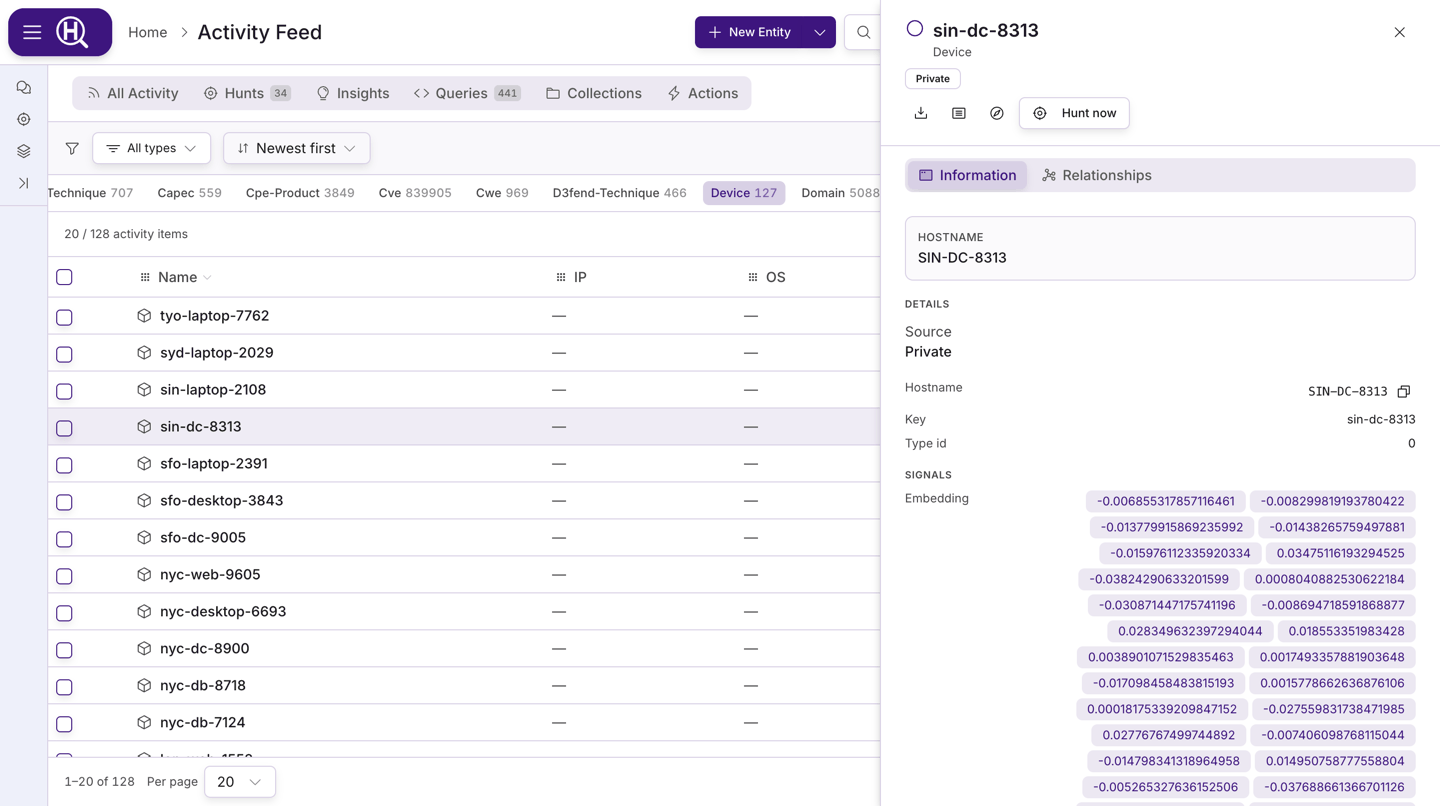
Information
| Section | Contents |
|---|---|
| Scout summary | A generated summary of the entity. Use the Summarize with Scout icon in the header to create or regenerate it. |
| Key fields | The handful of attributes that matter for this type — the fields that change a decision lead. |
| Details | Source, active state, and the full attribute set with readable labels. Values that are themselves entities are clickable pivots. |
| Tags | Add or remove tags on the entity, including Threat Indicators and Tags such as Suspicious or Compromised. Tags Scout suggested show here with accept and dismiss buttons. See Tags and notes. |
| Notes | Your team's notes on the entity, newest first, and a box to add one. |
| Provenance | Where the entity came from: the run (and row) or the query that produced it. Click to open that run's results or the query in Explorer. Shown only when the entity carries provenance. |
| Related Queries | Queries that touched this entity, where available. |
Header actions: Export (as JSON or CSV), Summarize with Scout, Discover (Find related entities or Discover patterns, run by Scout in the background), Hunt now and Add to timeline, which puts the entity on a hunt's investigation timeline. Public threat-intelligence entities are read-only and skip export, summarize and discover.
Relationships
The Relationships tab draws the entity's graph — the entity in the centre, its neighbours around it, edges labelled with the relationship. The toolbar shows how many entities and relationships are on the canvas (and how many the server holds, if it returned a subset).
- Click a node to open its detail panel.
- Right-click a node for Expand all relationships, type-specific pivots (each labelled by what it will pull in), View details and Copy id.
- Filters hides or shows nodes by Node types and edges by Relationships, each with a count. The button shows how many filters are hiding part of the graph.
- Group folds crowds together — see below.
- Toggle 2D / 3D, use Zoom to fit, and pin the results table alongside the canvas to see the rows the graph was built from.
- When the graph is open in an Explorer tab, Ask Scout starts a chat about the entities and relationships on the canvas. The chat shows your question with a collapsed Canvas shared with Scout chip giving the entity and relationship counts, rather than listing the canvas; expand it for a breakdown by type. If the canvas has not changed since you last asked, clicking Ask Scout again just opens the Scout panel instead of sending it a second time.
Crowds fold into one node
An entity with dozens of similar neighbours — 82 insights on one email address, say — would fill the canvas with identical circles and overlapping labels. So more than ten neighbours of the same type hanging off the same node are drawn as a single collection node, labelled with what they are and badged with how many: 82 insights.
- Click the collection to open it and see every member.
- Group in the toolbar folds them back up, and turns the behaviour off entirely if you would rather see every node.
- The count beside the entity total says how many are folded (82 grouped), and the Node Types legend counts the members rather than the shapes — so it still reads Insight 82 over a canvas showing one circle.
Only neighbours whose only connection is to that one node are folded. Anything with two or more relationships is structure, and stays where it is — as do the entity you opened, the node you have selected, and any node whose specifics are restricted from you.
Nothing is hidden from the results table: it still lists every entity.
The graph has no time filter; it shows relationships as they stand now.
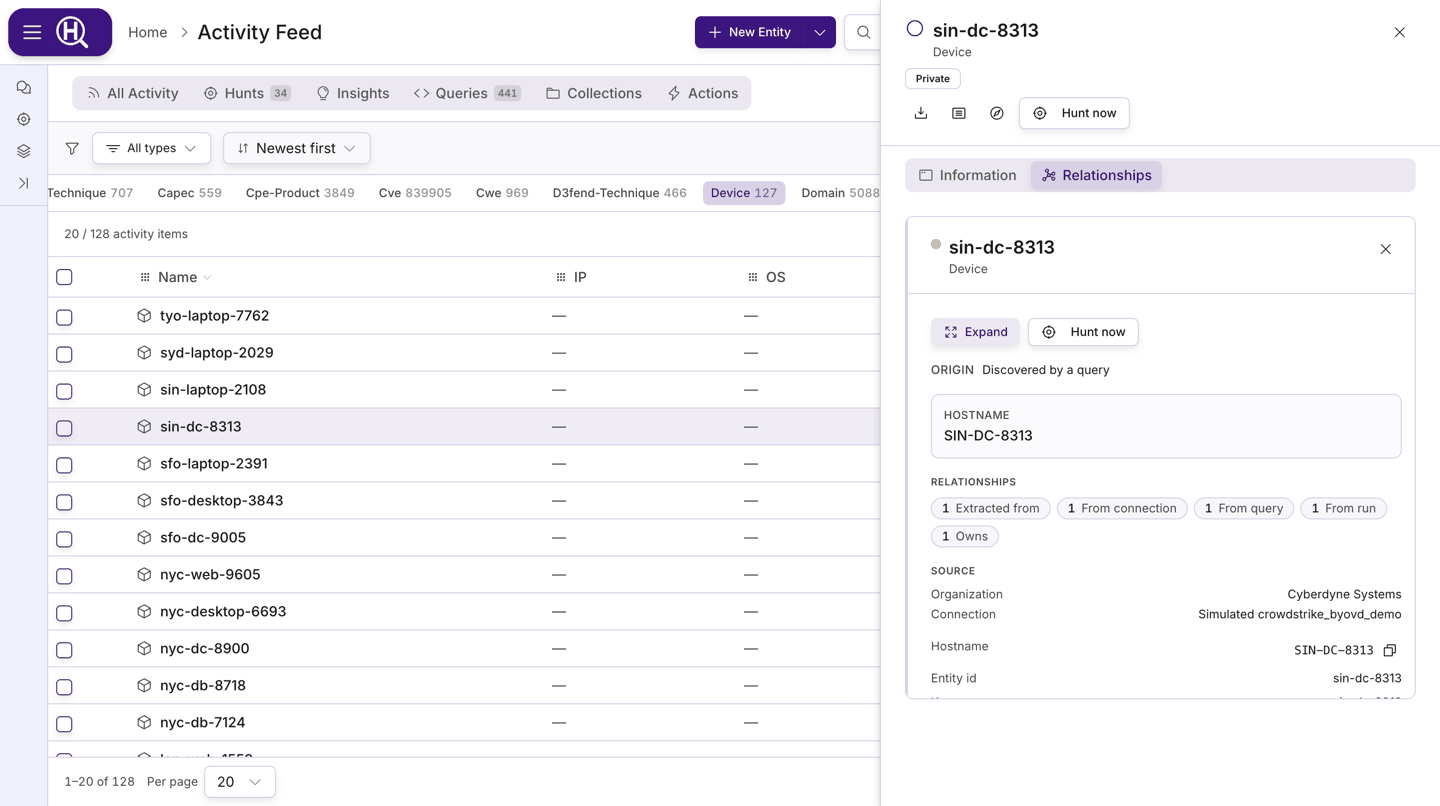
Timeline
This feature is currently rolling out and may not be enabled for your organization.
The Timeline tab lists everything Huntbase knows about a host, user, IP address or file hash, newest first. It brings together telemetry, the query results that found the entity, alerts, insights, hunts and notes. Open full page opens the same timeline on its own page. See Entity timeline.
Hunt now
Hunts are currently rolling out and may not be enabled for your organization.
Hunt now appears on entities where a hunt makes sense — adversary behaviour (techniques, tactics, groups, campaigns, software), vulnerabilities and CVEs, indicators and observables (IPs, domains, URLs, files and hashes, malware) and your own assets (devices, hosts, users, accounts). Reference material such as CWE, CPE, packages and sanctions records doesn't offer it.
Clicking it opens Hunt with Scout. The entity is shown as the seed; type What are you looking for? (optional, for example "did this run on our edge devices in the last 30 days?") and adjust the Starting hypothesis Scout drafts for you. Start with Scout opens a chat seeded with the entity; Scout drafts the hunt with you and you promote it to a real hunt when it's ready. See Chatting with Scout and Hunts.
The same button appears on graph nodes and on entity search results, so the action reads the same wherever an entity is shown.
Entities in chat
When Scout mentions an entity in a chat, it renders as a chip. Hover or click for a card with the entity's type and key attributes; View in Explorer opens its graph in an Explorer tab, and Find more offers Find related queries and Find related hunts. You can also mention entities yourself with @ when writing to Scout.
How entities are created
You rarely create entities by hand. They arrive from:
- Query results — Huntbase extracts entities from the rows a query returns and records the run, query and row they came from (see Provenance above). These carry the Private source badge.
- Endpoint Control and connections — endpoints and other objects synchronised from your integrations. See Endpoint Control and Connections.
- Public threat intelligence — CVEs, ATT&CK techniques and similar objects that Huntbase maintains for everyone. These carry the Public badge and appear as Public intelligence (MITRE / NVD) in the graph.
- Scout and analysts — Scout creates entities during investigations (Agent), and you can add one with New › New Entity in the feed (Manual).
Next steps
- Insights — the findings that reference these entities
- Activity Feed — the surface entities live in
- Hunts — what happens after Hunt now
- Chatting with Scout — mentioning entities in a chat
- Entity timeline — everything about one host, user, IP or hash, in order