Query templates
Query templates are saved, reusable queries — from Huntbase's built-in catalogue, from content packs that ship with your connections, or saved by your team from the query workspace. You browse them in the Library, run them straight into an Explorer query tab, and schedule them to run on their own.
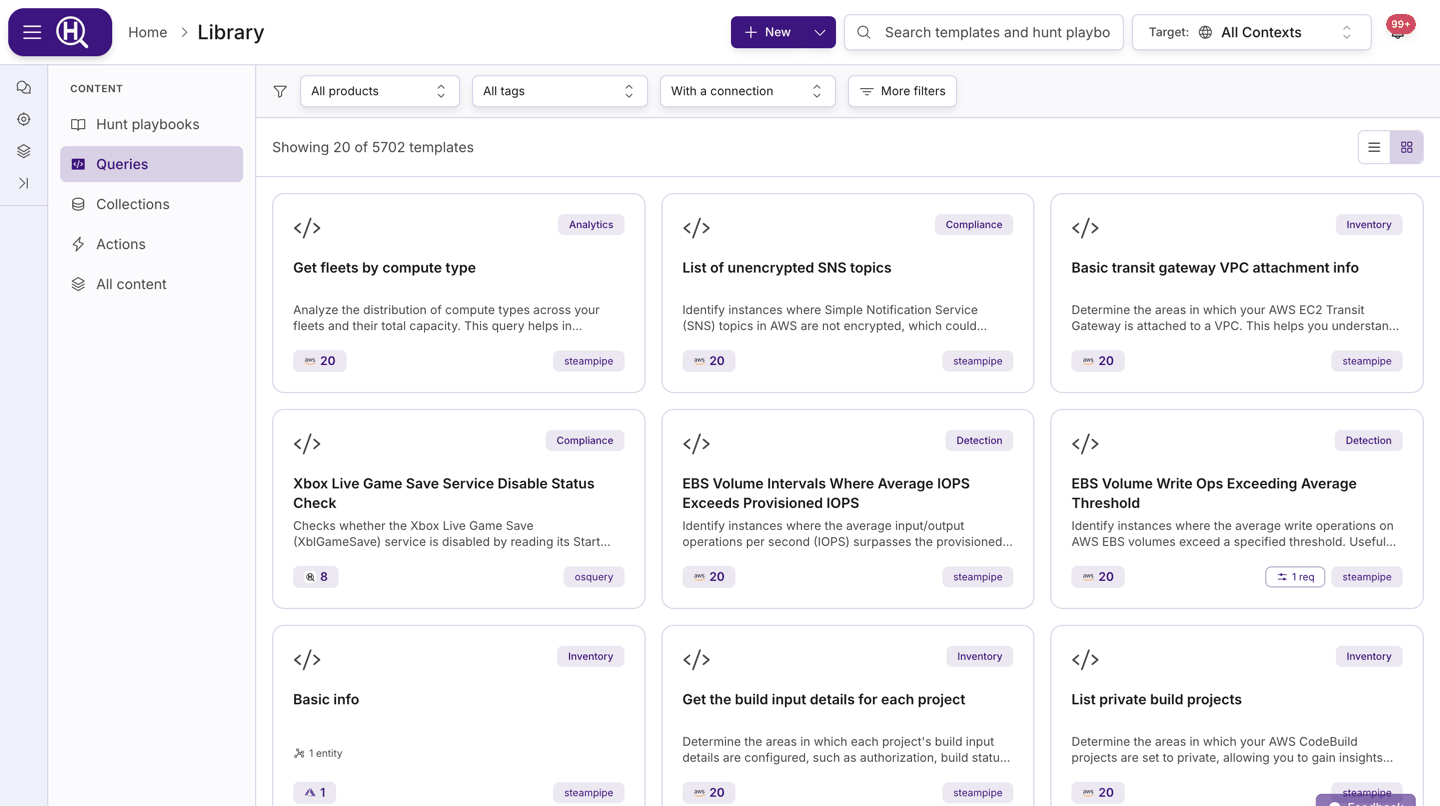
The Library facet rail
The rail on the left of the Library switches between content types:
| Facet | Contents |
|---|---|
| Hunt playbooks | Reusable hunt definitions (the default view) — see Hunt playbooks |
| Queries | Query templates — this page |
| All content | Everything in the Library together |
Deep links keep the facet: /library?type=query opens the Queries facet, /library?type=playbook the playbooks. ?template_id=<id> opens a specific template's detail panel — the same link the query workspace uses for View in Library.
Browse and filter templates
Select the Queries facet. Use the search box in the top bar (Search the library…) and the filter chips beneath it:
| Chip | Options |
|---|---|
| All products | One or more products the template runs against |
| Tags | Structured tags from your organization's and your personal vocabularies |
| With a connection | Default. Shows only templates that can run in your current scope. Choose Include all templates to see everything; the applied token reads Incl. without connection |
| More filters | Opens the advanced filter panel below |
More filters groups:
| Group | Narrows by |
|---|---|
| Category | Category tags (for example inventory or detection) |
| Language | SQL, SQLite, SQL (Steampipe), KQL, SPL, ES|QL, osquery, Cypher, Sigma, YARA, STIX |
| Owner | The user or organization that owns the template; Huntbase-owned entries are marked (Huntbase) |
| Platform | Target platform for osquery templates |
| Parameters | Has parameters / No parameters |
| Entity type | The entity types the template extracts |
Every applied filter appears as a token above the results (Product, Tag, Category, Language, Owner, Platform, Entity, …); remove one by clicking its ×, or use Clear these filters in the panel to reset the advanced group. The count line shows how many templates match ("Showing 40 of 312 templates") and the card / list toggle switches layouts.
What a card shows
| Badge | Meaning |
|---|---|
| Tags | Up to two tags, with a +N overflow |
| Language / framework | The query language, or estate check / entity graph for graph-backed templates |
N runs · 30d | Distinct runs in the last 30 days |
| Products | Icons for the products the template targets |
| Parameter badge | Number of parameters; highlighted with N req when some are required |
N entities | How many entity types the template extracts |
inactive | The template has been deactivated by its owner |
Open a template
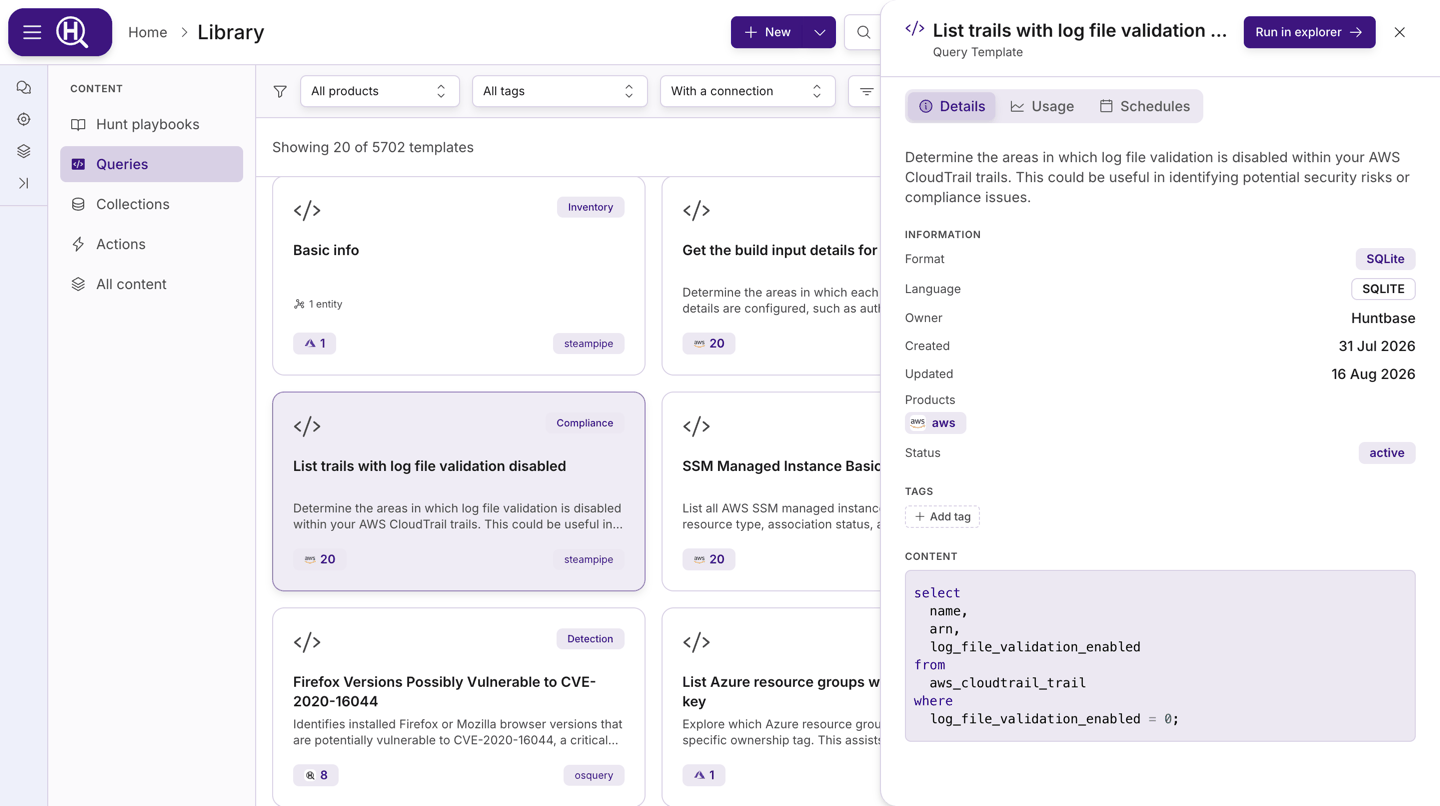
Click a card to open the template detail panel. The primary button in the header is Run in explorer (see below); for query templates the panel has three tabs:
| Tab | What you find |
|---|---|
| Details | Information (Language, Owner, Author, Version, Source link, Created, Updated, Products, Platforms, Status), Tags with an Add tag picker, Parameters with their types and defaults, Entities Extracted, Answers questions, and the query Content |
| Usage | Runs, Success rate and Last used, plus a Recent runs list — click a run to open its results in Explorer |
| Schedules | Schedules attached to this template, with New schedule — see Schedules |
Run a template
- Open the template and click Run in explorer.
- Huntbase opens a new query tab in Explorer with the template loaded and the connection picker already open.
- Pick the connection to run against, fill in any parameters, and run.
If none of your connections match the template's products in your current scope, Run in explorer is disabled and the tooltip explains: "This template has no configured connections in the current scope." Add a connection or switch scope in the Scope selector; switch the connection chip to Include all templates to see what you're missing.
The run is recorded in the template's Usage tab and in the Activity Feed › Queries. See Query workspace.
Add a template to a hunt
Inside a hunt, the dock's Library view leads with Suggested for this hunt — templates ranked for the hunt's subject, entities and IOCs, each showing how many hunts use it — followed by the full template list with search. Add to hunt on any template creates a cell from it in the hunt's notebook, opened for editing. The notebook's From Library… and the header's Add from Library… open the same picker. See Hunts.
Estate checks and entity-graph queries
Some templates don't need a connection at all: Huntbase answers them from your entity graph. The panel calls this out ("Huntbase answers this one from your entity graph — no data connection to configure and no query to write") and hides the query content, because there is nothing for you to edit.
| Kind | Header label | Button |
|---|---|---|
| Estate check (graph fan-out) — an estate-wide question such as "which hosts have no endpoint agent" | Estate check — graph fan-out | Run estate check |
| Entity-graph query — a graph question scoped to particular entities | Entity graph query | Run on entity graph |
Estate checks sample your estate, so their results state how much of it they covered. Where a template declares what it covers, the Covers section lists its hypothesis categories; an estate check's optional knobs appear under Tuning (optional) rather than Parameters. Neither kind has Usage or Schedules tabs.
Create a template
From the Library
- Open the New split button and choose New query (the button's default action).
- The Run to Explorer wizard opens on the Custom tab of its Source step. Write your query, then continue through Configure and Review.
- On Review, click Save as template to save it before or instead of running.
From the query workspace
After a query has run in Explorer, open the results ⋯ menu and choose Save as template. Give it a Name, Description and Tags, set the Supported Platforms and Parameters, and check the Body preview. See Query workspace.
Edit, tag and manage templates
- Owners — a template belongs to the user or organization that saved it (shown as Owner in Details). Only owners can edit a template's name, description and questions in Edit template; templates from Huntbase's catalogue are read-only.
- Tags — add or remove structured tags from the Tags section of the Details tab (Add tag › search, New tag… or Browse folders…). Tag vocabularies are managed under Settings › Personal › Tags and your organization's Tags settings.
- Content packs — product-specific templates arrive with your connections; see Connections.
Next steps
- Query workspace — run and refine the query the template opens
- Schedules — run a template on a schedule
- Hunt playbooks — chain queries into a reusable hunt
- Query languages — the languages templates are written in