Endpoint and telemetry cells
Most cells query your connections. Two kinds bring other evidence into the notebook: endpoint cells work on one endpoint in your fleets, and telemetry view cells pin a view of the telemetry you ship. On this page you add each kind, learn who can see and run them, and approve the endpoint actions and watches that need a second person.
Endpoint cells
This feature is currently rolling out and may not be enabled for your organization. Endpoint cells already in a hunt always show.
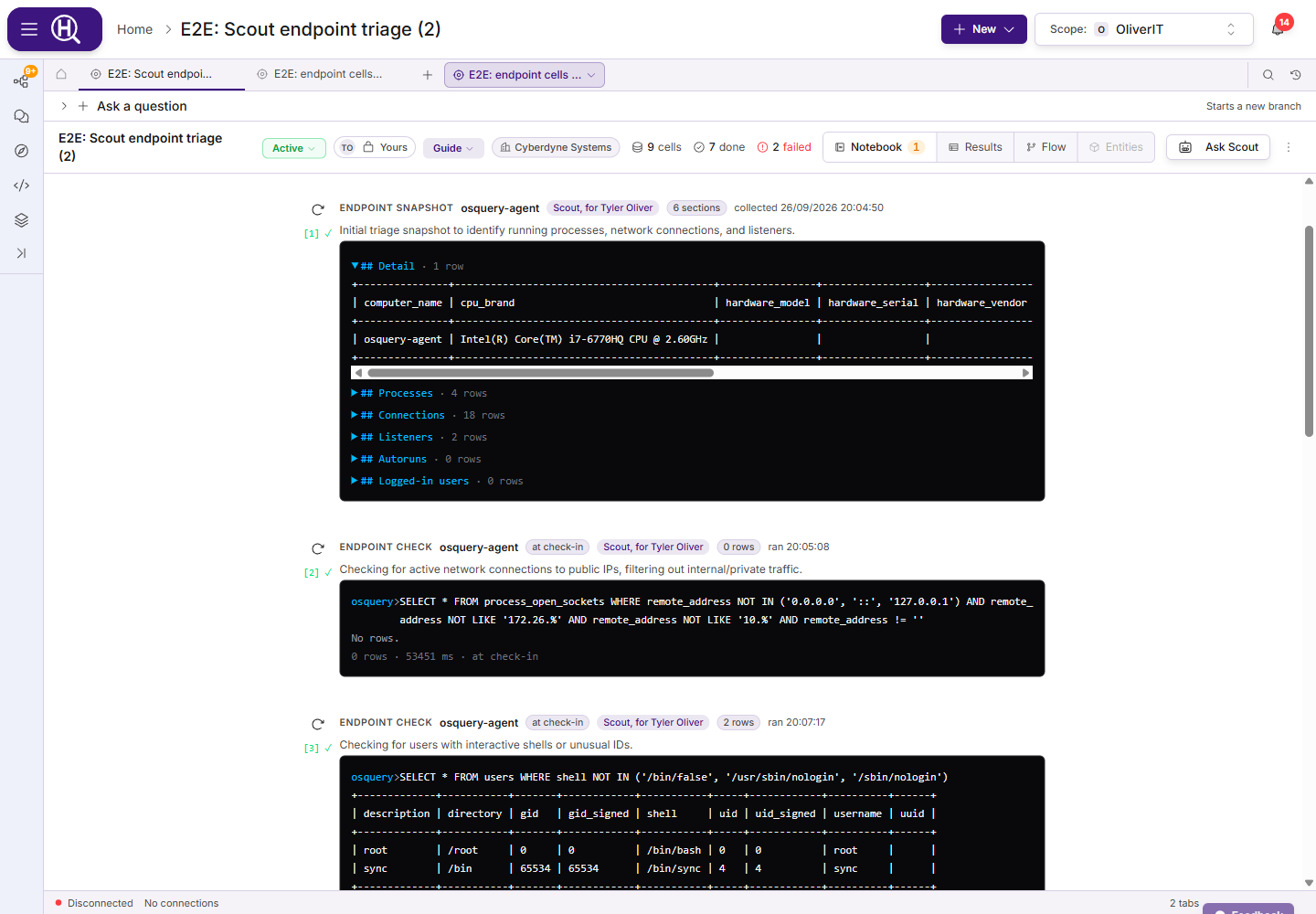
Endpoint cells work on one endpoint at a time, from inside the hunt. Their rows stay on the cell: they are hunt evidence, but they never become entities in the graph. Each cell shows its output like the endpoint console — osquery> SELECT … and an osquery-style table.
| Cell | What it does | Runs |
|---|---|---|
| Endpoint check | One read-only osquery SELECT on one endpoint, checked against the same rules as a command typed in the console. The cell keeps its latest rows (up to 500) and lists earlier runs. | On demand; the gutter button runs it again. |
| Endpoint snapshot | A frozen picture of one endpoint in six sections: Detail, Processes, Connections, Listeners, Autoruns and Logged-in users, each folded under its heading (up to 200 rows each). | Once; Collect again takes a new one. |
| Endpoint action | A proposal to kill a process, quarantine or restore a file, release network isolation, run a signed script, or start live response. Scout can also propose saving a console session to the hunt; you do that yourself with Save to hunt. | Once, after someone approves it. |
| Endpoint watch | A proposal to re-run a query every few seconds while the endpoint is live, listing rows that appear (+) or disappear (−) since the previous run. | After someone approves it, while the endpoint is live and the hunt is open. |
Each cell says how fast its command will arrive: Live — runs in about a second when the endpoint has live response on, or Runs at next check-in, up to about a minute otherwise. While a cell waits it updates on its own, and stops checking while the browser tab is hidden.
Add an endpoint cell. Click Endpoint in Add cell and pick Endpoint check, Endpoint snapshot, Endpoint action or Endpoint watch. Type the endpoint's hostname or ID under Endpoint; if several endpoints you can see match, the dialog lists them and asks which one you mean. A check or watch takes osquery SQL; an action takes What (A response action or Start live response), the Action and its target; a watch takes Every (seconds) (at least 5), Stop after (minutes) (1 to 60) and an optional Row key that identifies a row. For an action or a watch, Why tells the approver what they need to know, and Based on cites the cells it rests on.
Drill into endpoint. On a query result row that names an endpoint (a hostname, host identifier or node UUID column), Drill into endpoint offers Endpoint check… and Endpoint snapshot…, opening the same dialog with the host filled in.
What you need
You need to be able to edit the hunt, and a role on the endpoint's fleet — or on a tag it carries — that allows what the cell does. See Access and activity.
| To… | You need |
|---|---|
| Add or run a check, snapshot or watch, or propose live response | Permission to run console commands on the endpoint (Responder). |
| Propose or approve a response action | Permission to run response actions on the endpoint (Responder, granted separately from the console). |
| See a cell's rows | Permission to see the endpoint. |
Anyone on the hunt without access to the endpoint sees You need access to this endpoint to see these results. in place of the rows, snapshot sections, watch changes or action output. Endpoint cells can't run on a sample fleet or a shared fleet.
Approve an action or a watch
An endpoint action or watch — whether you added it or Scout proposed it — starts as a proposal with an approval card. The card shows what will happen and on which endpoint, how risky it is (Low risk, Changes the endpoint or High risk), who proposed it, why, the cells it is based on (click one to jump to it), and who may approve it under your organization's policy — for example Scout proposed this. Needs someone other than Alex to approve. The line below says which rule decided that, or Organization default.
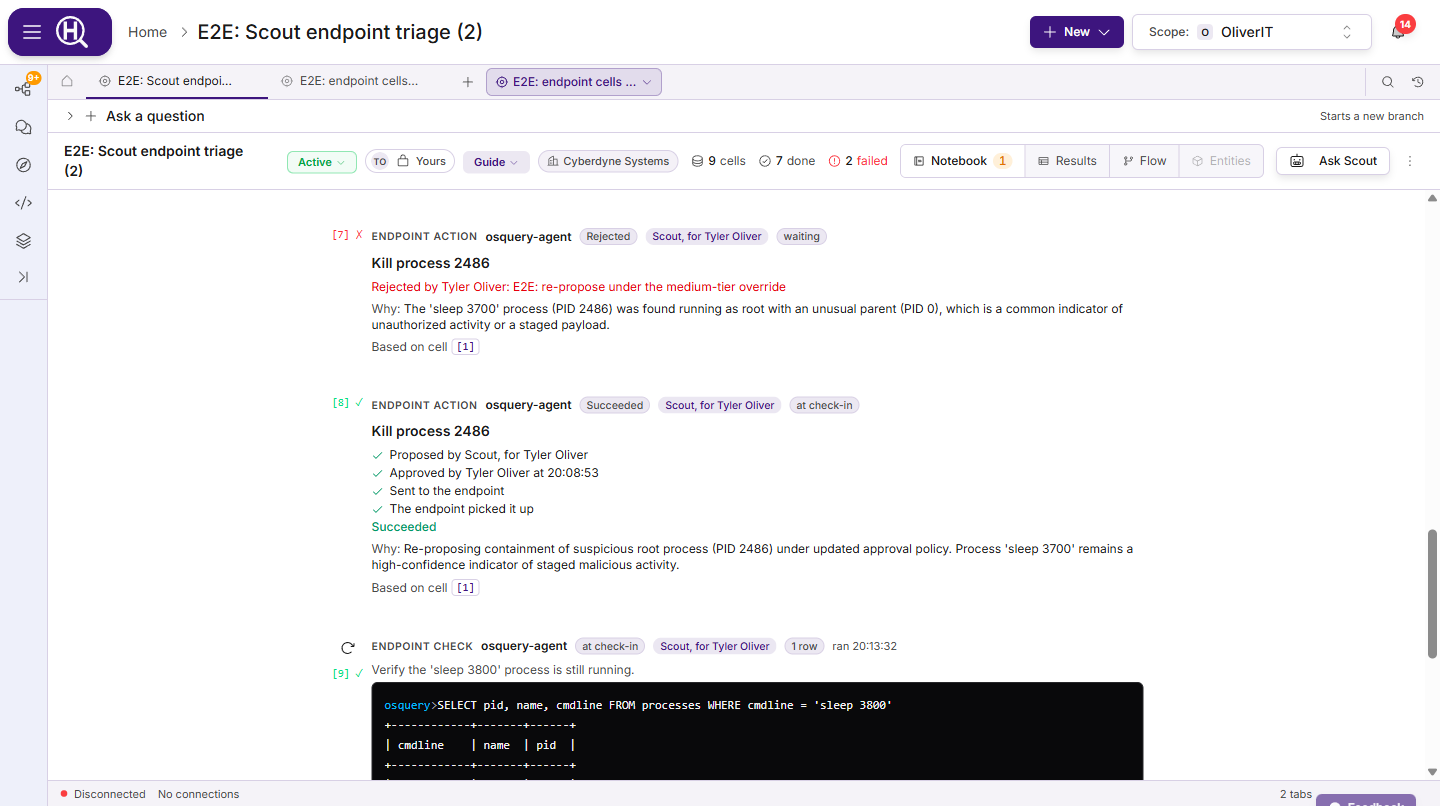
- Four-eyes by default. Unless your organization's rules say otherwise, the person who asked cannot approve — and when Scout proposed on your behalf, that person is you. Organizations can relax or tighten this by endpoint tag or risk level, or require an org admin; see Approval rules.
- Approve is checked with the server first. If you can't approve — you asked for it, only an org admin may approve, or you lack the permission on the endpoint — the button is off and the card says why, for example Scout proposed this on your behalf, so someone else has to approve it. Only the hunt's owner and contributors can approve or reject.
- Reject takes an optional reason, shown on the cell.
- A proposal lapses 15 minutes after it was made if nobody approves it; the card counts down. A lapsed proposal can't be approved — ask again if it is still needed.
- Nothing can be proposed or approved while the endpoint's fleet is in safe mode.
- Once approved, the cell follows the action — Approved by…, Sent to the endpoint, The endpoint picked it up — and then shows how it ended (Succeeded, Failed, Refused by the endpoint, Expired before the endpoint picked it up). Output appears only when the requester chose to include it.
- An approved watch shows watching, the time to its next run and Stop. It holds one live response slot while it runs, and pauses while the page is hidden. If the endpoint is not live, it runs once instead and says so.
Endpoint cells never run as part of Run all; a proposal waiting for approval appears under Needs you. Everything done through these cells — by you or by Scout on your behalf — is recorded in the endpoint's audit trail, including each proposal, approval, rejection and lapse. Scout adds these cells too when it works on an endpoint; see Scout on endpoints.
Telemetry view cells
This feature is currently rolling out and may not be enabled for your organization. Telemetry view cells already in a hunt always show.
A Telemetry view cell pins a Search telemetry view to the hunt as evidence: its sources, time range, filters and search. With it, the cell keeps a snapshot of what the view matched: the number of events, a small volume chart, the Top fields with their top values, and up to 10 Sample events. The header says how old the snapshot is (as of 5 minutes ago). If the count is an estimate, it starts with ~. Like endpoint cells, the events stay on the cell and never become entities in the graph.
A snapshot records what the view matched when it was taken. It doesn't change as new events arrive, so the evidence stays what it was when you cited it.
| Control | What it does |
|---|---|
| Refresh | Takes a new snapshot of the same view. ⌘⏎ / Ctrl+⏎ on a focused cell does the same. Telemetry view cells never run as part of Run all. |
| Open in Browse | Opens the view in a Search telemetry tab, to look further or change the filters. Where Add to hunt is available, the tab stays linked to the cell. A Telemetry step strip says whether the view still Matches the step. After you change the view, Update step saves it to the cell and takes a new snapshot. |
| Ask Scout | Opens the hunt's chat, asking what stands out in this view and what to check next. |
If a refresh fails, the cell shows the error and keeps Showing the last snapshot that worked. If a lake store the view reads is excluded, the cell lists it under Not included, and its counts cover the other stores only.
Who sees the events. A snapshot contains events, so it's shown only to people who can see every source the view reads. Anyone else on the hunt sees You can't see every source this view reads, so its snapshot is hidden. in its place. Contributors on an open hunt can refresh and archive the cell.
Add a telemetry view cell. Click Telemetry view in Add cell to open Add telemetry view. Then either:
- Build the view here: pick a Source (or All sources) and a Time range, and type Filters as
field=value,field!=valueorfield exists. - Paste from Browse: paste a link or view copied from a search of your telemetry.
Give it an optional Title (it defaults to a summary of the view) and Why it matters, then click Add view. Huntbase takes the first snapshot as it adds the cell.
Telemetry view cells also come from:
- Start a hunt on an event in a search of your telemetry. This creates a hunt with a cell called Events around the starting event, covering the 5 minutes either side of the event.
- Scout, which can add a cell with
add_telemetry_cellwhile it works on the hunt, and can add telemetry steps when it plans a hunt on its own. Cells Scout added are badged Scout. See Scout and your telemetry.
Next steps
- Approvals and Needs you — the rest of what a hunt waits on
- Files and console — the same endpoint work outside a hunt
- Search telemetry — build the view a telemetry cell pins