Insights
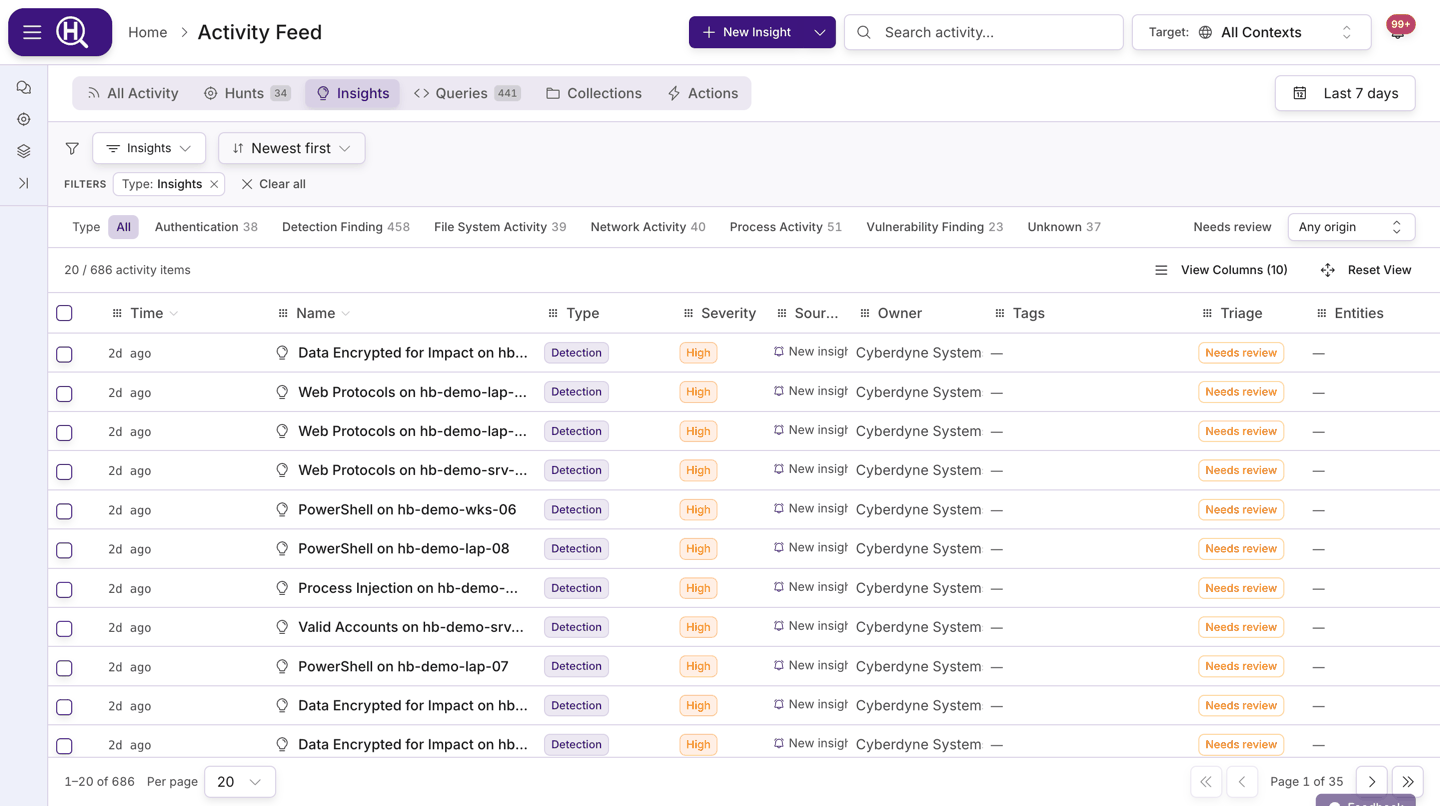
An insight is a finding: a detection from a connected product, a threat-intelligence report, a watcher firing, or something an analyst or Scout recorded by hand. Insights are browsed on the Insights tab of the Activity Feed, where you can triage them, see the evidence and entities behind them, and start a hunt from any one of them.
Filter and search
| Control | Options |
|---|---|
| Time range | Presets such as Last 24 hours, Last 7 days, Last 30 days, or a custom range. |
| Type chips | One chip per insight type present in the window (for example Detection Finding, Threat Intelligence, Vulnerability Finding), with counts. All clears the chip. |
| Origin | Any origin, Watcher, Connection or Manual — who raised the insight. |
| Needs review | Show only insights still waiting for someone to look at them. |
| Search | The header search box (Search activity…) matches titles. |
| Sort | Newest first, Oldest first, Most severe first, Least severe first, Name A–Z, Name Z–A. |
| Per page | 10, 20, 30, 50 or 100 rows. |
Watcher findings land as Needs review and stay there until someone acts. Combining Origin: Watcher with Needs review is the quickest way to see what your watchers have raised that nobody has judged yet.
Severity
Every insight carries a severity, shown as a coloured badge in the list and the panel. Sorting by severity ranks Critical first; insights with no severity sort last.
| Severity | Colour |
|---|---|
| Critical | Red |
| High | Orange |
| Medium | Yellow |
| Low | Blue |
| Informational | Grey |
Severity comes from the source and is not edited in Huntbase.
Review states
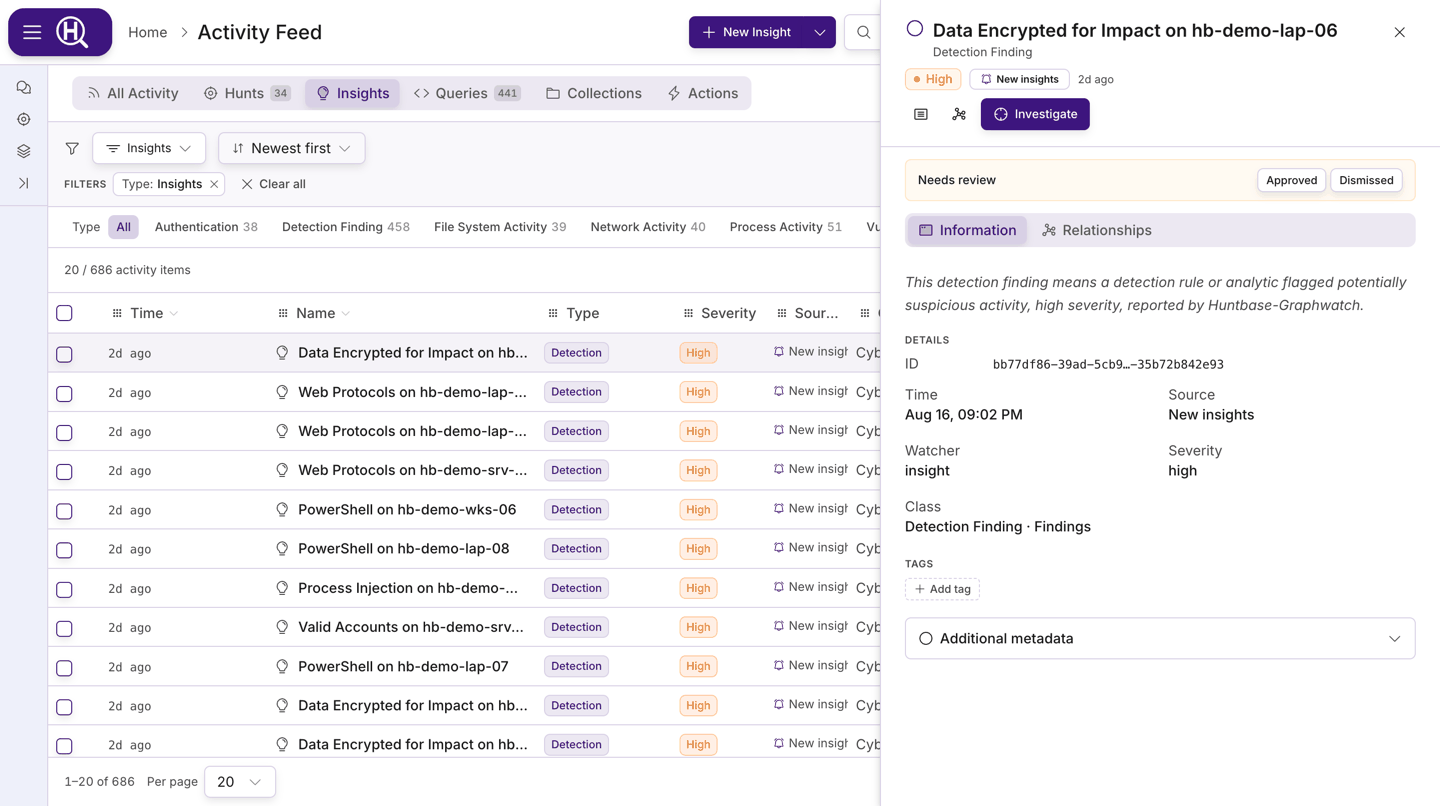
Insights raised by watchers, Scout or analysts carry a review state, shown in a bar under the panel header. Insights that arrive straight from a connection don't have one.
| State | Meaning | Next |
|---|---|---|
| Needs review | Nobody has judged it yet. | Approved or Dismissed |
| Approved | Worth acting on. | Hunt started or Dismissed |
| Hunt started | A hunt has been opened from it. Final. | — |
| Dismissed | Not worth pursuing. Final. | — |
To change the state, open the insight and click the next state's button in the review bar. Only the allowed transitions are offered.
The insight panel
Click a row to open the insight in the side panel.
Header. The title (usually the source's rule name), the OCSF class beneath it, and a row of badges: severity, High / Medium / Low confidence where the source supplied one, the raw status, the watcher that raised it (or the source product), the connection it came through, and how long ago it happened. Actions: View in [vendor] (deep link back to the source console, when the finding carries one), Summarize with Scout, Open in workbench (opens the insight's graph in Explorer) and Investigate (start a hunt — see below).
Information tab.
| Section | Contents |
|---|---|
| Scout summary | A generated plain-language read of the finding. Create or regenerate it with Summarize with Scout. |
| Details | Time, Source, Watcher / Connection, Severity, Confidence, Status, Class. |
| Security Enrichment | For CVE-related insights: CVSS, EPSS percentile, CISA KEV / Public exploit, key dates, and links to NVD, CVE.org and the KEV catalogue. |
| ATT&CK Technique | For technique-related insights: technique ID and name with the ATT&CK link, description and detection guidance (Show more / Show less). |
| Evidence | The observables in the finding, grouped by type (hashes, IPs, hosts, users and so on). Each value is copyable. |
| Entities | Counts of the entities the insight touches; click through to the Relationships tab. |
| Related Hunts / Related Queries | Hunts and queries connected to this insight, with the total. |
| Tags | Add or remove tags. |
| Additional metadata | An accordion holding the attributes and the raw record as JSON, for when you need the exact field the source sent. |
Relationships tab. A one-sentence summary of what the insight is directly connected to, then a read-only Neighborhood graph of those entities. Open in workbench opens the same graph in an Explorer investigation tab with filters, the results table and per-node inspection. If the source sent an alert without host or file detail, the tab says so instead of showing an empty canvas. See Entities for how the graph works.
Start a hunt from an insight
Click Investigate in the panel header. Hunt with Scout opens with the finding as the seed; existing hunts for this finding are listed inside so you can continue one instead of starting another. Add What are you looking for?, adjust the Starting hypothesis if you like, and click Start with Scout to open a chat seeded with the finding. Scout drafts the hunt with you and you promote it when it's ready. See Hunts.
You can also tick several insights (and entities) in the list and click Create Hunt in the floating bar to start one hunt seeded with all of them.
Insight types
Insight types (the Type chips and the Class in the panel) are defined by your Huntbase administrators under Admin › Content Management › Insight Types, mapped to OCSF classes.
Create an insight yourself
Use New › New Insight in the feed header (it is the button's main action while you're on the Insights tab). The form has two modes:
- Structured — pick an insight type, enter a title and the fields the type asks for, add tags, and save.
- Ask Scout — describe what you found in plain language and click Ask Scout to create an Insight. Scout analyses it and creates the insight in the background; open the Insights feed to see it.
Insights you create carry a review state, so they show up in triage like any other finding.
Next steps
- Watchers — the rules that raise insights automatically
- Hunts — what happens after Investigate
- Entities — the objects an insight's evidence points at
- Activity Feed — the surface insights live in