Sharing
Actions, scripts, connections, endpoint tags, hunts and queries all share the same way: one Share panel that lists who has access, at what level, and lets the people who manage the item change it. This page covers the panel, then where to find it on each kind of item.
This feature is currently rolling out and may not be enabled for your organization. See Access control overview.
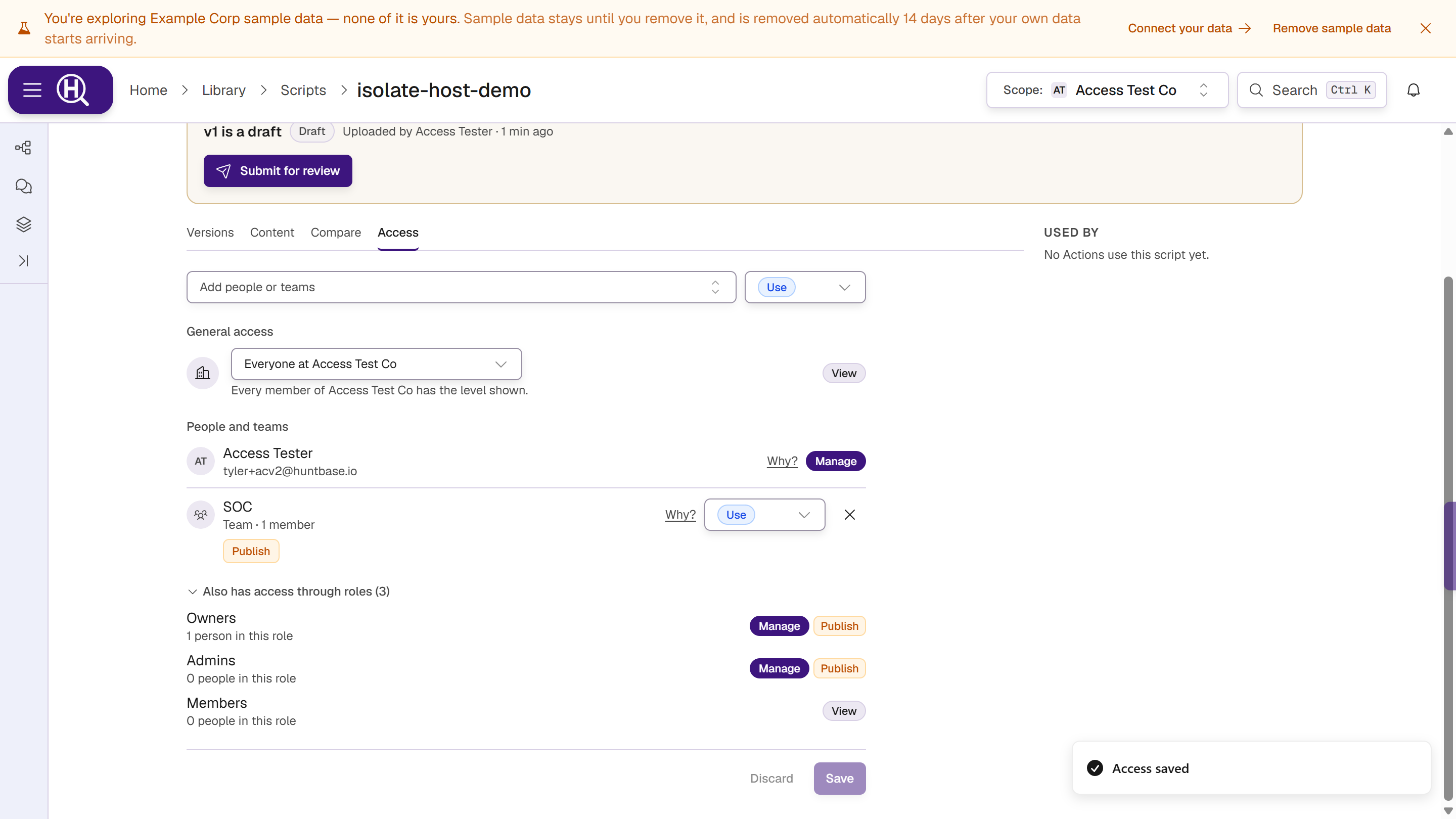
The Share panel
The panel has the same four parts on every item:
| Part | What it shows |
|---|---|
| Add people or teams | A search box and a level. Pick someone and they are added with that level. |
| General access | Everyone at your organization, with the level every member gets, or Restricted to the people below. |
| People and teams | Everyone named on the item, with their level, their abilities, a Why? link and a remove button. |
| Also has access through roles (N) | Collapsed. Opens to Owners, Admins and Members, each with how many people are in the role and the level the role gives. |
In a dialog, the title reads Share "…" with the item's name and the line under it reads, for a script, Choose who can see, use, edit or manage this script.
Share an item
- Open the item's Share panel (see Where to find it).
- Choose a level in the menu next to Add people or teams. It applies to the people you add next.
- Click Add people or teams, search for a person by name or email, or for a team, and pick them. Teams show Team and how many members they have.
- Change anyone's level from the menu on their row, or remove them with ×.
- Click Save.
Nothing changes until you click Save. While you have unsaved edits, the footer says Unsaved changes; Discard (or Cancel in a dialog) throws them away. Closing a dialog with unsaved edits asks Discard unsaved access changes? first.
Admins can also add a service API key on Actions, scripts, connections and endpoint tags, the same way as a person. Only members of the organization can be added. If someone is missing, invite them to the organization first.
Give an ability
On items that have a special ability, each row has a toggle for it under the name: + Approve on Actions, + Publish on scripts, + Respond on endpoint tags. Click it to grant the ability; click it again to take it away.
An ability can be held without a level. Set the level to No level and keep the ability on, for example for an approver who should not run the Action themselves.
Restrict general access
Set General access to Restricted to the people below to take away the default level that plain members get. Only the people and teams listed, and the roles listed under them (owners and admins), keep access.
Some items can't be restricted, and the panel says why:
- Endpoint tags are always visible to the whole organization.
- Personal items can't be restricted. Items in your personal scope are yours alone already.
What each type supports
| Item | Levels you can grant | Ability | Teams | Restricted |
|---|---|---|---|---|
| Action | Use, Edit | Approve | Yes | Yes |
| Script | Use, Edit | Publish | Yes | Yes |
| Connection | Use, Edit, Manage | — | Yes, unless restricted | Yes, people only |
| Endpoint tag | View, Use | Respond | Yes | No |
| Hunt | View, Edit | — | No | Yes |
| Query | Use, Edit | — | No | Yes |
Manage on an Action, script, hunt or query comes from creating it or from being an owner or admin; it isn't granted in the panel. On an endpoint tag, Manage is held by the administrators of the tag's connection.
Hunts and queries are shared with people, not teams. On those items the search box reads Add people and the panel says A hunt is shared with people, not teams.
Restricted connections
A restricted connection is shared with people only, and needs at least one. The panel stops you saving otherwise:
- A restricted connection can only list people. Remove the teams, or give everyone access.
- Add at least one person to restrict this connection.
Owners and admins always keep access to a restricted connection, and Scout follows the same restriction.
Where to find it
| Item | Where |
|---|---|
| Action | The Action's Access tab in Library › Actions. See Actions. |
| Script | The script's Access tab in Library › Scripts. Scripts in the Huntbase pack keep their read-only view. See Scripts. |
| Connection | Settings › [Organization] › Connection access: click Share… on the connection's row. The panel opens under the row. |
| Endpoint tag | Endpoints › Access: click Share… on the tag's group under Access by tag. See Access and activity. |
| Hunt | Click the hunt's access chip in the header, then Share…. Only people who manage the hunt see it, and never on sample hunts. See Hunts. |
| Query | In a query tab showing a saved query, open ⋯ in the Query details panel and choose Share…. |
When you can only look
If you can see an item but don't manage it, the panel is read-only: levels and abilities show as badges and it says, for a script, You can see who has access, but only people with Manage on this script (or an org admin) can change it.
If you can't even see who has access, it says You can't see who has access to this script. Ask someone who manages it, or an org admin. (with the kind of item in place of script)
Why does someone have access?
Every saved row has a Why? link. It opens Access check already filled in for that person or team, that item and their level, and shows which role, team or grant gives them access.
Next steps
- Teams — share with a group instead of person by person
- Access check — follow a Why? link
- Access log — see who changed sharing