Access check and member summary
Two screens answer questions about access without changing it. Access check answers "can this person do this to that, and why?" for one item. The member summary answers "what can this person do?" across the whole organization.
This feature is currently rolling out and may not be enabled for your organization. See Access control overview.
Access check
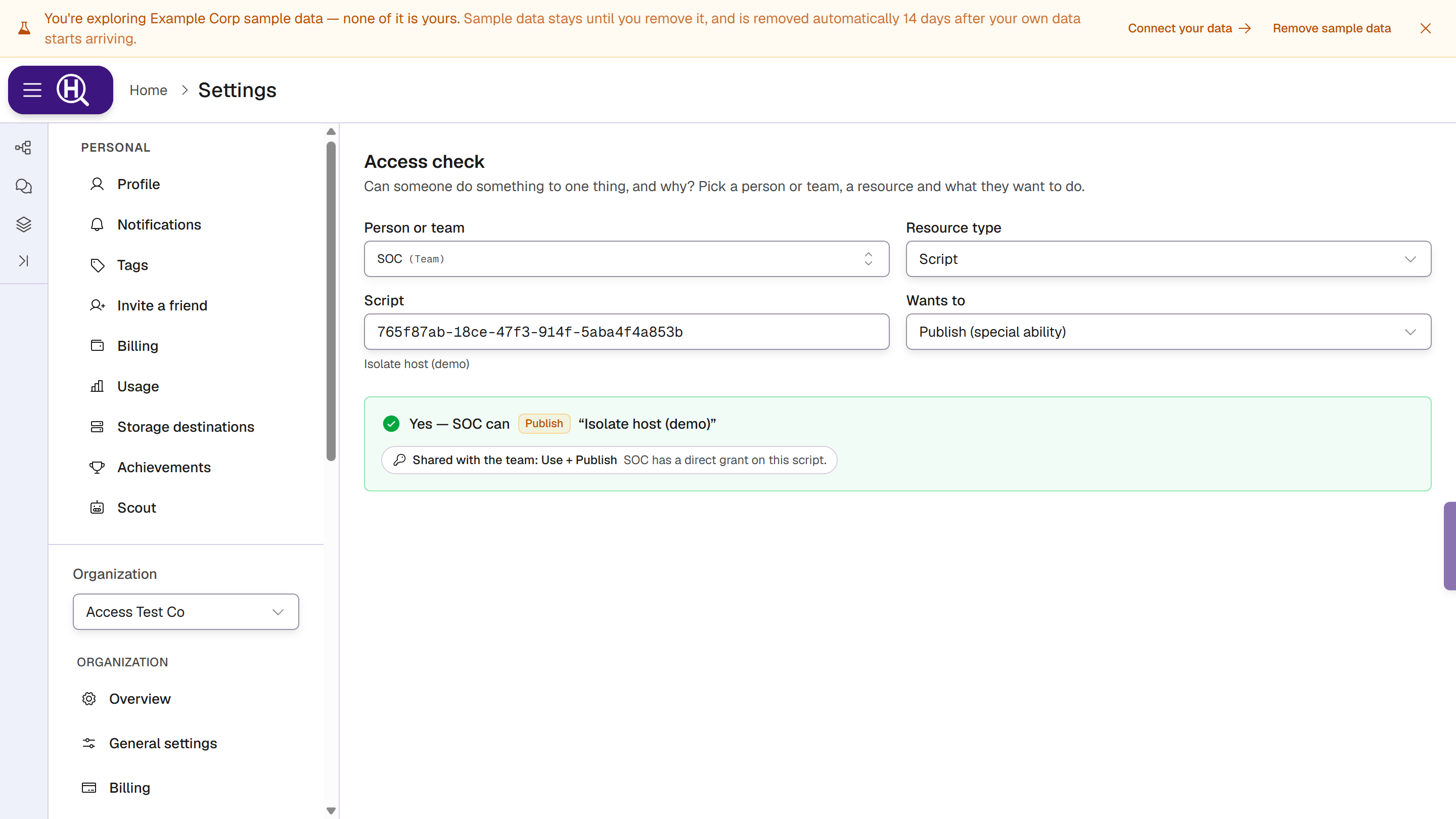
Go to Settings › [Organization] › Access check, under People & access, or follow any Why? link. Access check replaces the older Access inspector: it answers the same question for every kind of item and for teams, and links to the inspector open it instead. The page reads Can someone do something to one thing, and why? Pick a person or team, a resource and what they want to do.
Run a check
Fill in all four fields. Until you do, the page says Fill in all four to see the answer.
| Field | What to pick |
|---|---|
| Person or team | Anyone in the organization, or a team. |
| Resource type | Action, Script, Connection, Endpoint tag, Hunt or Query. |
| The resource | Search for it and pick it from the list. For an endpoint tag, pick the connection first, then the tag. If you'd rather, choose Paste an id instead and paste the item's ID from its URL; the item's name shows under the field when Huntbase can find it. |
| Wants to | A level or a special ability, from the ones that type supports. Abilities are marked (special ability). |
Why? links fill every field for you, so you rarely need to look up an ID. The fields are kept in the page's URL, so you can share an answer as a link.
Read the answer
The answer is green or red: Yes — SOC can Publish "Isolate host (demo)" or No — … can't …. Under it is the chain of steps that decided it, read left to right:
| Step | Means |
|---|---|
| Org role: Member (or Admin, Owner) | What their base role gives on this kind of item. |
| Role Responder: Use + Respond | What their template or custom role adds across the organization. |
| Team SOC uplift: Use | What a team they're on gives across the organization (team access). |
| Override: manage connections | An admin capability given to them on its own, before roles. |
| Direct uplift: Approve | An ability given to them directly across the organization, for example Approve when approval was limited to people with Approve. |
| Team IR: Use | A team they're on holds that grant. |
| Shared directly: Edit | The item is shared with them by name. |
| Shared with the team: … | When you check a team: the grant the team holds. |
| Creator | They created the item. |
| Personal owner | The item is in their personal workspace. |
| Restricted | General access is restricted, so their role's default doesn't apply. Shown with a red outline. |
| Not a member | They aren't in this organization. |
| Organization permission | Their access comes from an organization-wide permission rather than the item. |
Hover a step to see its detail. A red answer often ends with a hint, such as Invite them to the organization first.
Who can check
You can always check your own access. To check someone else, or a team, on an item, you need to be able to see who has access to that item (the same rule as its Share panel). Otherwise the page says You can't check other people's access in this organization. Members & access: View is needed. An item, person or team from another organization gives That person, team or resource isn't in this organization.
Member summary
In Settings › [Organization] › Members, click a member's email. A side sheet opens with everything about their access in one place.
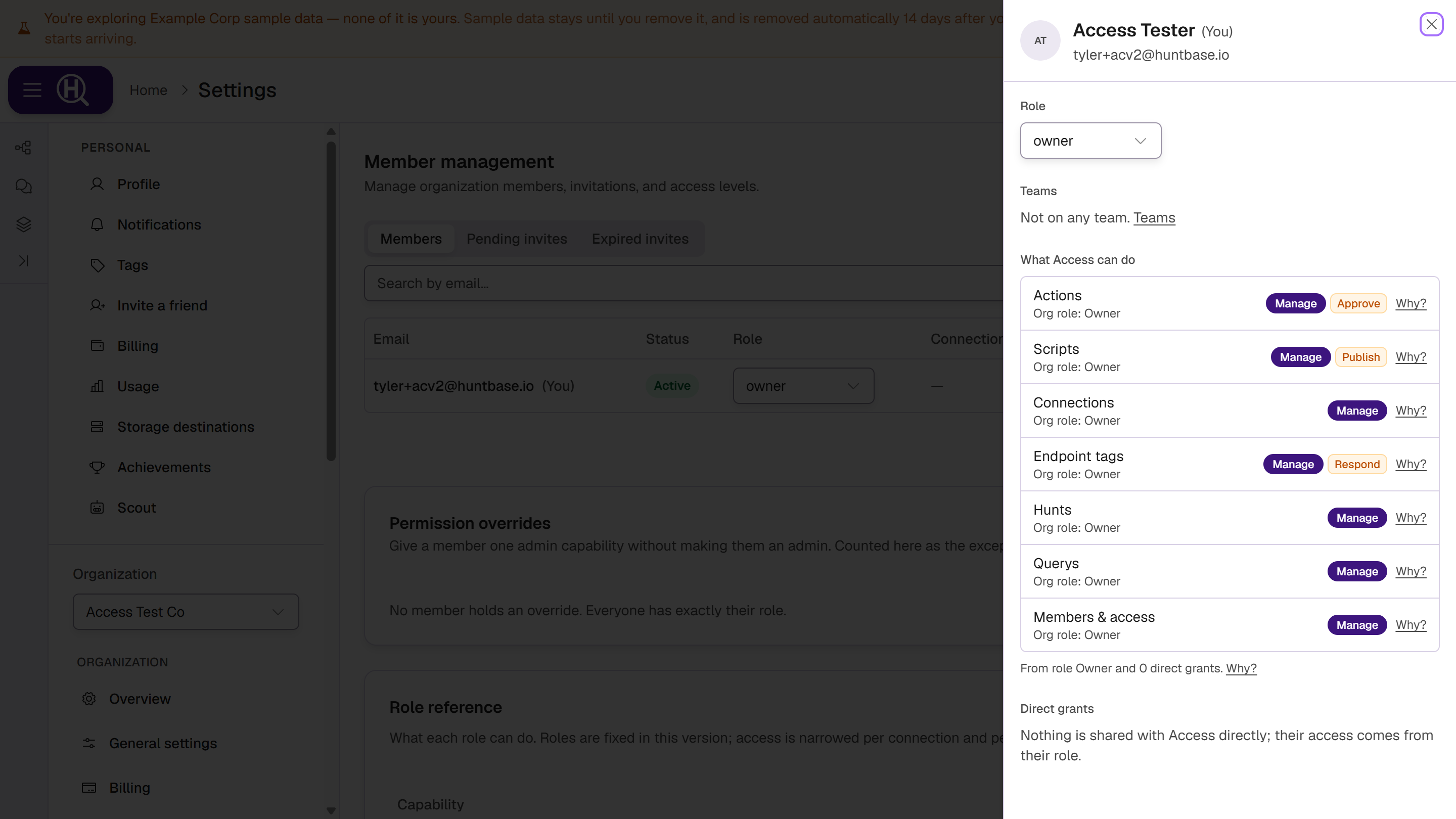
| Section | What it shows |
|---|---|
| Role | Their role, including templates and custom roles. If you can change roles, it's a menu you can change here. |
| Teams | The teams they're on, each a link to the team. Not on any team. if none. |
| What … can do (with their first name) | One row per capability: Actions, Scripts, Connections, Endpoint tags, Hunts, Queries, Telemetry, Detections, Intelligence, Members & access and Settings. Each row has their level and abilities and where they come from, for example Org role: Member (except restricted ones), Role Responder, Team SOC uplift or Team IR: 2 scripts, and a Why? link to Access check. |
| Summary line | From role Member, team IR and 2 direct grants. Why? |
| Direct grants | Every item shared with them by name, with the level and a Why? link. |
| Keys | Their personal API keys in this organization, with Expiring soon and Never used called out. Each opens the key. |
Rows on the summary describe what their role, teams and grants give on that kind of item in general. A single item can differ, for example when it is restricted; use Why? to check one item.
Who sees what
Everyone in the organization can open the sheet. Direct grants, and their count in the summary line, show only on your own sheet or if you manage members. Keys shows on your own sheet, and to admins and people who manage members. If you can't see a member's access, the sheet says You can't see this member's access.
Next steps
- Sharing — change what someone has
- Teams — see what a team holds
- Access log — see when access changed and who changed it