Schedules
A schedule runs a query template automatically — once at a set time, or on a recurring cadence — so recurring checks keep producing results without anyone pressing run. Schedules are created from a template in the Library and managed from the template's Schedules tab or the Schedules page.
Scheduling is currently rolling out and may not be enabled for your organization.
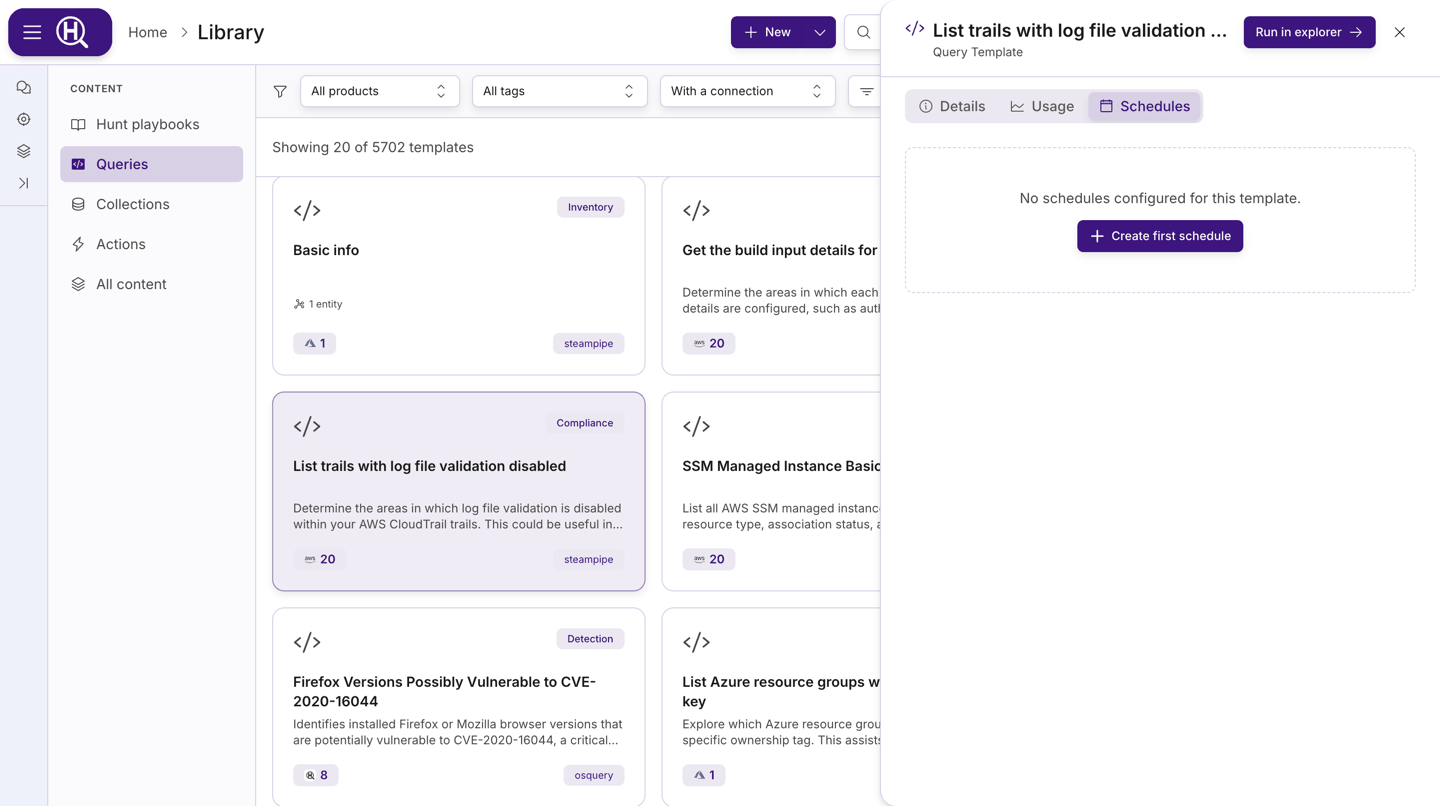
Create a schedule
- In the Library, open the Queries facet and click the template you want to run (see Query templates).
- Open the Schedules tab and click New schedule (or Create first schedule if the template has none yet).
- The Schedule Query wizard opens with the template preloaded. Work through its steps — Source, Configure (the connection to run against), When, Review — and click Create Schedule.
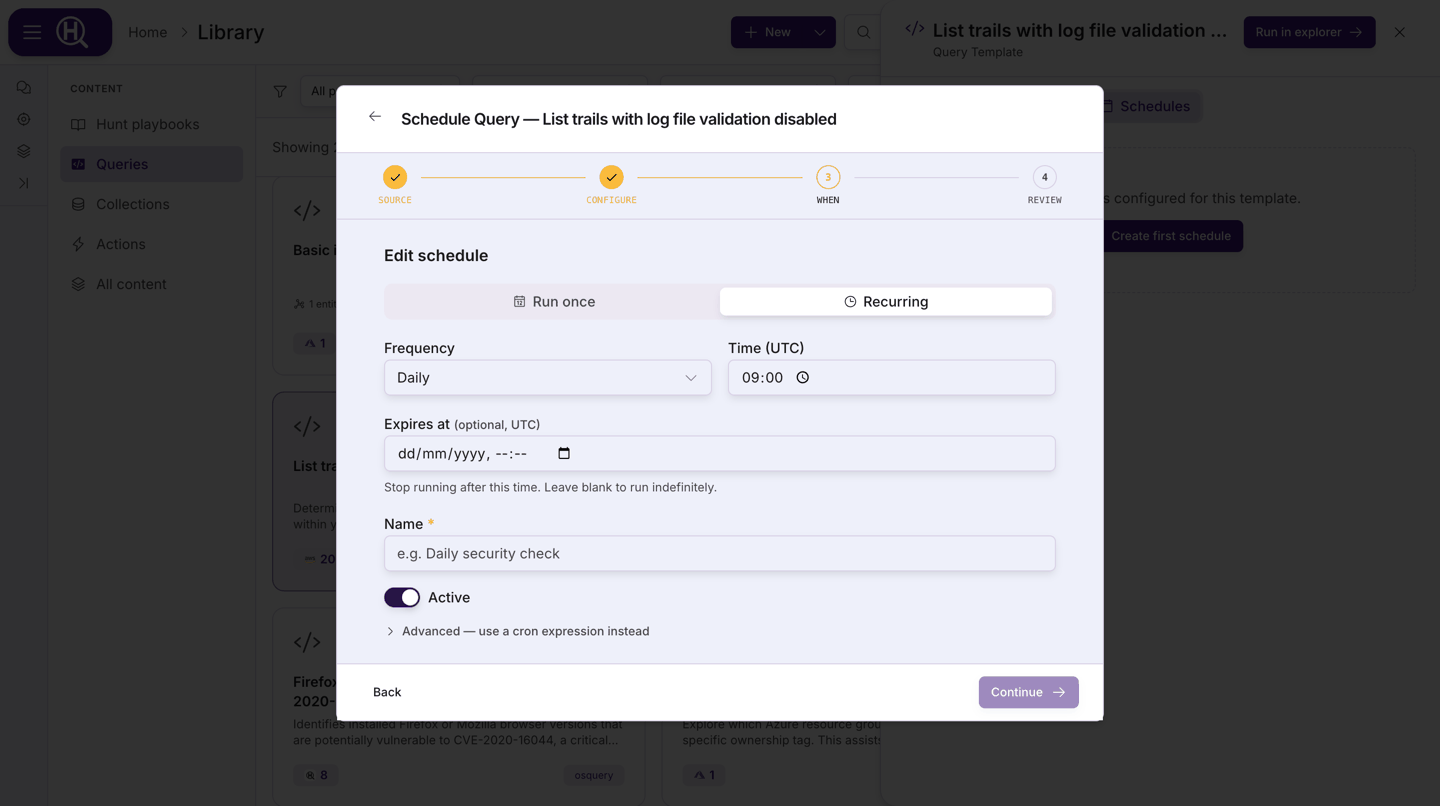
The When step is the schedule form:
| Field | What to set |
|---|---|
| Run once / Recurring | Choose whether this is a one-off run or a repeating schedule |
| Date & time (UTC) | Run once only. The moment to run; it must be in the future |
| Frequency | Recurring only. Hourly, Daily, Weekly, Monthly or Custom (cron) |
| Time (UTC) | Daily / Weekly / Monthly. The time of day to run |
| Expires at (optional, UTC) | Recurring only. Stop running after this time; leave blank to run indefinitely. Clear removes it |
| Name | A label for the schedule. Optional for one-off runs (auto-generated if blank) |
| Active | Whether the schedule is enabled as soon as it is created |
| Advanced — use a cron expression instead | Expands a cron editor that overrides the Run once / Recurring selection above |
| Parameters | If the template has parameters, their fields appear below the schedule settings |
All times are UTC.
Custom cron
Expand Advanced — use a cron expression instead to type a standard 5-field expression (minute, hour, day of month, month, day of week). The editor checks the shape as you type and points at the first field that is invalid — for example, "Expected 5 fields (got 4)". Examples shown inline:
| Expression | Meaning |
|---|---|
*/15 * * * * | Every 15 minutes |
0 */6 * * * | Every 6 hours |
0 9 * * 1-5 | 09:00 UTC on weekdays |
If a cron expression is present when you submit, it replaces the frequency selection.
Manage schedules from a template
The template's Schedules tab lists every schedule attached to it. Each row shows the schedule name, an Enabled / Disabled badge, Last: run time and status (or Never run), and Next: run time.
| Control | What it does |
|---|---|
| Toggle switch | Enable or disable the schedule without deleting it |
| ⋯ › Run now | Trigger a run immediately, outside the schedule |
| ⋯ › Delete | Remove the schedule (asks you to confirm) |
| Click the row | Open the schedule detail page |
Schedule a query from Explorer
You can also schedule a query you've already run. In the query workspace, open the query's details panel, go to its Schedules tab and click Schedule this query, then pick a cadence (for example Hourly or Daily at 9:00), Run at… for a one-off time, or Custom cron…. An osquery query that targets specific endpoints keeps that targeting: the tab says Runs only on the N endpoints this query targets. The new schedule appears in the tab with its cadence and next run, and Run now starts a run straight away.
Scheduled runs appear in the query's Runs tab with a Scheduled badge. An osquery run waits a short while for endpoints that answer late; once every targeted endpoint has answered, its card reads Completed and Collecting late results until the end of that window.
The Schedules page
The Schedules page (/schedules) lists every schedule across the templates you can see. Search with Search schedules... and filter the columns:
| Column | Shows / filters |
|---|---|
| Schedule | Name, with the query it runs beneath |
| Cadence | How often it runs, in words (for example hourly or daily at 04:45 BST). Hover to see the cron expression in UTC |
| Next Run | When it will fire next, in your local time with the time zone named |
| Last Status | Success / Failed — filterable |
| Enabled | Toggle switch — filterable by Enabled / Disabled |
| ⋯ | Run now, Edit and Delete |
| Owner | Who owns the schedule |
Click a row to open the schedule detail page.
Schedule detail
The detail page is read-only. It shows the Enabled switch, Name, Query (click to open the query in Explorer), Scope (All Organizations or the organizations selected), Schedule (Cron) and Next Run. The header offers Run Now and Delete.
To change when a schedule runs, use ⋯ › Edit on the Schedules page. Edit changes the timing only. To change the connection, parameters or name, delete the schedule and create a new one.
When a schedule stops itself
A schedule turns itself off, and says why, when:
- its Expires at time has passed (expired), or
- its cron expression can no longer produce a next run (invalid cron).
To start it again, fix the cause in the same change: set a later expiry (or clear it), or correct the cron. Turning it back on while it's still expired or the cron is still unusable is refused with a message that says which. Re-enabling works out the next run from now, so a paused schedule doesn't fire straight away for runs it missed.
Who can change a schedule
You can always change schedules you created. Changing, pausing or deleting a schedule that belongs to your organization needs the role that can create that kind of automation there. Being a member isn't enough.
Where scheduled runs show up
- Activity Feed › Queries lists every run, and runs started by a schedule carry a Scheduled reason chip so you can tell them apart from manual, hunt or Scout runs. See Activity Feed.
- The template's Usage tab counts the runs and lists the most recent ones; click one to open its results in Explorer.
- The Schedules tab and Schedules page show the last run's status and the next run time.
Schedules vs. watchers
A schedule runs a query on a clock; a watcher reacts to what arrives — matching a pattern in incoming data to notify, tag or launch a hunt. Use schedules for periodic checks and watchers for event-driven responses. See Watchers.
Next steps
- Query templates — pick or create the template to schedule
- Activity Feed — review scheduled runs and their results
- Watchers — event-driven automation
- Query workspace — open a scheduled run's results